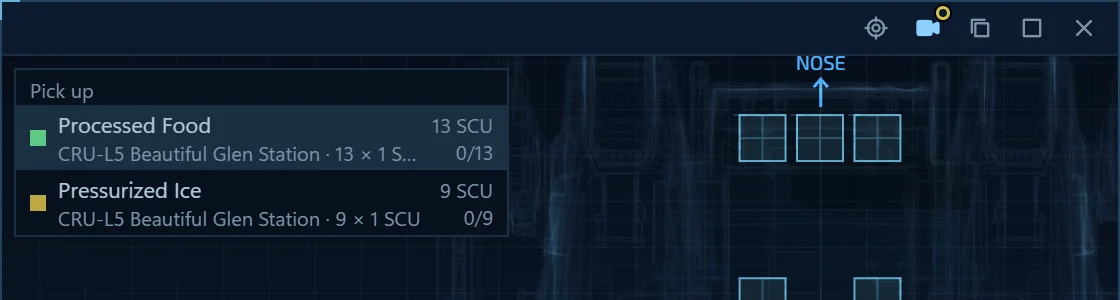
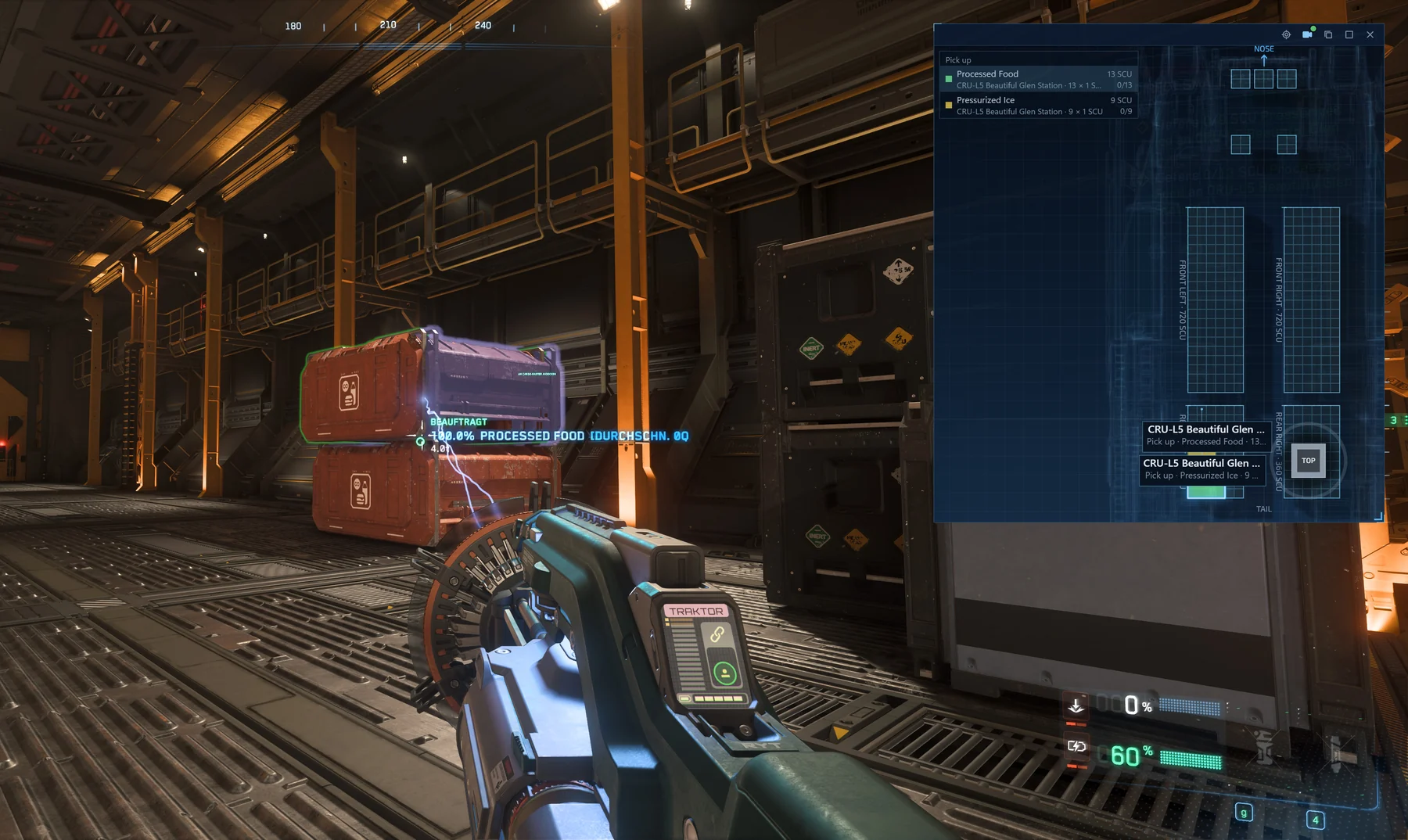
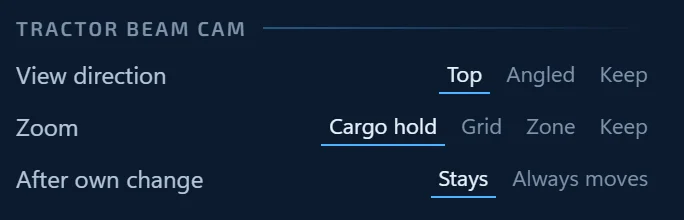
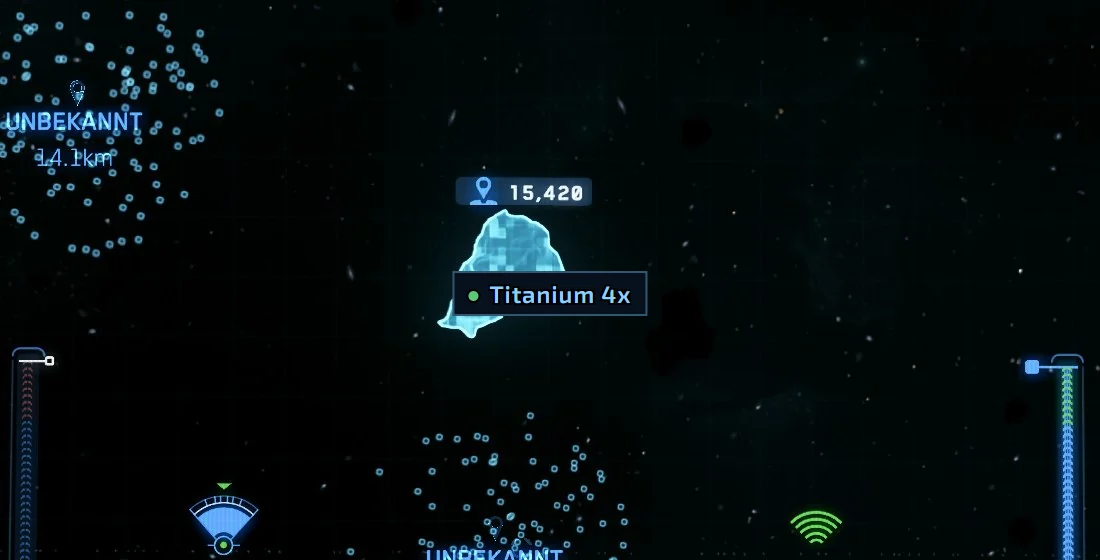
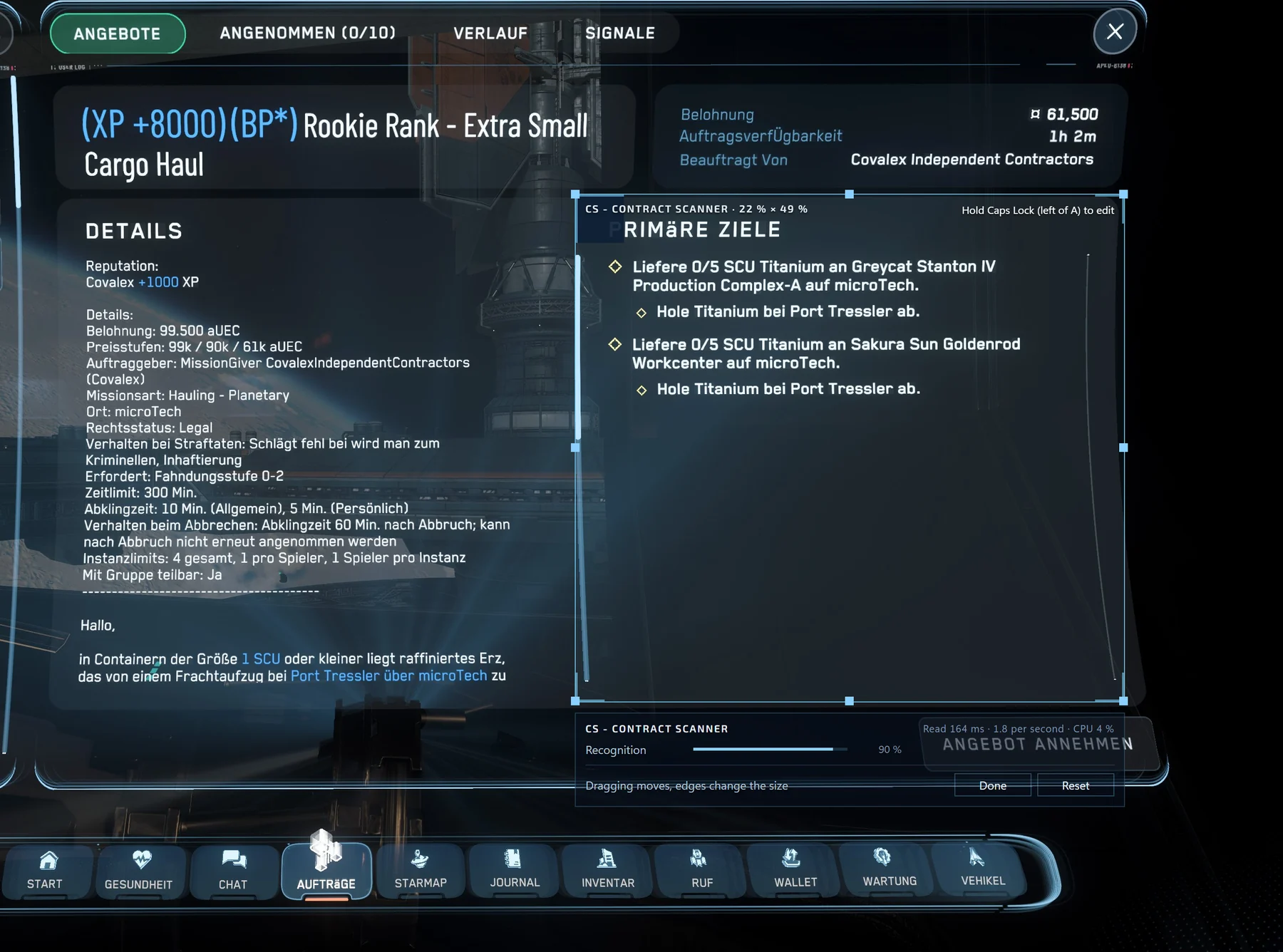
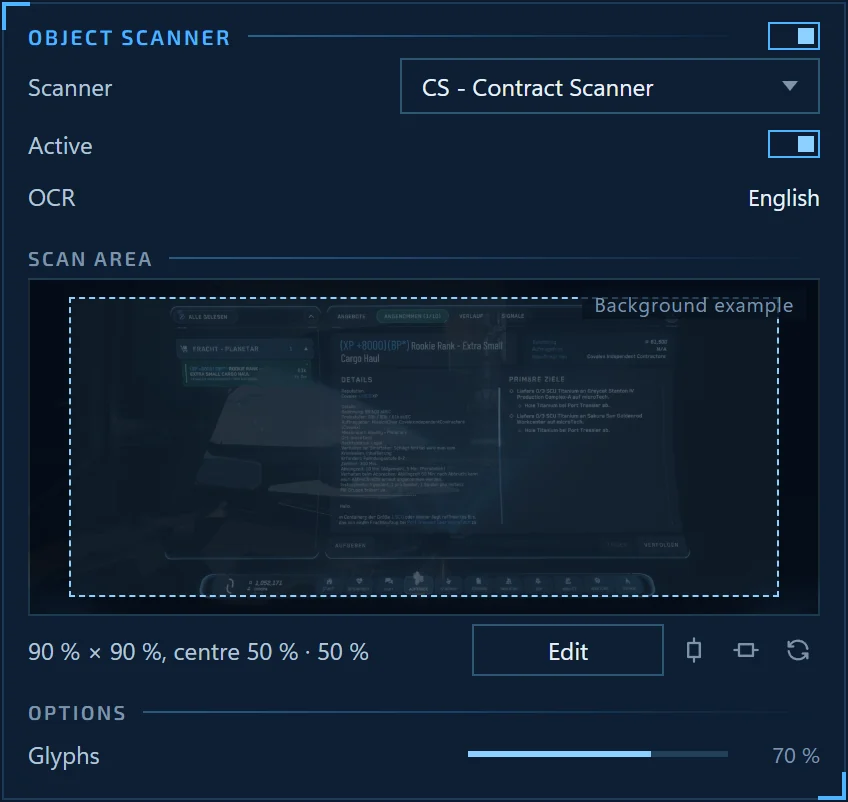
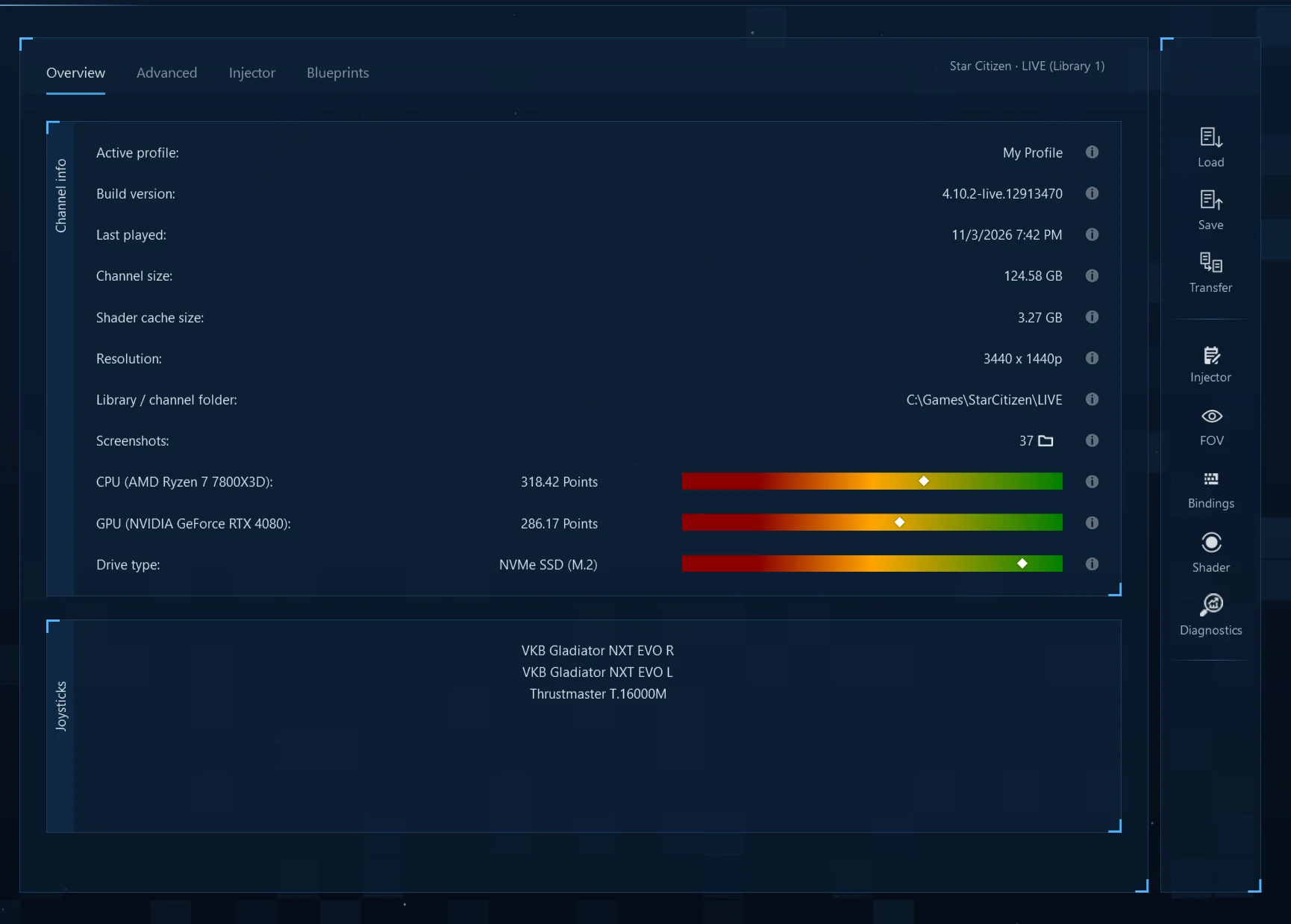
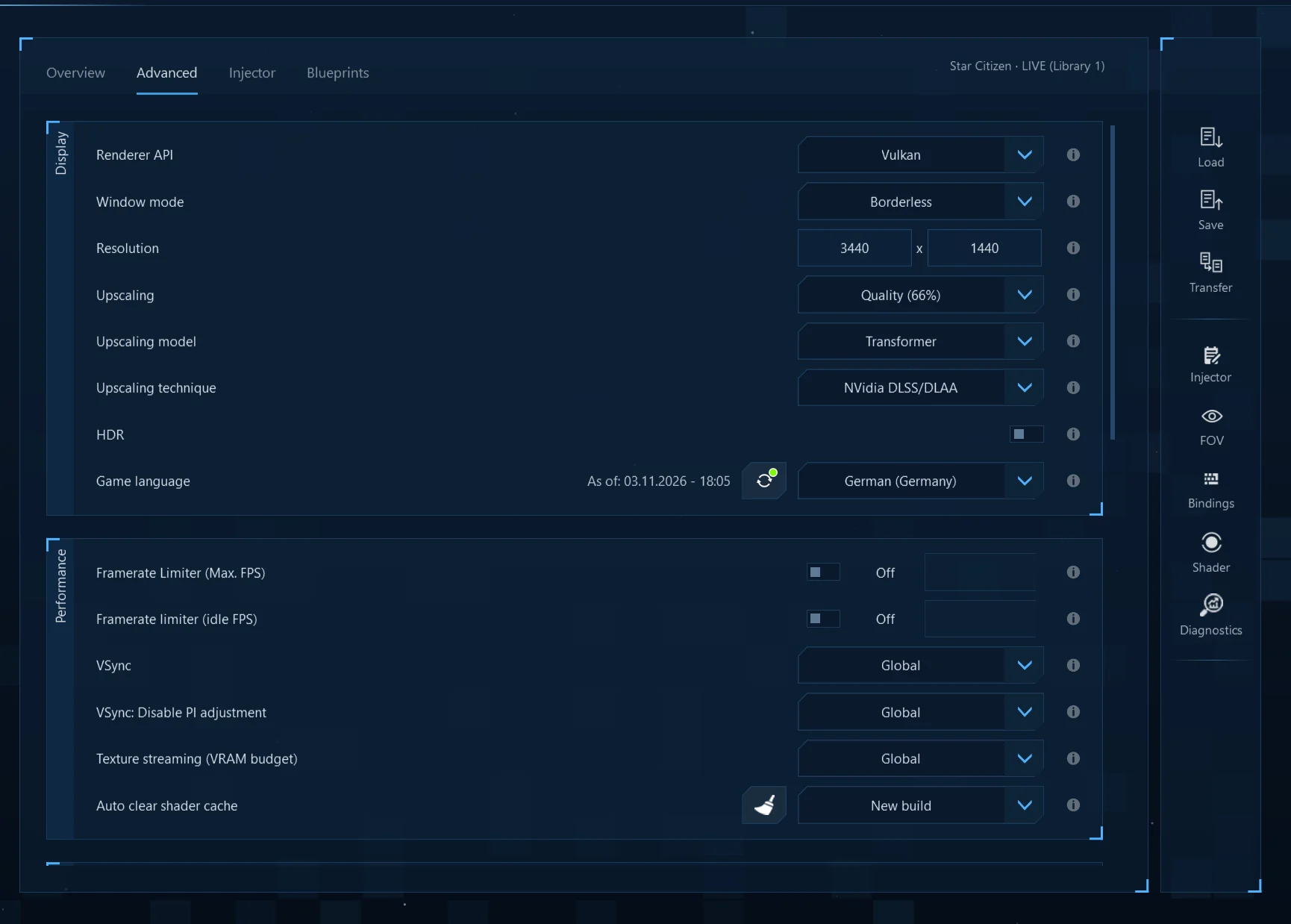
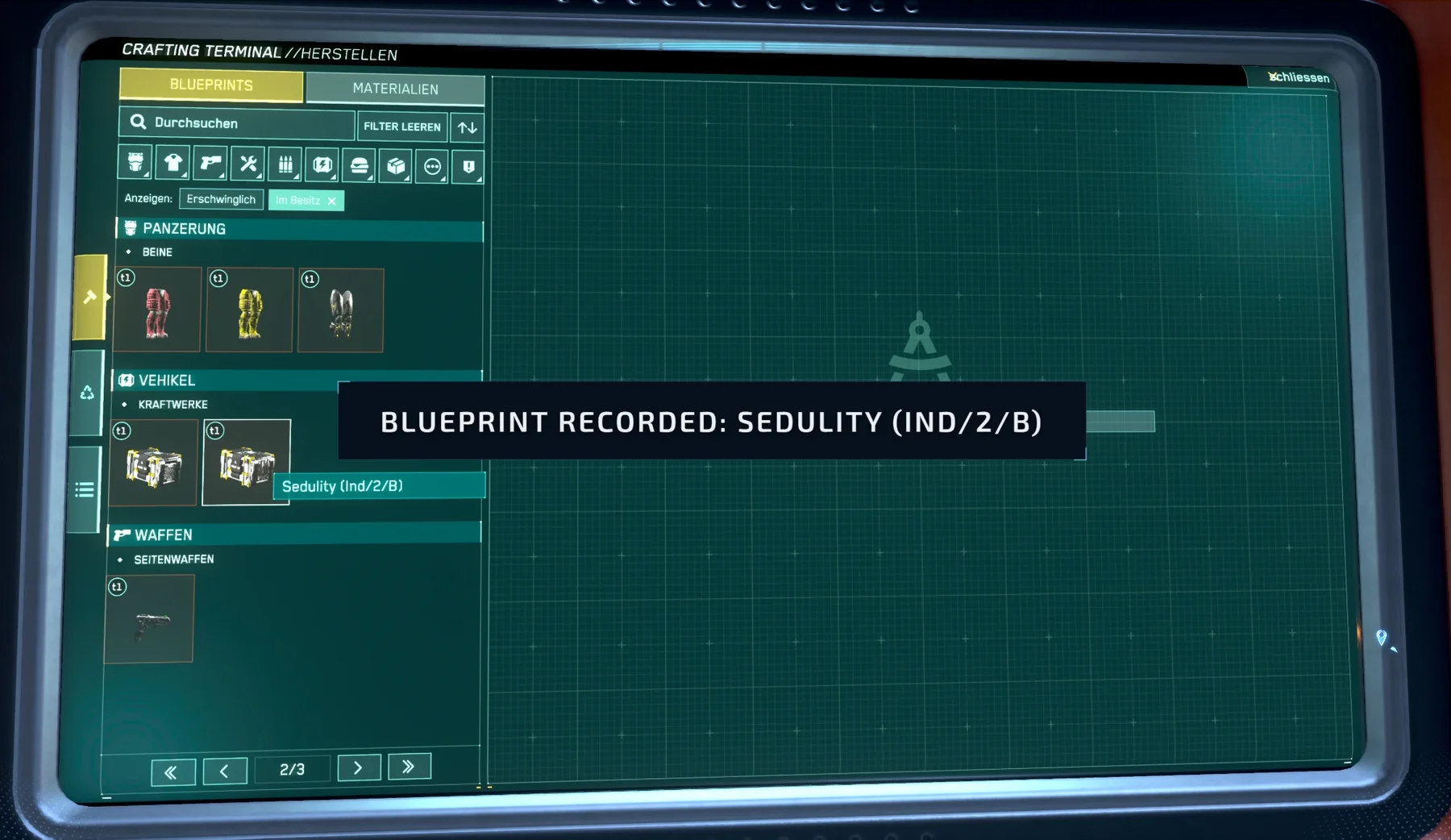
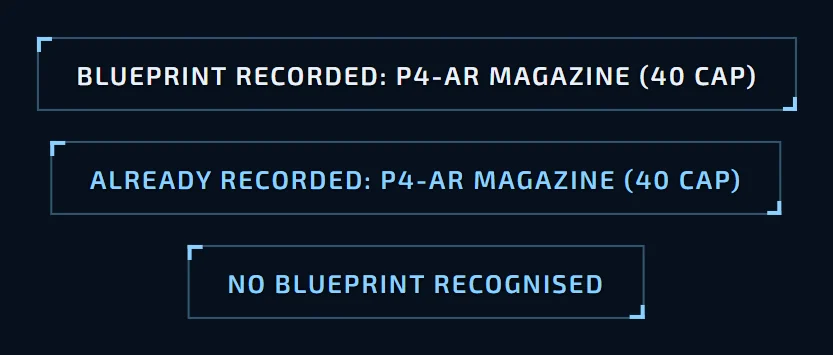
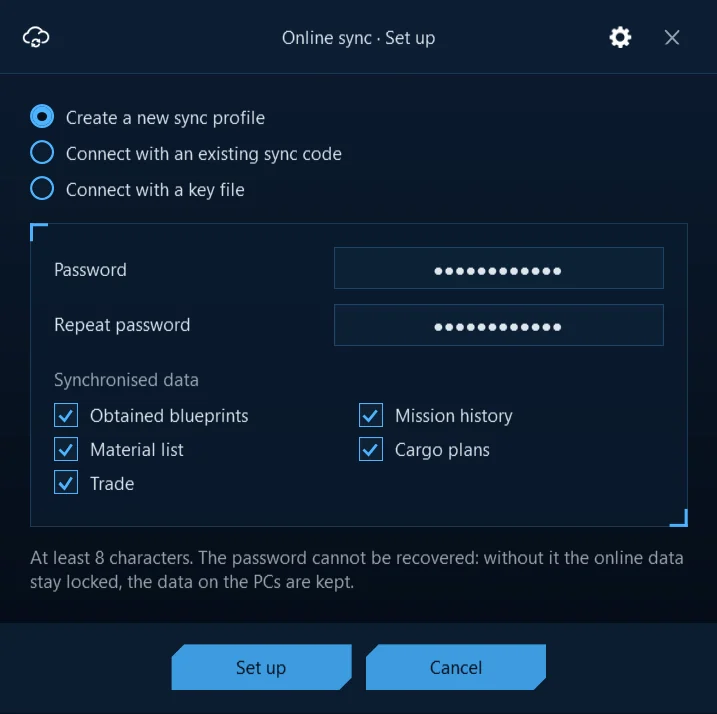
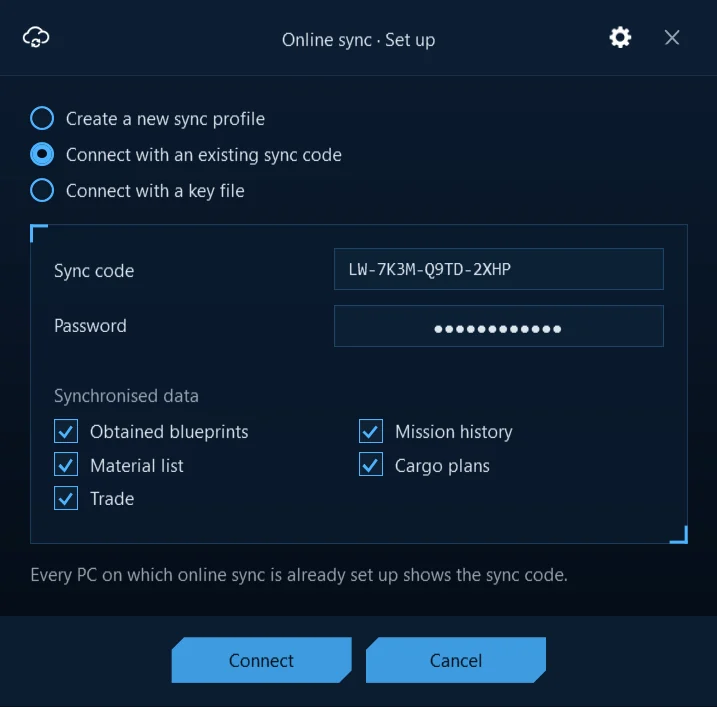
The SC Launch Configurator (SCLC) is a companion program for Star Citizen. It manages channels and game settings, protects joystick bindings, keeps translations up to date and shows in-game flyouts for Items, Crafting, Hauling, Mining and Salvaging.
Install
The program is available on the download page. After installation, setup starts on first launch.
Setup on first start
Setup runs through four windows. "Back" keeps all entries. Nothing is saved until "Finish".
Language: Choose the program language. The interface changes immediately. It can be changed later in the settings.
Shader Management: SCLC keeps the shader cache separate per channel and clears only the affected channel's cache after a game update. Other programs should therefore no longer delete shaders. The checkbox confirms this notice and unlocks "Continue".
Installation folder: The RSI Launcher is located automatically and must be marked as "Valid". Star Citizen installations appear as libraries. Add more with "Add". The folder is named "StarCitizen" and contains subfolders such as LIVE or PTU. A library is not mandatory: channels are also detected at start via the RSI Launcher.
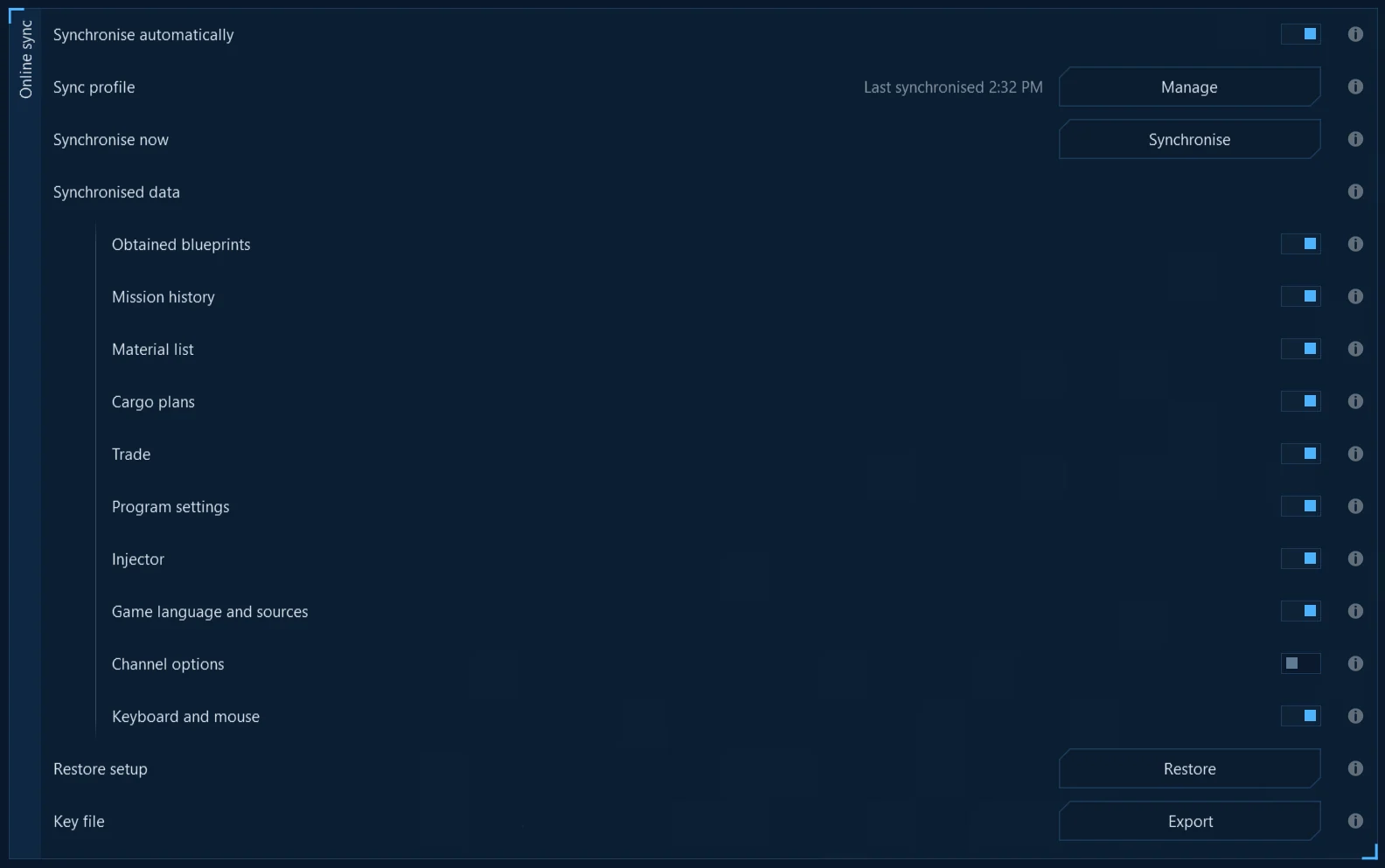
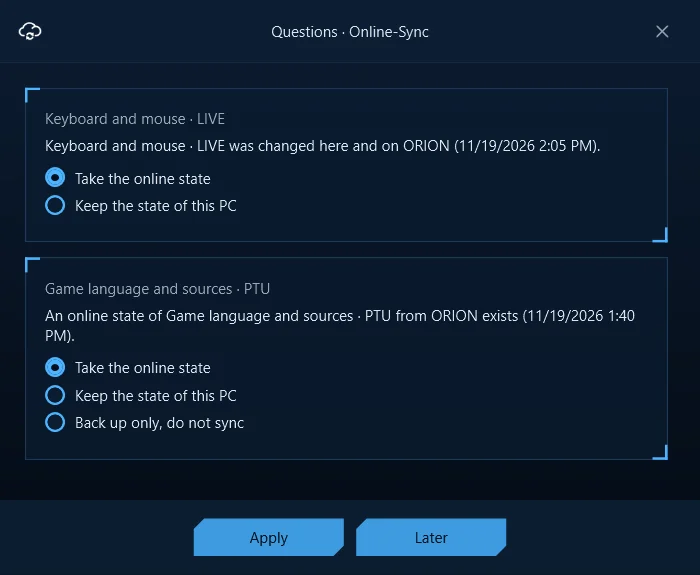
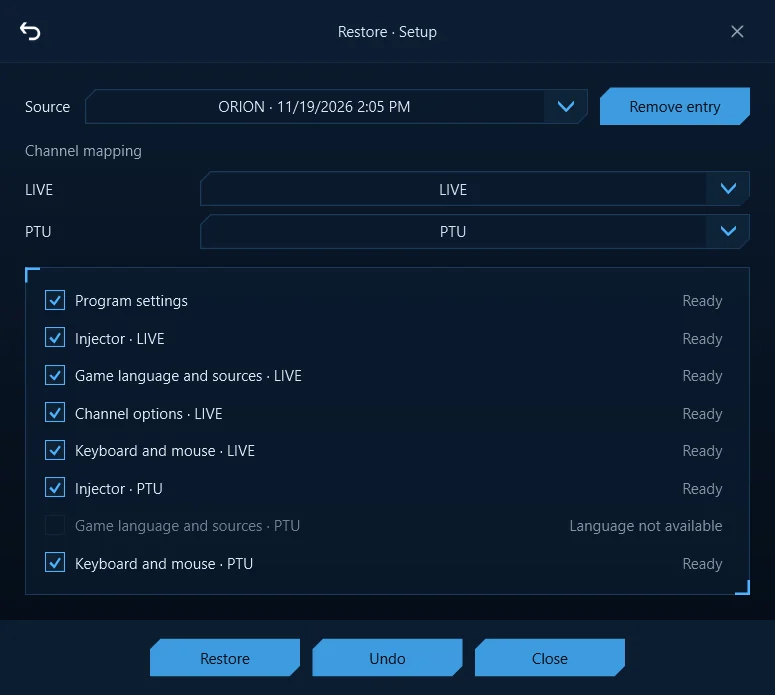
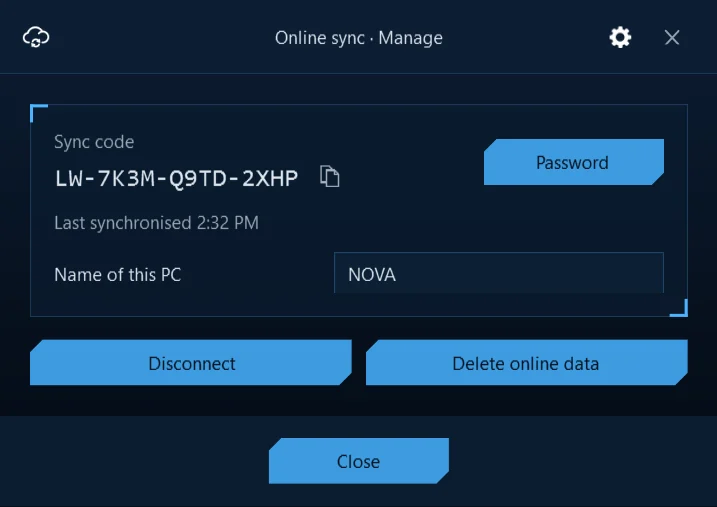
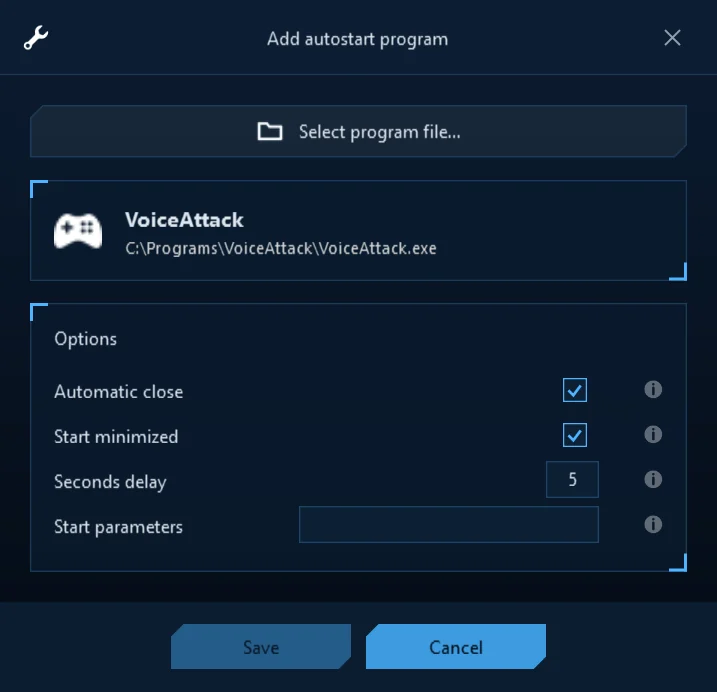
Settings: Set the basic switches, for example Game Overlays, Binding Guard, "Install updates automatically" and "Start with Windows". All of them can be changed later in the settings. With "Online sync" switched on, the setup of online sync opens after "Finish".
Step 1: Program languageStep 2: Shader Management noticeStep 3: RSI Launcher and Star Citizen libraryStep 4: Basic settings
Start with Windows is recommended. Shader Management, translation updates and profile backups only work if SCLC is running before Star Citizen starts.
After "Finish", SCLC clears the entire shader cache once so that each channel starts with its own folder. The first game start therefore rebuilds the shaders. If setup is cancelled, it starts again on the next launch.
If joysticks are connected on first launch, the Joystick HUB opens afterwards. The chapter Binding Guard and Joystick HUB explains the next steps.
Updates
Notice about a new version
At start, SCLC checks whether a new version is available and then compares the current and the new version. "Update now" closes the program and starts the update, "Later" closes the notice. Until the update, the update icon stays visible in the title bar, a click on it opens the window again. The tray menu then also offers "Update available".
If Star Citizen or the RSI Launcher is running, the update waits until both are closed and shows this. Before every update SCLC backs up its settings and data, on the first start afterwards it checks them and restores the backed up state if needed.
Install updates automatically: With this switch in the setup or in the settings under Version, no notice appears anymore. SCLC installs a new version on start or while it is not in use, for example in the tray, and then starts again the way it was running before. If Star Citizen or the RSI Launcher is running, it waits until both are closed.
The main window consists of the title bar, the left bar with the channels and the content area.
Home page with channel tiles
Title bar
Logo
Back to the home page.
Streamer Mode active
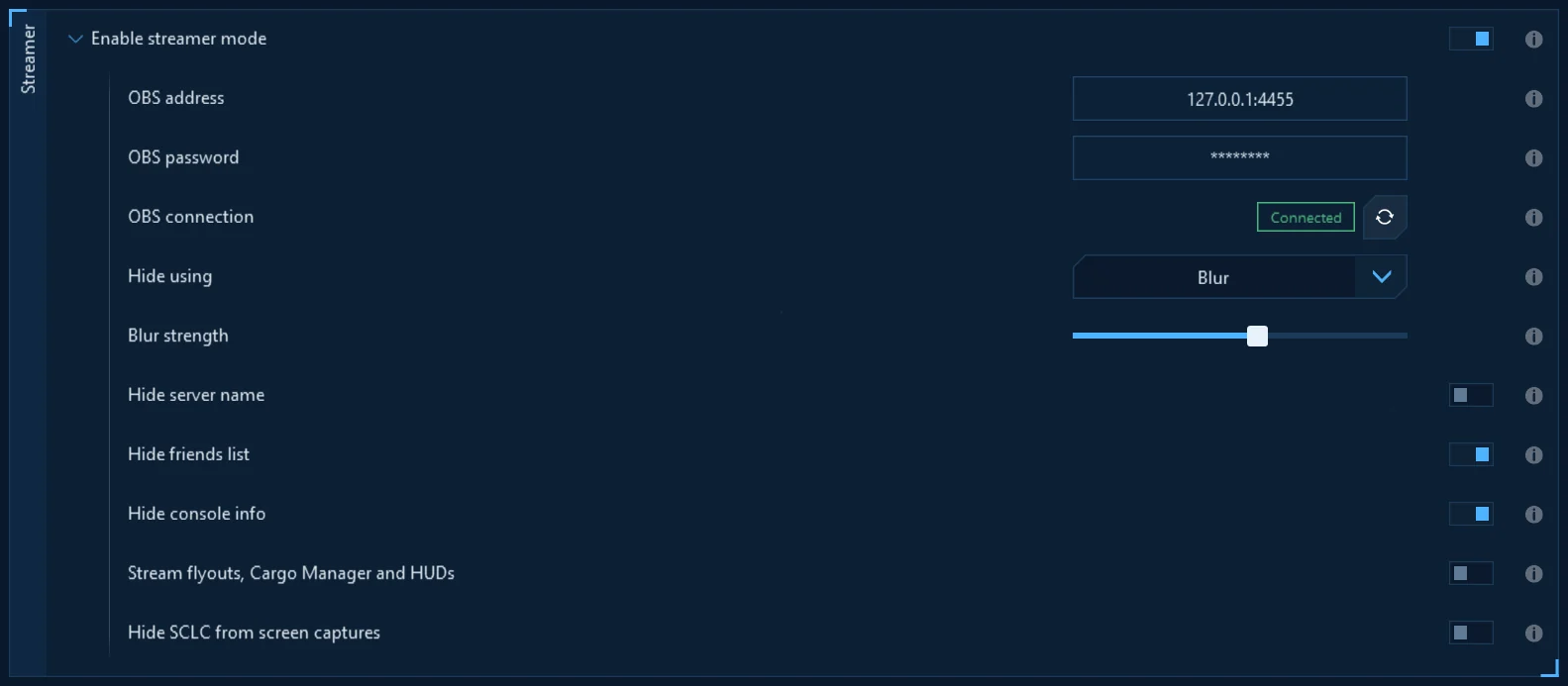
Shown at the top center while Streamer Mode is on: orange until the connection to OBS is up, then green. A click opens the settings at the Streamer Mode section.
Update icon
Only visible when a new version is available.
Cloud
Shows online sync: a green dot while it synchronises automatically, orange on a problem such as a needed password. Crossed out and slightly greyed, it is off. A click opens the setup or the management, hovering shows the last synchronisation.
Exits the program. With "Minimize to system tray icon" it keeps running in the tray instead.
Left bar
SC Database: Below the Play button. Opens the database on the website with blueprints, items, missions, ships, locations and star map. If the PTU channel is selected, the PTU data appears.
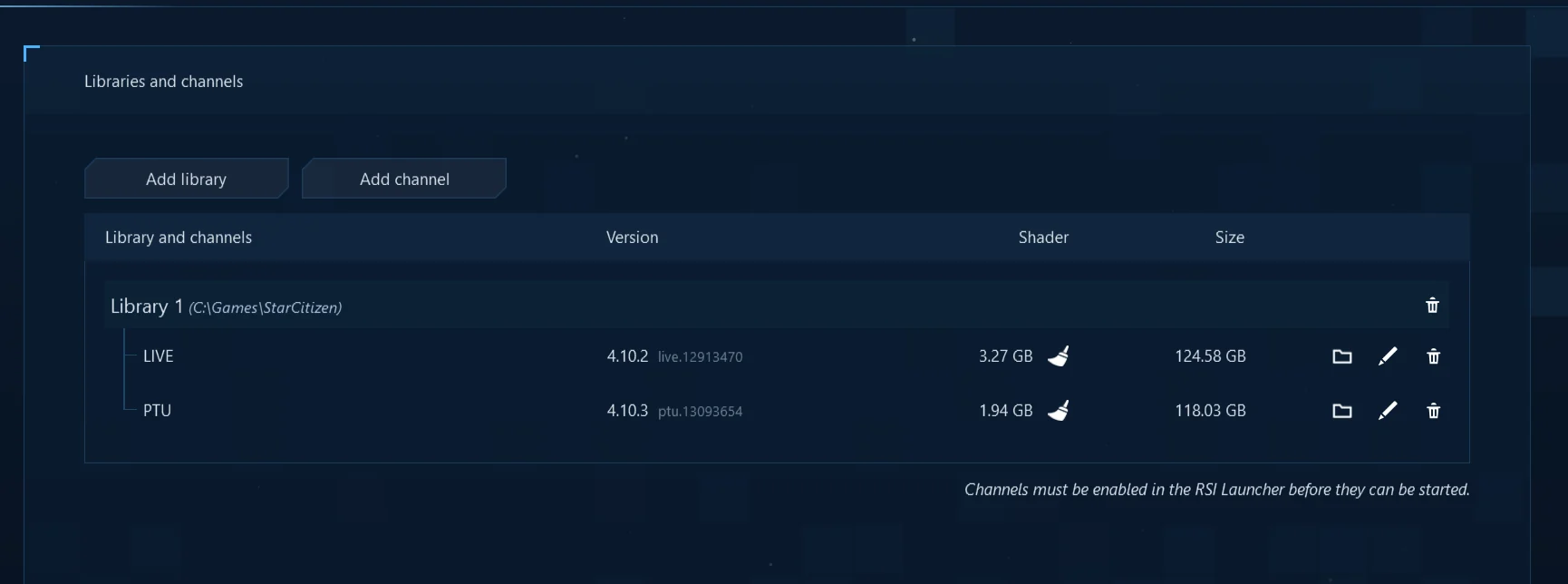
Channels: Click a channel to open it. The plus creates a new channel. The icon next to it opens "Libraries and channels". The channel in which Star Citizen is currently running shows "running".
Play: Starts the configured external programs and the RSI Launcher. While Star Citizen or the RSI Launcher is open, it shows "Running". Another click brings the RSI Launcher to the front, external programs that are still running are not started again.
Bottom: Discord, Info with version list and donation option, program version.
Home page
Each channel has a tile. "Last played" marks the most recently used channel, "Restricted" marks missing write permissions: a click then asks for access again. While Star Citizen is running, the tile of the running channel shows "Running". The last tile creates a new channel. Without channels, the home page offers "Add library".
Info
Info with version, links and support
The Info button at the bottom of the left bar shows the version, copyright and the translators of the interface, plus links to Discord, website, frequently asked questions and the version list. Below are the notice on third-party content and two ways to support the project: the button with the referral code opens the RSI sign-up with this code, "Donate" opens the donation page.
Tray menu
Left-click the tray icon to bring the window back. Right-click opens the menu with "Start game", "Open RSI Launcher", turning Game Overlays on and off, Discord and "Quit". If there is a problem with the joysticks, the icon changes to a warning.
During the game
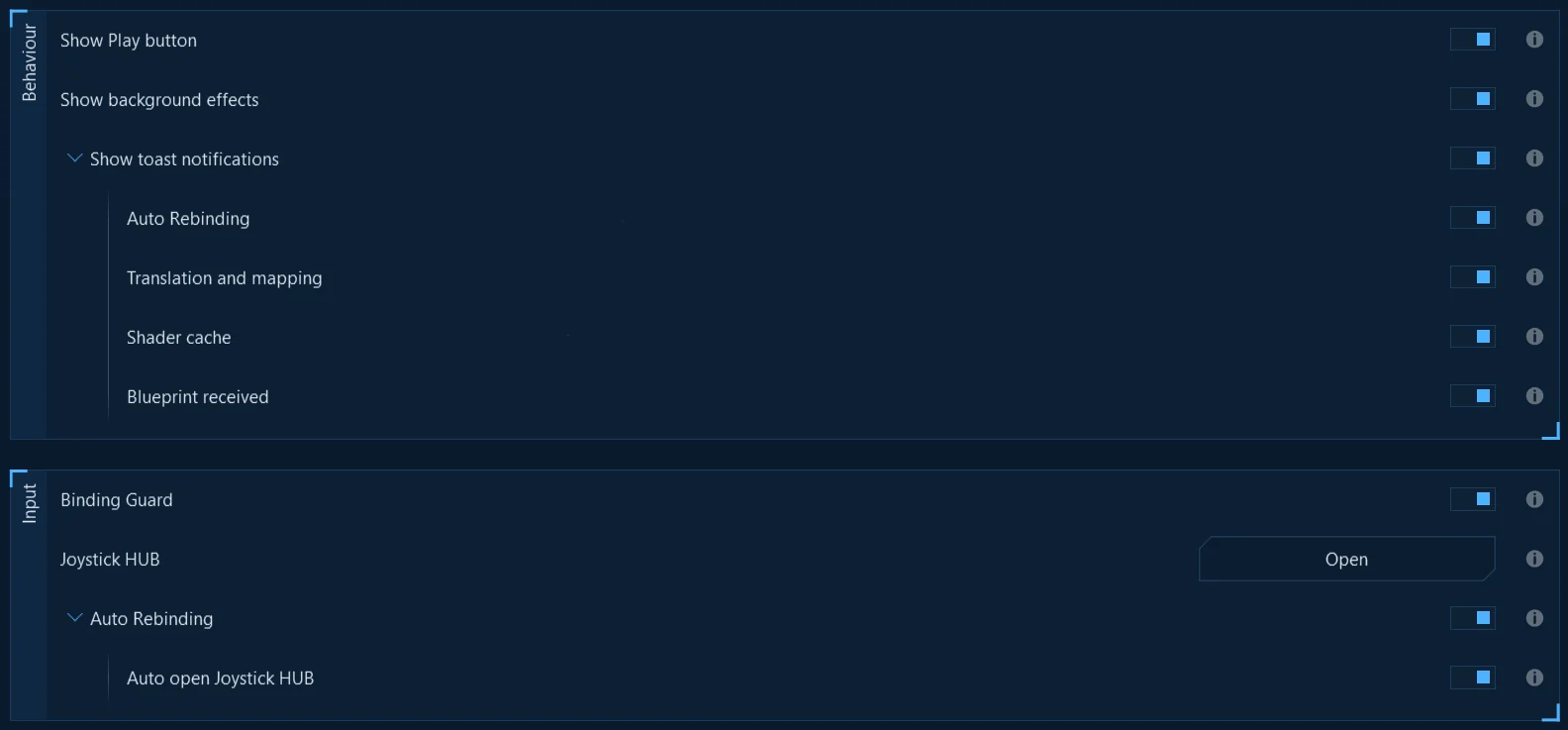
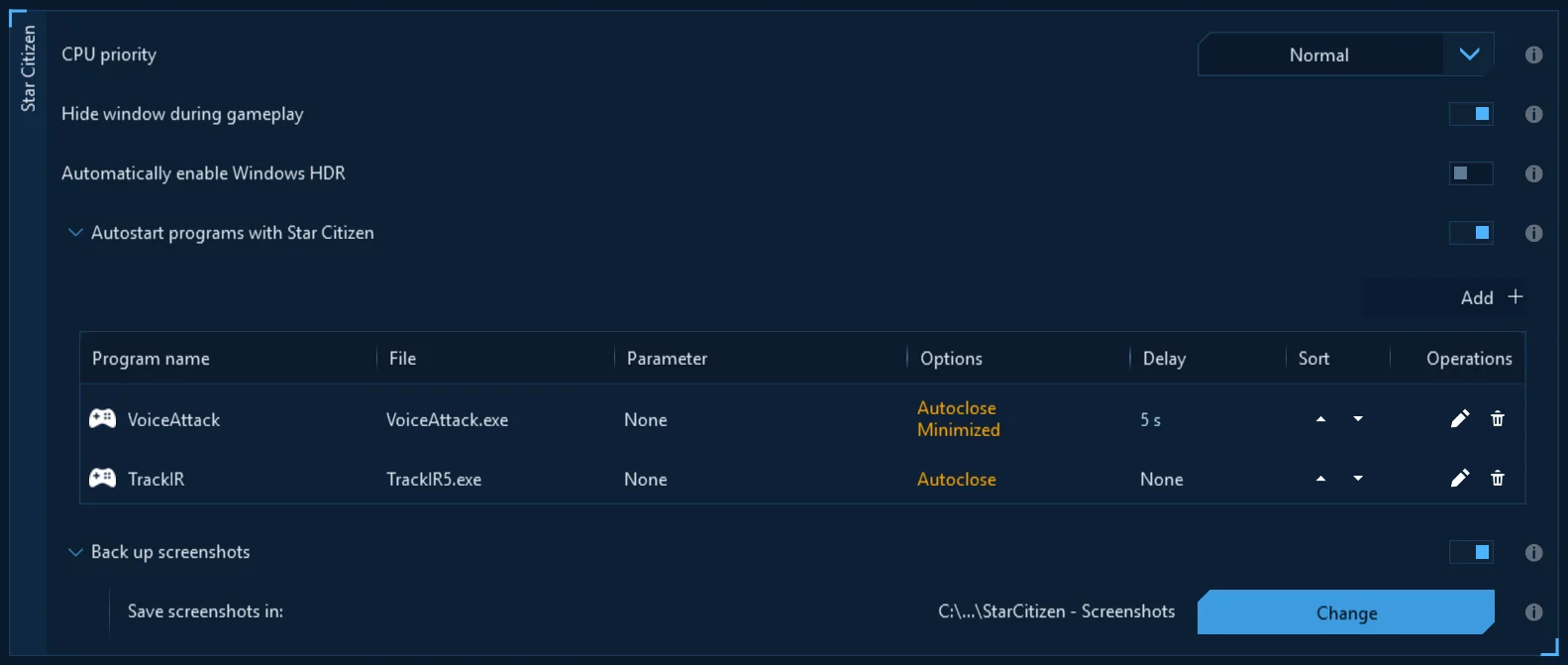
With "Hide window during gameplay", the main window disappears while Star Citizen is running and returns when the game ends. Toast notifications report events such as corrected bindings or obtained blueprints. They can be turned off individually in the settings.
Flyouts are panels at the edge of the game window. In game they show what would otherwise need a switch to the desktop: items and shops, required material, cargo routes, mining locations and salvage sites. The game keeps running unchanged.
The five flyouts: Items, Crafting, Hauling, Mining and Salvaging
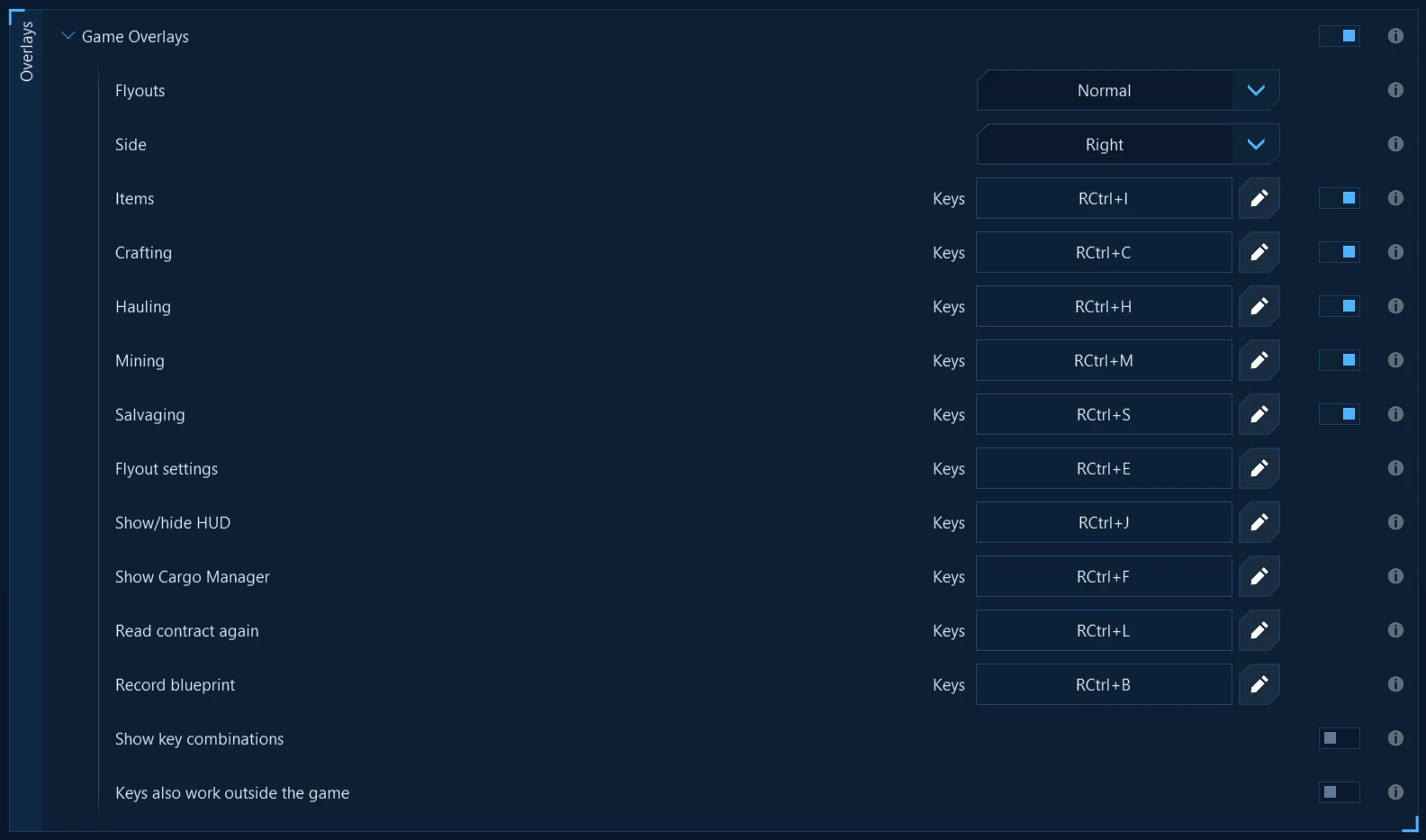
RCtrl is the right Ctrl key. All key combinations can be changed, see Controls.
When flyouts appear
All of these conditions must be met at the same time:
The "Game Overlays" switch is on in the settings or in the tray menu.
Star Citizen is running and has reached the main menu.
The game window is not minimized.
Flyouts and HUDs are attached to the game window. While the window is dragged with the mouse they are hidden and reappear on release. If the game moves to the background, they stay visible, and whatever lies in front of the game also lies in front of them. Key combinations and joystick buttons work while the game or a flyout is in front. With "Keys also work outside the game" they also work when another program is in front. Only a Cargo Manager moved to another monitor stays independent of the game window.
First steps
Press RCtrl+I in game. The Items flyout opens and input is in the search field.
Type a term and click a result.
Press Esc. Control returns to the game, the flyout stays open and readable.
A short press of RCtrl+I brings input back, holding it closes the flyout.
Open, take the input, close, holding always closes. With the minimap visible, the mouse switches between game and minimap.
RCtrl+L
Read contract again
Reads the contract open in the mobiGlas once more, see Hauling.
RCtrl+B
Record blueprint
Adds the blueprint under the mouse pointer at the crafting terminal, see Add missing blueprints.
Hold Caps Lock
Editing
Move and scale HUDs, the Cargo Manager and scan areas while the game keeps the focus. Caps Lock sits left of A, a short tap only toggles caps.
Alt or Shift while dragging
Scan area
Alt mirrors around the centre, Shift on a corner keeps the aspect ratio, see Setting up the scan area.
Esc
Open flyout
Input moves to the game.
The shortcuts inside the Cargo Manager itself, such as undo and copy, are listed under Cargo Manager: Controls.
Opening, closing and focus
Input
State
Effect
Short key press
Flyout closed
Opens, input is in the flyout.
Short key press
Open, game has input
Input moves to the flyout.
Short key press
Open, flyout has input
Input moves to the game, the flyout stays open.
Hold key for 0.5 seconds
Open
Closes while still holding.
Hold key for 0.5 seconds
Flyout closed
Nothing.
Esc
Open
Input moves to the game.
Enter in the search field
Items and Crafting
Input moves to the game.
Click next to the panel
Open
Input moves to the game.
"Close" or a click on the label at the edge
Open
Closes, input returns.
Left: the flyout has the input, the search field is highlighted. Right: the game has the input.
Search field on opening: The old search text is selected and replaced when typing.
Clicks without input: If the game has input, clicks do not reach the open panel. To use it, first briefly press the key of the flyout.
Closed: The mouse passes through the label into the game. A closed flyout only opens by key, joystick button or a jump from another flyout.
Mouse pointer: With input in the flyout, the game releases the mouse pointer.
Closing: Search and view are kept. They are lost when the game ends or when a flyout is switched off.
Changing a key combination
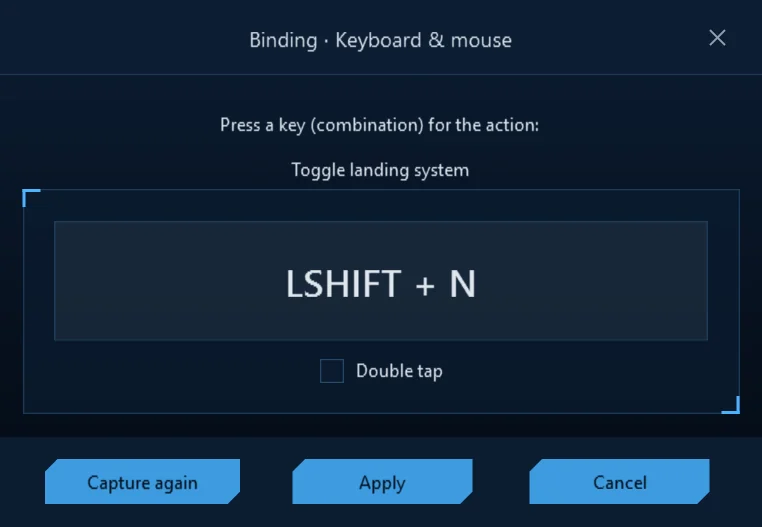
The pencil next to the combination opens the capture window, in the main window and in the flyout settings. Press a combination or joystick button and "Apply". "Free in game" suggests up to four free combinations. "Remove" clears the binding, Esc closes without saving.
Setting a key combination
Display in the capture window
Meaning
Red: Already used for a flyout
"Apply" is locked, each combination belongs to one function.
Orange: Used in game
Allowed. While flyouts are visible, this combination does not reach the game.
Orange: Also used in game
Allowed. The game still receives the key press.
Allowed are F1 to F12 alone or a key with Ctrl, Alt or Shift. With a fixed side such as RCtrl, the game also receives the key press and the other Ctrl key stays free. Without a fixed side, SCLC captures the combination while flyouts are visible.
Joystick
Each function can also use a joystick button or hat direction, axes are not possible. Nothing is assigned by default. The button behaves like the key: a short press switches, holding for 0.5 seconds closes. It is only read while flyouts are visible.
Jumping between flyouts
Some entries lead into another flyout:
From
Trigger
Target
Crafting
"Show shops"
Items, searching for the material.
Crafting
"Search in Mining"
Mining, with the resource.
Crafting, material list
"Fly there"
Mining, with resource and location as target.
Items
Resource in "Required materials"
Mining, with the resource.
If Mining is switched off, the website opens instead. If Items is switched off, "Show shops" does nothing. "Back" goes through the history of the current flyout and not to the previous flyout, the key of that flyout leads there.
Size and monitor
Flyouts sit at the edge of the game window and follow it when it is moved or resized. The width follows the Windows scaling, the game resolution does not enlarge it. The height is a share of the window height. With the game in a window, they stay inside that window.
Common questions
Observation
Cause and remedy
No flyouts visible
Check the conditions on the Flyouts page. With "Hidden", nothing shows while closed, the key still works.
Key has no effect
Flyouts are not visible, another modifier key is pressed or the key was held too long.
Click in the panel has no effect
The game has input. Briefly press the key of the flyout.
All flyouts are on again after switching off
The main switch and the tray menu switch all five together, individual choices are lost.
The settings panel has no label of its own at the edge. It opens with RCtrl+E, a joystick button or the gear in every flyout. The gear switches over and returns to the previous flyout on closing. A click into the game closes the panel, except while a scan area is being edited. Changes apply immediately, the game can keep running. The question mark next to the gear opens the matching chapter of this guide in the browser.
Settings: appearance and HUD
Appearance
Setting
Effect
Default
Flyouts
"Normal" with a label at the edge, "Slim" as a thin bar, "Hidden" invisible. Hidden ones still open by key.
Normal
Side
Right or left edge of the game window.
Right
Show key combinations
Shows the combination on the label, without a combination the joystick button.
Off
Keys also work outside the game
Key combinations and joystick buttons also work when another program is in front. That program still receives the key press, so RCtrl+C also copies there. The game window comes to the front as well, because flyouts only lie above the game.
Off
Design
Standard or the colors of a manufacturer. Also applies to HUDs and Cargo Manager.
Standard (SCLC)
Panel height
Share of the window height, 40 to 100 %. Applies when releasing the slider.
75 %
Panel opacity
Background of the panel, 30 to 100 %.
97 %
Font size
80 to 150 %. Only text changes, icons and spacing stay. Also applies in the Cargo Manager.
100 %
Shown flyouts
Switches individual flyouts on and off. Here at least one stays on.
All on
HUD
The "HUD" box switches the HUDs on one by one: route guidance, star map, mining target and clock. It also holds "Hidden at start" and "Reset HUD positions". While the panel is open or Caps Lock is held, all visible HUDs can be moved and scaled. The open panel does not put the Cargo Manager into this mode, it is moved and scaled in its planning mode. Each HUD sets its appearance with its own gear, see HUDs.
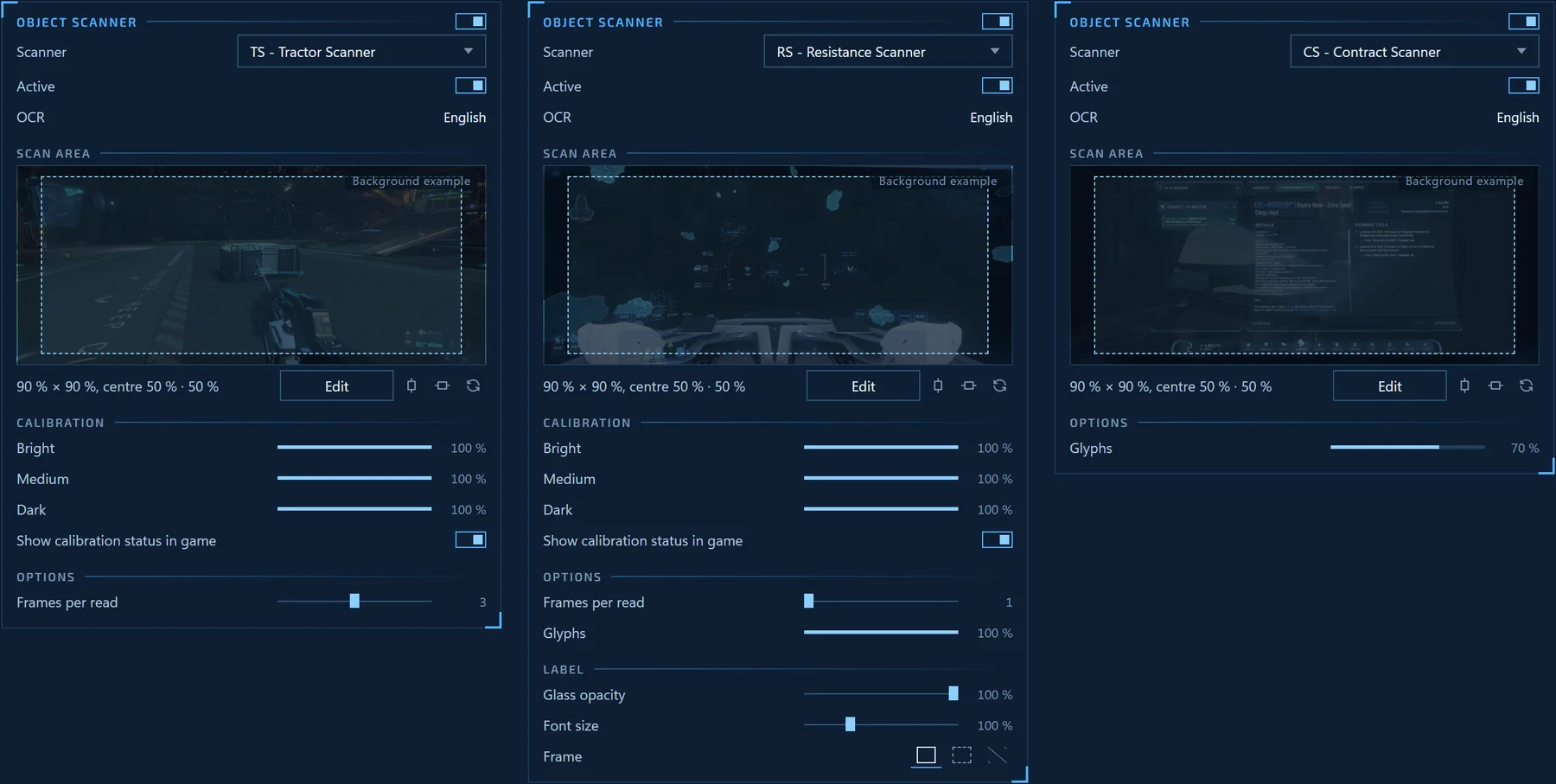
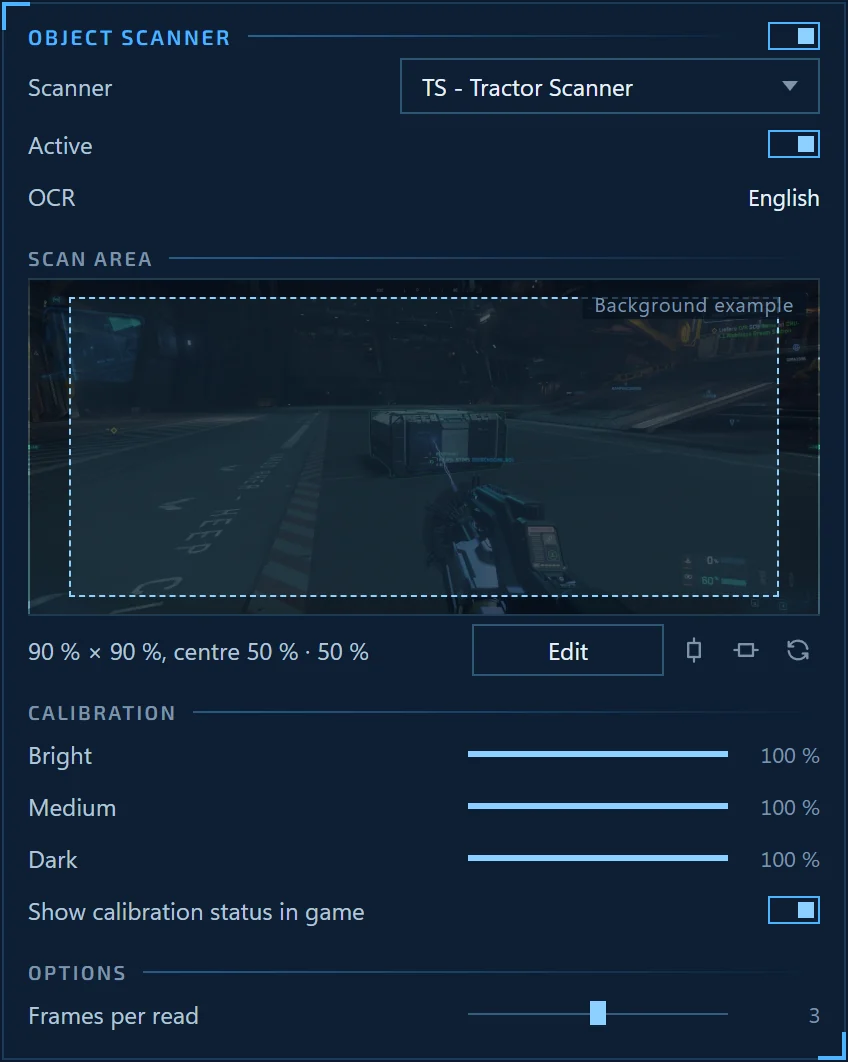
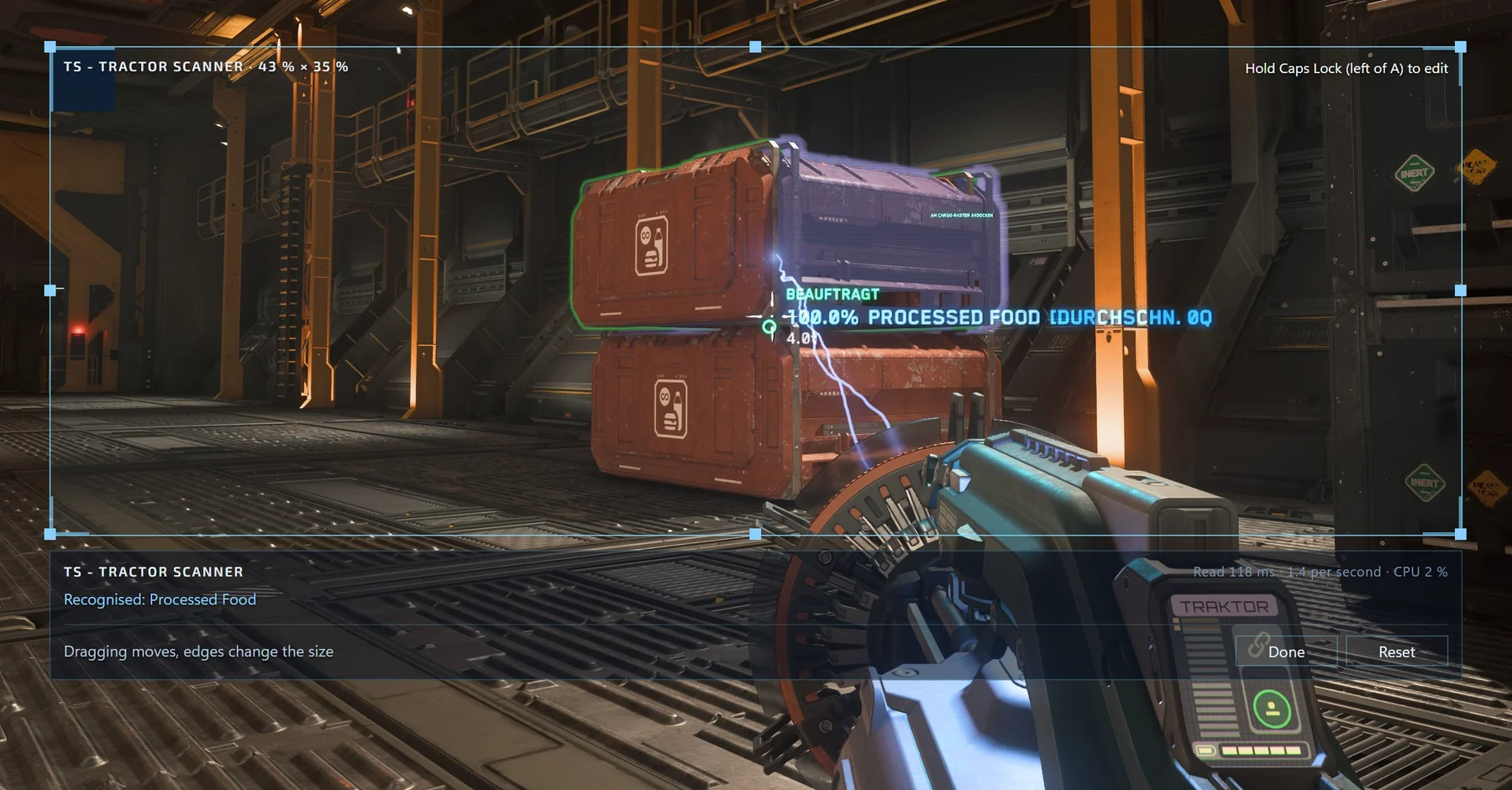
Object Scanner card with the TS - Tractor Scanner
Object Scanner
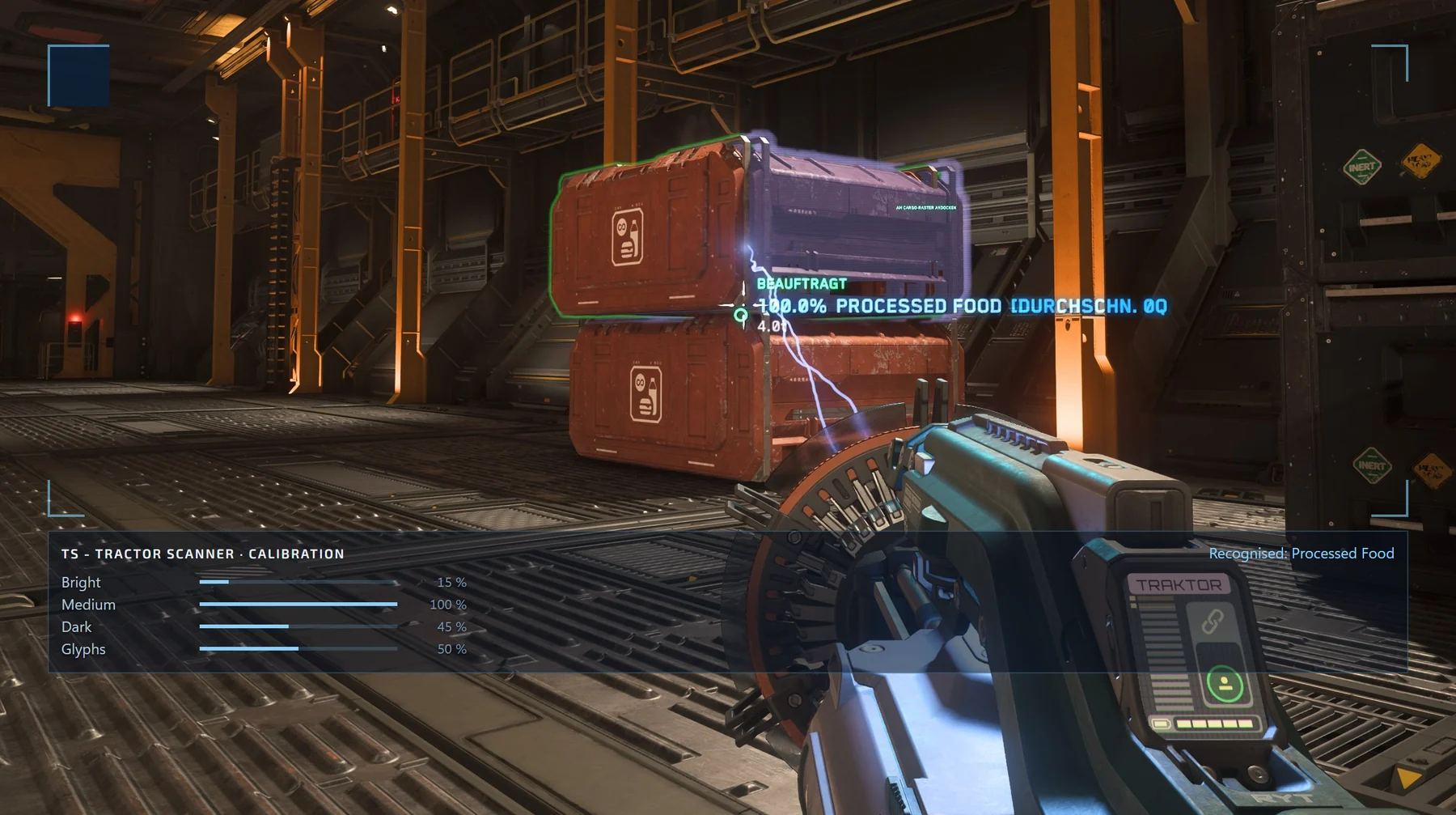
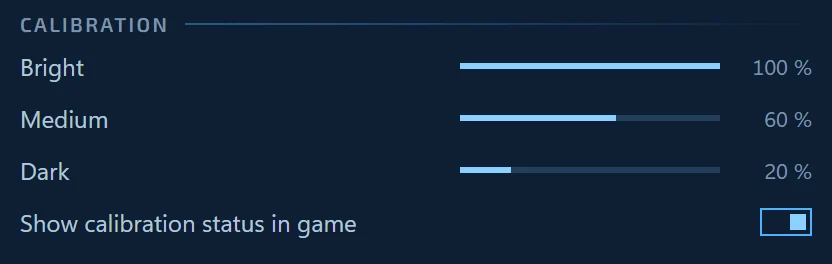
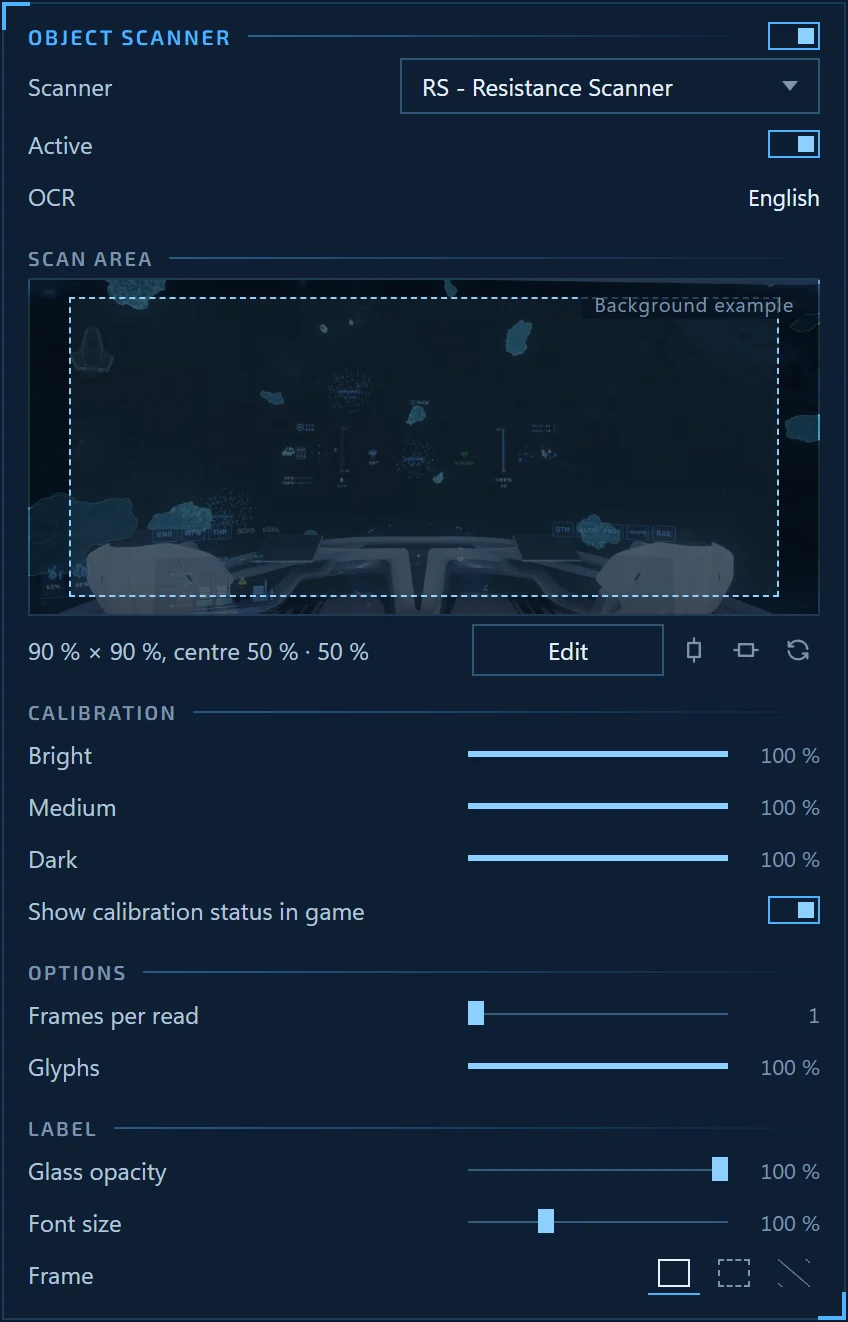
The "Object Scanner" card sets up the three scanners that read text in the game image. The switch in its header turns all three off together, below it each scanner has its own "Active" switch, see Object Scanner and OCR. While a scan area is being edited in game, no other flyout opens. Otherwise another flyout closes the settings as usual, which also ends moving the HUDs.
Key bindings
Lists all combinations of the flyouts, the settings, "Show/hide HUD", the Cargo Manager, "Read contract again" and "Record blueprint". The pencil opens the capture window. What each key does is shown in the overview under Controls.
Default key bindings, the pencil changes a combination
These elements appear in several flyouts and behave the same everywhere.
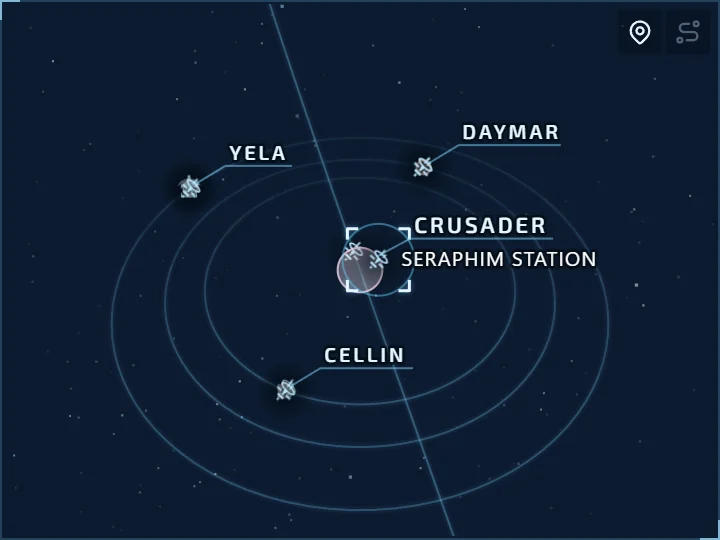
Current location
SCLC detects the location itself, it cannot be selected by hand.
Display
Meaning
Location name
The location is known, distances count from here.
"approximate"
The detected location does not exactly match a known entry.
"En route · from X"
The ship is traveling, distances count from the last location.
"Unknown"
No location safely detected yet, distances are missing. Opening the inventory in game or choosing a quantum target often helps.
Contract card with next target and opened mini map
Accepted contracts
The card shows contracts with "x/y done", the next target and the distance. A click opens and closes the mini map. Each flyout filters accordingly: Items shows everything except cargo contracts, Crafting only contracts with blueprints, Mining and Salvaging their own.
Trade
"Trade" card with the session totals, commodities and recent trades
The "Trade" card sits at the very bottom of Hauling, Mining and Salvaging and shows the same figures everywhere. It appears as soon as a commodity was bought or sold at a terminal in the game and shows the trades of the account currently logged in to the game.
This session: purchases, sales and result since the game was started. A profit is shown in green.
Per commodity: the result on the right, below it the SCU bought, purchases and sales. Commodity names are shown in English.
Recent trades: the last ten, also from earlier sessions, with time, location and amount, purchases also with SCU. Trades made before SCLC was started have no location.
What counts: purchases and sales of commodities at a terminal, including those made before SCLC was started in the same session. If the game rejects a trade, for example because the crates cannot be loaded, it does not count. Contract rewards are not included.
Reset: asks "Delete all trades?". After "Yes" the card is empty for this account in all three flyouts.
Mini map
A dashed line leads from the own position to the target. If the target is in another system, it ends at the jump point with "Jump to X". At the target it shows "Arrived". "No route through jump points known." means that no continuous connection is known.
Route
Hauling and the mining route show a full route block: stop list, travel steps such as "Quantum to" and "Jump to", the mini map with "Next" and "Full route" and "Add stopover". Items and Crafting only show the mini map.
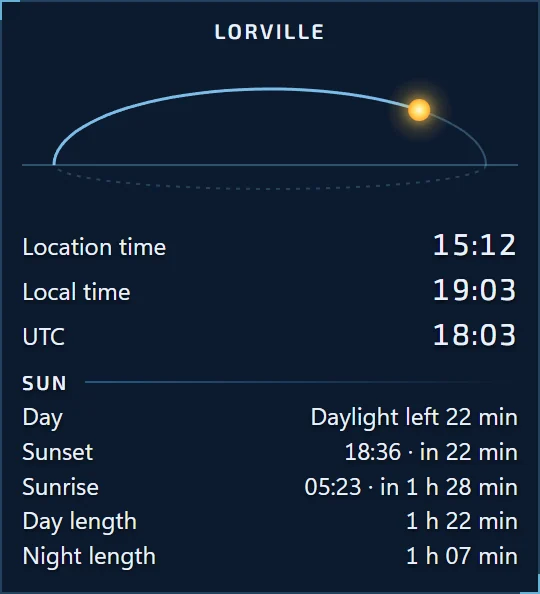
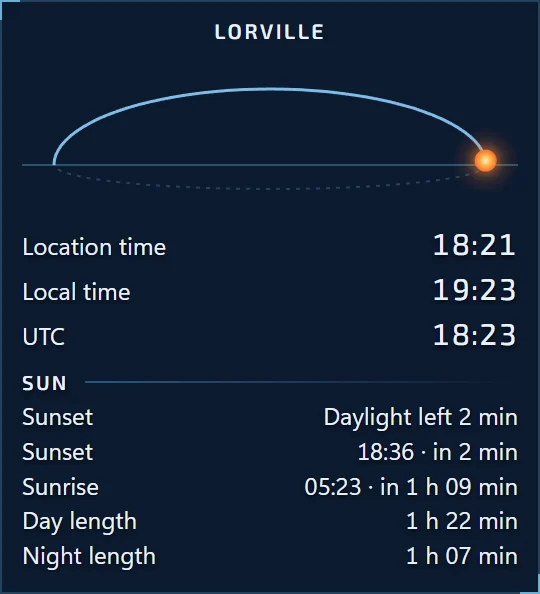
Daylight
"Day" or "Night" at the target with "Sunrise in" or "Sunset in", at the poles "Polar day" or "Polar night". Stations, rest stops, Lagrange points, jump points and asteroids have no daylight display.
Back and Reset
Back: Appears as soon as there is a history. Up to 30 steps, a typing series counts as one step. In Items, Alt+Left also works. There is no forward.
Reset: Clears search and view. In Mining also target, sorting and filters. "Back" restores the previous state.
Opening on the website
The "On the website" icon opens the SC Database entry in the default browser.
The Items flyout searches the SC Database directly in game and shows where something is nearby. It opens with RCtrl+I, input is in the search field immediately.
Start view: current location and nearest offersSearch with resultsItem with nearest optionsMission card with location and blueprints
Start view
Without a search, this shows accepted contracts (except cargo contracts), the card of the current location with its shops and the "Nearest" block. The chips Medical, Refinery, Commodities, Ship components, Ship weapons, Armor, Personal weapons, Ship dealer and Ship rental list the ten nearest locations with distance, if needed "via" a jump point. The location card and "Nearest" require a known location.
Search
Type a term, results appear from two characters: items, ships, locations and missions. With several words, each must occur.
Click a card to open the details.
"Back" at the top left leads to the previous view, "Reset" to the start.
Each group shows up to six cards. Similar items are combined into one card with "{n} variants" and sorted by proximity. "Show all … on luftwerft.com" leads to the website for more results.
Item card
Proximity
"here", distance, "same planet", "same system" or "other system".
Price
"from" with the lowest known price.
Properties
Type, manufacturer, size, grade and number of variants.
Location
Up to five names, plus "+n" for more.
Blueprint
Blueprint per variant, otherwise "none".
Blueprint from missions
Missions that can grant the blueprint.
Mission reward
Missions that award the item.
Sources and nearest options
"Source" shows how an item is available. The chips Buy, Blueprint, Mission, Loot, Mining and Harvesting filter the "Nearest options" block, a second click removes the filter. Mining and Harvesting form the same filter, "Creature" is display only.
Without a filter, the block shows up to six entries, with a filter all of that kind. The order: an already checked blueprint as "Craft", then locations with a route by distance, then the same system, then the rest. When buying, the cheapest shop is framed. The mini map shows the first target.
Views
Item
Like the card, plus "Variants", "Where to get", "Show required materials" with parts, amounts and crafting time, all missions and the description.
Blueprint
"Obtained" check mark, link to the item, missions and material.
Mission
Location, reward, reputation, difficulty on a scale from 1 to 7 for action, concentration, risk and game knowledge, conditions such as time limit, number of players, shareable, once only and legal or illegal, granted blueprints and description.
Ship
Manufacturer, career, role, cargo, crew and equipment with number and size. Entries lead to the respective item.
"Obtained" marks a blueprint in the SCLC list, shared with the Crafting flyout. The check mark only appears if the blueprint is in the local list of the channel. If it jumps back, saving failed. When SCLC detects a new blueprint, the flyout label flashes green three times.
Common questions
Display
Cause and remedy
Enter at least 2 characters.
The search starts at two characters.
No results.
Each word must match, try fewer words.
The SC Database is currently not reachable.
Check the connection and change the search text, the search then tries again.
Distances need a known current location
The location is unknown or has no entry yet.
Shop stock unknown
Always shown at "Shops". Shops are listed under "Nearest options".
No "Obtained" check mark
The blueprint is not in the local list of the channel.
The Crafting flyout shows what material a blueprint needs and where to get it. It opens with RCtrl+C.
Start view: blueprints nearbyBlueprint with required materialsMaterial list with total
Search
The search starts immediately when typing.
Search a blueprint: Shows up to 25 results, a click opens the required material. Obtained ones carry a ✓.
Search a resource or part: Up to two cards state in how many blueprints the material is needed, for resources with "Search in Mining".
Start view
The material list is at the top as soon as it has entries, followed by contracts with blueprints. "Available nearby" shows up to 15 blueprints with the next mission, filtered by "Missing" or "All" and by system. The filters stay until the flyout is closed.
Blueprint
The detail view states manufacturer, crafting time and the required material per part with amount and nearest location. The header counts along, for example "2 of 4 collected".
Check mark
Checks off a material, for this session only. It does not affect the material list.
Variant
If a part offers several materials, a click on the name selects one.
Fly there
With a known location: sets it as target and shows the target card.
Search in Mining
Jumps to the Mining flyout, in the blueprint only with "No fixed mining location, only via missions".
Show shops
Jumps to the Items flyout if there is no location.
Used in
Searches all blueprints that need this material.
Obtained
Marks the blueprint in the SCLC list.
"Available via missions" lists up to 20 missions, a click opens the website.
Target card
"Fly there" shows name, distance, material, daylight and mini map. If the target material is checked off, the card jumps to the next open material. "Clear target" closes it. A set target holds the current location until the game safely reports another one.
Material list
The "Add to material list" icon collects several blueprints.
Number:− and + per blueprint, 1 to 99. "Remove from material list" removes it.
Required material: Adds up the amounts per material, by the selected variant. The header states how many are complete.
In stock: Type the amount, the row shows "Missing" or "Complete". The value stays even if the blueprint is removed.
Add missing blueprints
If a blueprint was not recorded automatically, RCtrl+B adds it at the crafting terminal while this flyout is switched on, see Add missing blueprints.
What stays saved
Content
Duration
Material list with number, variants and in stock
Permanent, separate for LIVE and PTU and per account.
"Obtained"
Permanent, in the SCLC blueprint list.
Material check marks in the blueprint
Until the flyout is closed, so also when the game ends.
Selected variant outside the list
Until the flyout is closed.
Common questions
Display
Cause and remedy
Nothing found
No result or no connection.
No fixed mining location, only via missions
The material is only available through missions.
"Show shops" has no effect
The Items flyout is switched off.
The browser opens
Mining is switched off, or it was a mission row.
Check marks are gone
Material check marks only last for the session, see above.
The Hauling flyout automatically turns accepted cargo contracts into a route. It opens with RCtrl+H. Nothing needs to be entered: accepted contracts appear on their own, the route checks off completed stops itself.
How contracts come and go
Event
Effect
Contract accepted
Appears in the route as soon as the game has reported title and pickup or delivery points.
Completed successfully
Stays with all stops marked as done.
Aborted, failed or withdrawn
Disappears immediately.
Server change
All contracts disappear until the game confirms them and return with their state.
"Remove" (trash can)
Takes the contract out of the route after a confirmation. It stays active in game and cannot be brought back in the route.
"Close route"
Appears under "Route completed" when no stop is open, and removes all completed contracts.
Target card
At the top is the next stop with location, system, daylight and "Stop n/m", below it the mini map, switchable between "Next" and "Full route". A click on an open stop in the list makes it the displayed target, the order stays the same.
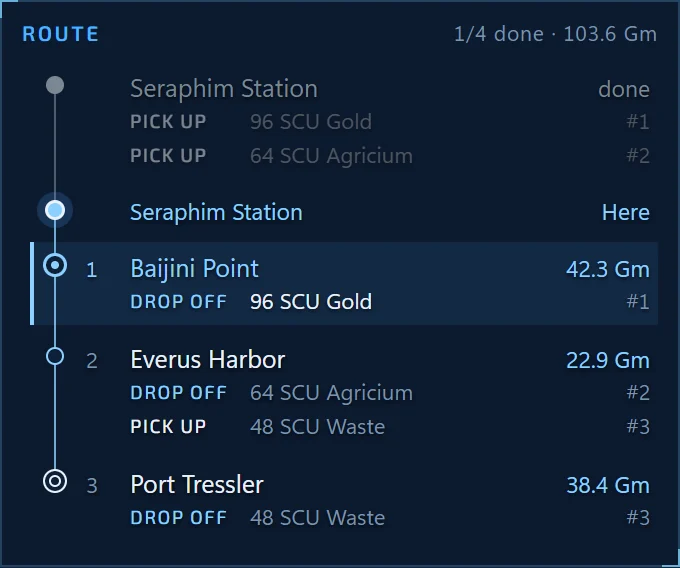
Stop list
Header: "x/y done" and the total distance. A "≥" in front means that at least one leg is unknown.
Row: Running number, location and on the right the leg from the previous stop, without a known distance the system name.
Below: "Pick up" or "Drop off" with amount and commodity and "#n" as number in the contract list. Several loads at the same location become one stop.
Sum per stop: Below every open stop it shows what is dropped off and picked up there and how much is on board afterwards, for example "Drop off 64 SCU · Pick up 48 SCU · on board after 48 SCU". A "≥" means an amount is still missing. A "≤" means it may be less, for example when only the upper limit from the contract is known or a commodity is spread over several pickup locations. Orange means the cargo no longer fits in the hold of the planned ship after this stop.
Own position: A row of its own with "Here" or "En route · from X".
Scrolling: The list moves to the next stop by itself, except shortly after scrolling by hand.
Contracts
Contracts with total line, amount per contract and the buttons of each row
The line below the title shows what is still to be picked up and what is on board right now, for example "To pick up 48 SCU · On board 160 SCU". Each contract states "#n", title, its total amount and "x/y done". A "≥" in front of an amount means that not all amounts are known yet. The "SCU" tag in front of the title stands for an open amount, the "BP" tag for blueprint rewards with their names in the tooltip. A click on the contract expands the individual stops and briefly highlights them in the list.
Button
Effect
Read contract again
Reads the contract from the mobiGlas once more, see "Read contract again" further down.
Remove
Takes the contract out of the route after a confirmation. It stays active in game.
Completed contracts show a tick instead of the two buttons.
Filter
The "Filter" field above the route narrows the stop list and the contracts by location, planet or moon, system, cargo or contract title. Several words must all match, for example "Agricium Hurston". Target card, order and HUD stay unchanged. The field appears as soon as a contract is in the route.
Automatic check-off
Checking off by hand is not possible. Pickup counts as done when the game reports the point during loading at the freight elevator or when all deliveries of this phase are complete. Deliveries count as done with the full amount or the completion message. If the game reports a point as running again, it is open again.
Route options
Option
Effect
Default
Shortest distance
Order by distance.
On
Fastest route
Order by estimated travel time.
Off
Show completed stops
Keeps showing completed ones, applies to all flyouts.
On
Remove completed contracts automatically
Cleans up when all visible contracts are complete: after two minutes or immediately with the next new cargo contract. The button sits in the "Contracts" title.
Off
Pickup always comes before the drop-off of the same commodity. Stops without a known location are at the end.
Stopovers
"Add stopover" in the route options searches a location, for example for shopping, and places it where the detour is smallest. "Visit one stop earlier", "Visit one stop later" and "Remove stopover" change it. It checks itself off on arrival and disappears as soon as the route is empty.
How a contract is recorded
Amounts, the largest allowed crate and sometimes locations are only shown in the contract itself. SCLC therefore reads them directly in the mobiGlas as soon as a cargo contract is accepted.
Accept a cargo contract in the mobiGlas and leave it open so that its objectives are visible.
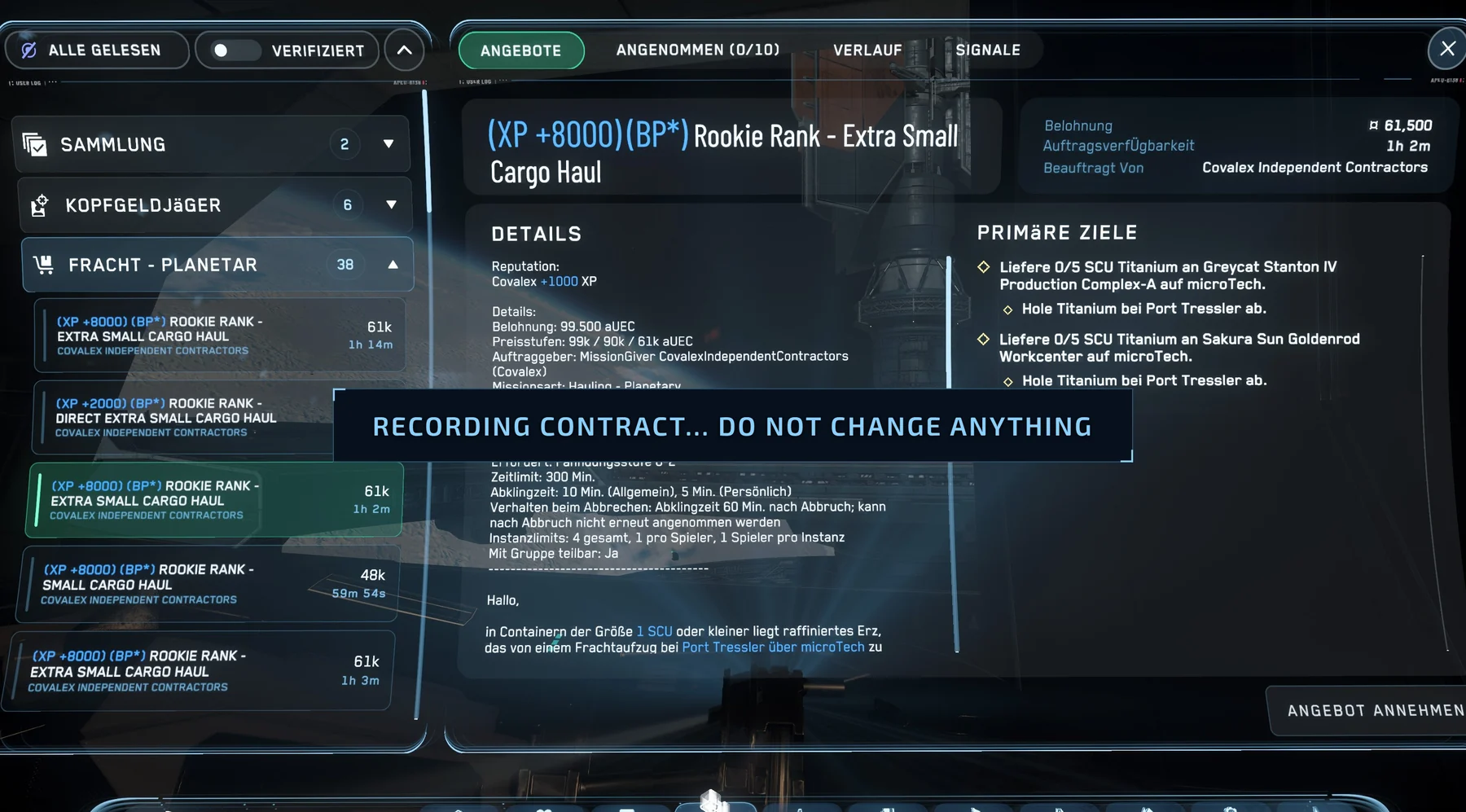
"Recording contract… Do not change anything" appears large in the middle of the game picture, the rest of the picture is dimmed. Do not close the mobiGlas now, do not scroll and do not open another contract.
SCLC reads several times in a row what the contract says: amount, commodity and drop-off location for each delivery, commodity and pickup location for each pickup, and the largest allowed crate from the contract text. Because the mobiGlas shows the objectives one after another, it waits until the picture stays still for about two seconds.
To be sure, it also takes its own screenshots of the game window, reads each of them several times and compares all results. What was read the same way most often counts. The screenshots are deleted afterwards.
Names that were read are compared with the location and commodity names of the game. This corrects small reading errors such as a wrong letter.
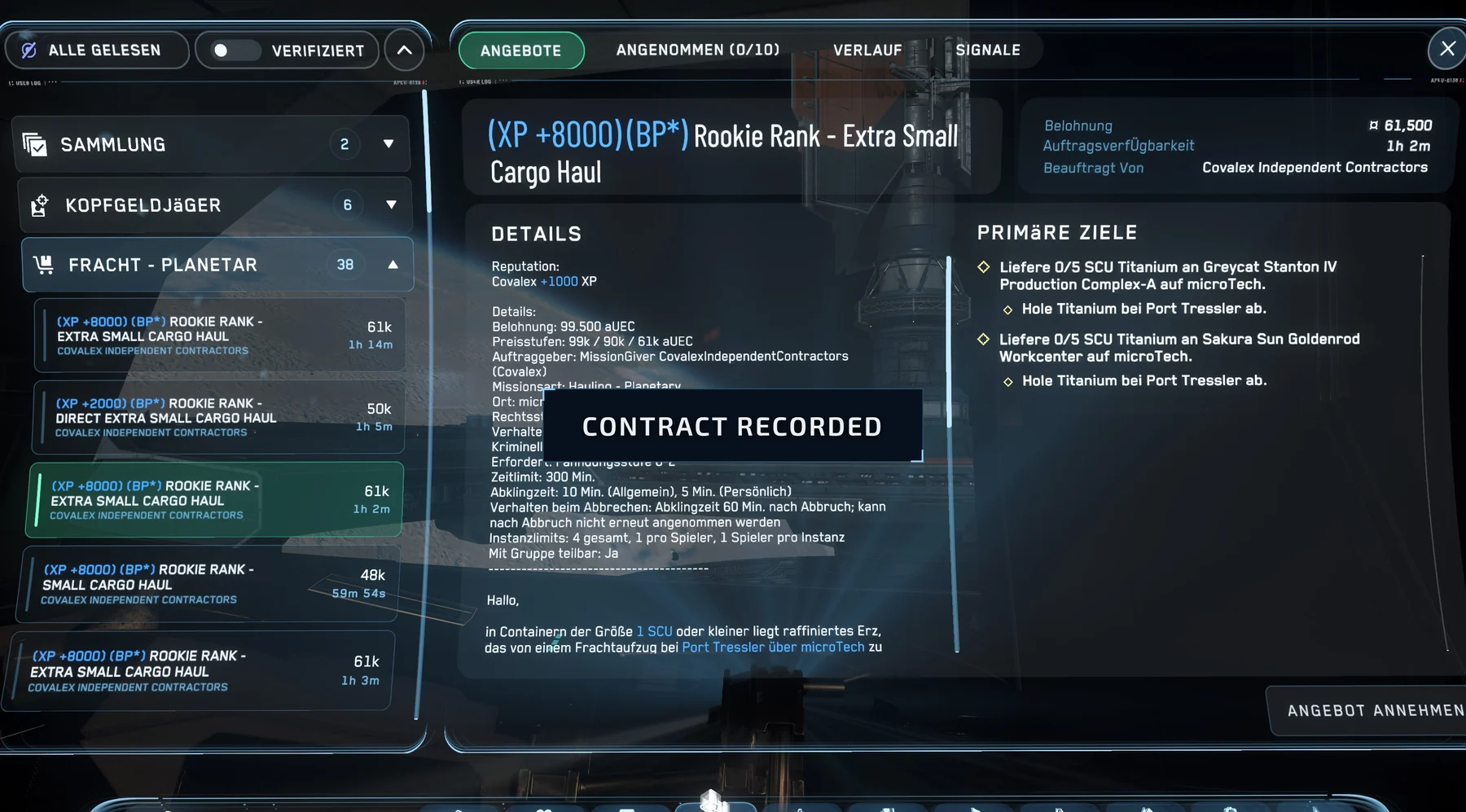
Once all amounts are in the Hauling flyout, "Contract recorded" appears. Only now close the mobiGlas or accept the next contract.
Messages while a contract is recorded
Courier contracts with packages that have no SCU amount are read the same way: for each package the commodity, the drop-off and the place to collect it. If a contract has several pickup locations for the same commodity, each location is assigned separately, in the order of the mobiGlas. The contract does not say how much is waiting at which location. Only the commodity is shown there, and the contract is still captured.
If not all amounts come together, "Contract not recorded" appears, for example when the mobiGlas was closed too early. "Read contract again" helps then.
Read contract again
If an amount or a location is missing or something is wrong, a contract can be read again at any time, even long after accepting it:
Open the contract in the mobiGlas so that its objectives are visible.
Click in the row of the contract, in the Hauling flyout or in the Cargo Manager. Or press RCtrl+L: SCLC then takes the contract whose commodities match the open one best.
The same messages as when accepting follow. Newly read amounts are taken over, missing locations are added, the Cargo Manager adjusts the loading zones.
Amounts entered by hand stay unchanged. If no cargo contract is visible in the mobiGlas, "Contract not recorded" appears. The key can be changed in the settings under "Overlays" and in the flyout settings, or put on a joystick button.
Entering an amount by hand
If only a range is known after reading, the delivery shows "? SCU" and flashes orange. A click opens a field for the amount from the contract. Enter saves, Esc discards, an empty field removes the amount again.
Choosing a location
If a location is neither known nor read, the stop list shows "Unknown" or several candidates. In the expanded contract, "Choose pickup" and "Choose drop-off" lead to a selection with search. The choice applies to the whole point and cannot be changed afterwards.
If a contract names the same location for points that are far apart, the location stays open there, even though the name is known. The tooltip on "Choose drop-off" and "Choose pickup" then reads "Check the location in the Starmap, the name appears twice in this contract". In the Starmap of the mobiGlas, the contract shows where each point is.
Requirement
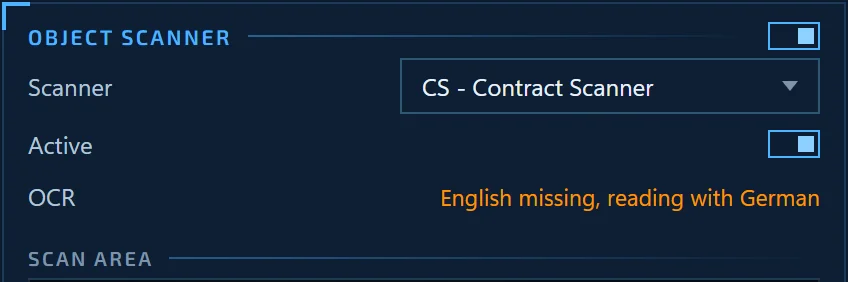
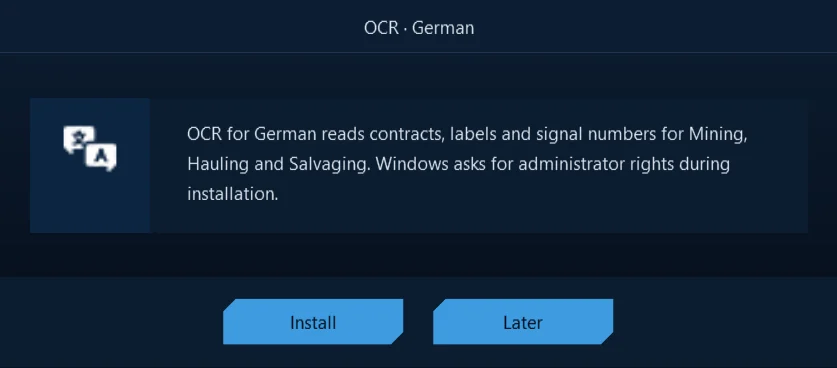
Reading uses the Windows OCR of the game language. If it is missing, a button such as "Install DE OCR" stands after "Game language" in the Advanced tab, which installs it in one click, see Setting up OCR. The part of the game image that is read is set by the CS - Contract Scanner. Contracts are only recorded while the Hauling flyout is switched on.
With "Open Hauling flyout when cargo amounts are open" in the Cargo Manager settings, the flyout opens by itself for this, once the Cargo Manager has been used in this game session and no other flyout is open. While a contract is being recorded, it waits for the result and only opens after "Contract not recorded".
Choosing the ship
"Ship" selection with search, here "lib" for the Liberator
The "Ship" selection below the current location sets the ship the Cargo Manager plans with. This allows preparing loading zones and layout plans before the ship has been retrieved or boarded.
Detect automatically: Default. The Cargo Manager takes the ship that was last retrieved at the terminal or boarded.
A ship from the list: The list shows all ships with a cargo hold and their SCU. The search field at the top of the list filters by word starts while typing, for example "lib" for the Liberator. Arrow keys and Enter select, Esc closes the list. The chosen ship applies until "Detect automatically" is chosen or "Close" is clicked in the Cargo Manager, also after a restart.
Changing the ship: With accepted contracts, the Cargo Manager creates loading zones for the new ship right away. Layout plans of other ships and own zones stay unchanged.
Hint when the detected ship does not match the chosen one
If a different ship is retrieved or boarded than the chosen one, a hint with the planned and the current ship appears above the route. Planning continues with the chosen ship. If the detected one should count, choose "Detect automatically" or that ship in the list.
Working with the Cargo Manager
The Cargo Manager shows the same route and creates loading zones per delivery. The flyout checks every part of the route separately against the usable hold: "Ship cargo area too small" names each stop from which more would be on board than fits, with cargo and space, for example "from Baijini Point 96 of 66 SCU". A round trip that unloads along the way therefore fits even when all contracts together need more than the ship holds. "No room for a zone" names the delivery that does not fit.
"Ship cargo area too small" for two parts of a round trip, the sums of the affected stops in orange
The stop list can also be shown without an open flyout, see HUDs.
Partial trips
If a part of the route does not fit into the hold, the flyout asks "Ship cargo area too small (ship). Plan the route in partial trips?". The question sits at the top of the route and blinks until it is answered. The Cargo Manager shows it at the same time in the middle of the 3D view; one answer is enough.
Partial trips question: 300 SCU for a Centaurus with a 240 SCU hold
Route with two trips: first 240, then 60 of 300 SCU
Plan partial trips: A contract larger than the hold is split into trips. The route picks up as much as fits, delivers it and returns for the rest. Other contracts only come on board when there is room; on no part of the route is more loaded than the ship holds.
No: The route stays as it is, with the "Ship cargo area too small" hint. The question returns as soon as a contract is added or removed.
Per ship: The answer applies to the ship used for planning. With another ship the route is planned again; if its hold is too small as well, the question comes back.
Display: Every stop names its part and the trip, for example "Pick up 240 of 300 SCU Processed Food" with the addition "Trip 1/2". The pickup location appears once per trip in the route, the totals per stop use the parts.
Further trips: The game reports the first pickup. Every further one counts as done as soon as the ship flies on after arriving at the pickup location, or once some of it has been delivered.
Changing ships on the way: Whatever is still at the pickup location stays in the route as its own pickup, also with a larger ship.
Limits: Contracts with one pickup location are split. Contracts with several pickup locations are only ordered by free room. A single crate larger than the hold stays a hint.
Trade
Below the route, the "Trade" card shows purchases, sales and result of this session, the result per commodity and the recent trades. It is the same in Mining and Salvaging, see Shared displays.
What survives a restart
Contracts with their state, selected locations, entered amounts and removed contracts stay, as do planning mode, options and stopovers. Expanded contracts and the target chosen by click are lost. Each account has its own route: when another one logs in, its route appears and the previous one is kept for later.
Common questions
Observation
Cause and remedy
No cargo contracts accepted.
No visible contract. After a server change, wait briefly until the game confirms the contracts.
Stop "Unknown"
Expand the contract and choose the location.
Location stays open although the contract names it
The name appears twice in the contract. Check in the Starmap of the mobiGlas which point is where, then choose the location.
"? SCU" flashes orange
Enter the amount from the contract.
"Contract not recorded" or wrong amount
Open the contract in the mobiGlas and click or press RCtrl+L.
Stop does not check off
Finish loading or unloading at the freight elevator.
Completed route stays
"Close route" or switch on the option for automatic removal.
The Mining flyout shows resource locations by distance and the rocks per location. It opens with RCtrl+M.
Start view: resources and nearest locationResource selected: nearest locationsLocation with rocks and route
Start view
Accepted contracts: Mining contracts with next target and distance.
All resources: Alphabetical, on the right the nearest location or the number of locations.
Minable nearby: With a known location only: the four nearest locations with three rocks each, rare ones first. A click on a rock selects its main resource, a click on the location sets it as target.
Finding a location
Type in the "Resource / mining location" field or click in "All resources". Mining locations appear from three characters. Enter returns input to the game.
The "Nearest places with …" list shows up to 15 locations with quality range, distance, daylight on arrival and rocks.
"Details" opens the target with mini map and "Rocks at target". The X in the target card clears the target.
Filter
Effect
All systems, single system
Only with more than one system. Default: all.
Nearest
Default. By distance, without a known distance by share.
Highest share
By share of the resource.
Sunrise, Daylight
By daylight at the estimated arrival. Only visible if it can be calculated.
With a mining location selected, it shows its resources for ship mining, vehicle mining and hand mining with highest content, share and signature. If a resource has no fixed location, the flyout lists the missions that grant it.
Rocks and signatures
Each row states the rock and the mining type: "Ship", "Ground vehicle" or "By hand". The bar shows the probability that a rock is of this type. Below are the resources with content and quality (Q). "Signature" gives the scanner value for one rock, plus ×2 and ×3 for several together.
"Scan" box with rock and count, scanner switch at the top right
Signal in the picture
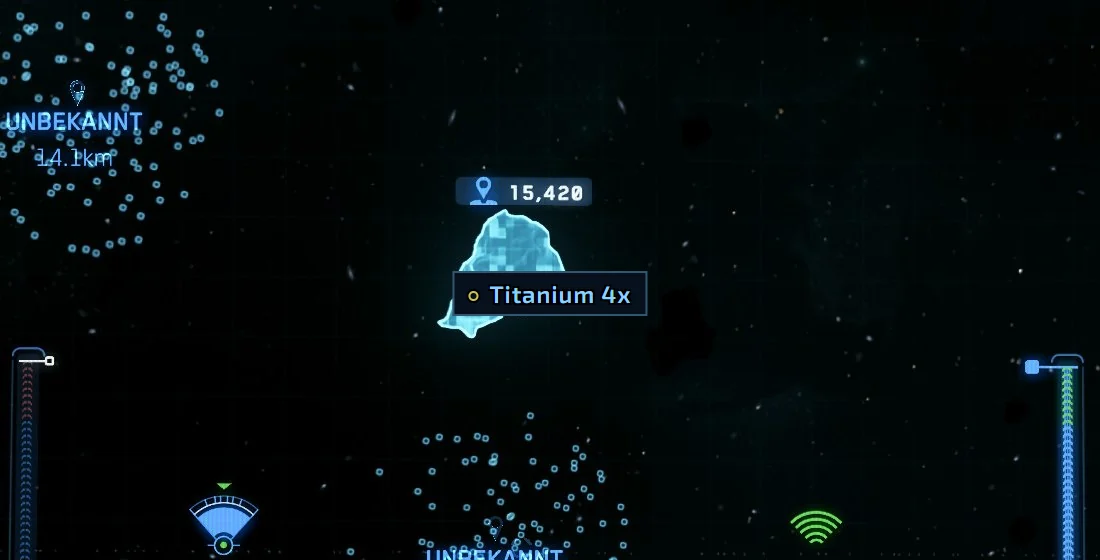
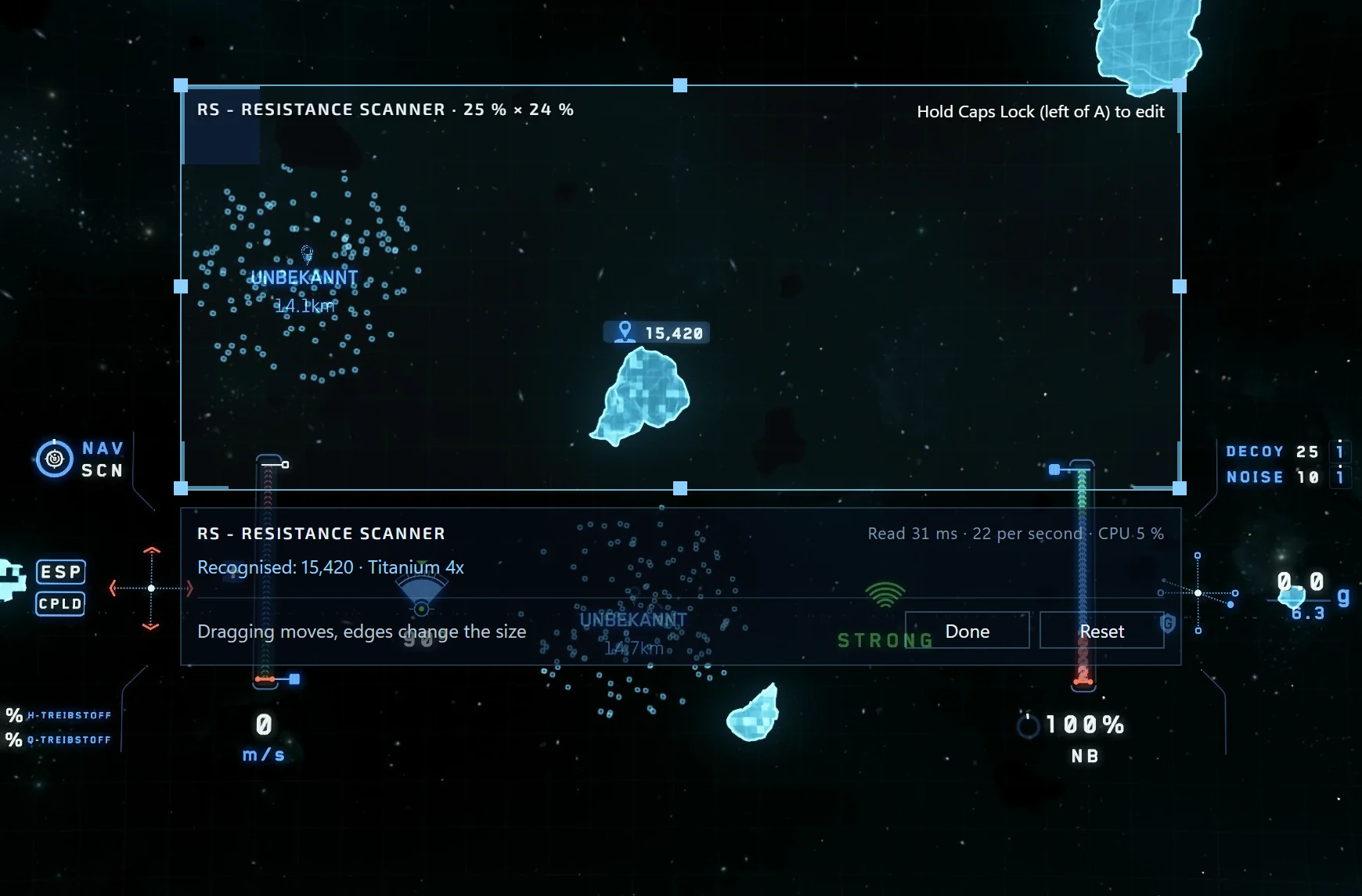
After a ping, SCLC reads the signal number the game shows above the centre of the view and writes below it what it means, for example "Quantainium 2x". If several resources fit, up to three are listed. Only deposits that can occur here are considered: at the detected location and in the asteroid fields of the system, after leaving the location all of the system. For ground vehicle and hand mining all deposits share the same value, there only the mining type with the count is shown. The ping uses the binding from the game settings, without an own binding Tab. The label only appears while the Mining flyout is on and the game is in front. The flyout also shows the last number read as a "Scan" box above the results, with rock, count and contents for the current location. The reset icon removes it. The scanner icon at the top of the flyout turns the signal scanner on and off, for Mining and Salvaging together. When it is off, neither the ping is watched nor anything read. Reading area, calibration and tips are under RS - Resistance Scanner.
Caves
The target states about how many caves there are, how far the nearest is and which known places within 10 km have caves. Caves are mined by hand. Rocks from caves carry the addition "cave", "deepest part" states their share there.
Mining route with route options and mining stop
Mining route
The "Add to route" route icon places a resource at this location in the route, a second click removes it. The route plans the stops from that: by flight time and daylight, the stop covering the most resources comes first.
Option
Effect
Default
Any time of day
Daylight does not count.
On
Daylight on arrival
Excludes locations at night as long as there are others.
Off
Shortly after sunrise
Prefers such locations.
Off
Mining time per stop
1 to 600 minutes, feeds into the arrival of the following stops.
15 minutes
Mined, check off: By hand only, the game does not report mining.
Remove from route: Takes all resources of this stop out.
Next location: Blocks this location for these resources until they are removed from the route.
Clear route: The icon in the header removes all resources without confirmation, time of day and mining time stay.
The route survives a restart, search and target do not. A set target holds the current location until the game safely reports another one.
The HUD "Route guidance" shows the mining route while it is open. "Mining target" shows contracts and nearest locations even with the flyout closed.
Trade
The "Trade" card is at the very bottom. Ore sold at a terminal counts there, selling directly at the refinery does not. More under Shared displays.
Common questions
Display
Cause and remedy
No resource and no mining location with this name.
Check the spelling, at least three characters for locations.
No location has daylight on arrival.
Switch off the "Daylight" filter.
"…: no suitable location" in the route
All locations are blocked or not reachable. Remove the resource and add it again, this clears the blocks.
The Salvaging flyout shows salvage sites, sell points and tools. It opens with RCtrl+S.
Salvage sites by distanceTarget with mini mapTools with values and nearest shop
Accepted contracts
Salvage contracts with next target, only if there are any.
"Scan" box in Salvaging
Signal in the picture
As with Mining, SCLC reads the signal number above the centre of the view after a ping. Salvage parts share common values, so the label states "Salvage" with the count, for example "Salvage 3x". The number also appears as a "Scan" box at the top of the flyout. The scanner icon at the top turns the signal scanner on and off for Mining and Salvaging together. Its setup is described under RS - Resistance Scanner.
Search by system and type
Salvage sites
The list is sorted by distance, the own location first, without a known distance by system and name. The filters All, Salvage yard, Wreck site and Derelict settlement narrow it down. Each row states name, parent location or system, type and distance or "Here".
The "Salvage site" field above searches by name, parent location, system or type, for example "Stanton wreck". Several words narrow it down further, the filters apply on top.
Target
A click on a salvage site or sell point sets it as target. The target card then appears at the top with distance, time of day and mini map, the header states "Target" with the name. The X in the target card clears the target.
Sell points
Separately for RMC and CMAT the five nearest buyers.
Tools
The block is collapsed and only loads when opened. It shows scraper modules, salvage heads and tractor beams with size and their values: speed, radius, efficiency, rate, pull force and range. "Nearest shop" states location and distance. If only the systems selling a tool are known, it shows "Available in" with the systems, the own one first.
Trade
The "Trade" card is at the very bottom. RMC and CMAT sold at a terminal count there, see Shared displays.
Search, target, filters and expanded blocks only apply while the flyout is running. A set target holds the current location until the game safely reports another one.
The Cargo Manager shows the cargo hold of the current ship in 3D and plans loading zones per destination. It opens in game with RCtrl+F and needs the Hauling flyout switched on.
Cargo Manager: cargo hold, loading zones and route
Workflow
Retrieve the ship at the terminal or board it and accept contracts. It is detected when it is retrieved, at the latest on boarding. Without a ship, it can be chosen in the Hauling flyout under "Ship".
Open the Cargo Manager. New deliveries get loading zones automatically.
Create more zones by dragging in the 3D view and enter a destination by double-click.
"Sort" arranges zones by delivery order: what is delivered first sits near the stern, what is delivered last at the front and bottom.
While loading, set the status with S: "Empty", "Loading", "Done", or tick off single crates.
Window layout
Left
Multiplayer, layout plan, cargo hold, blocked zones, vehicles, loading zones and at the bottom "Controls" with the main actions.
Middle
The 3D view with toolbar and view cube.
Right
The route from the Hauling flyout with the same stop list and contracts.
The dividers between the columns can be dragged, a double-click resets the width.
Hologram
Cargo Manager with the hologram of the Ironclad
When switched on, the Cargo Manager shows the ship as a hologram around the cargo grids: a faint, translucent hull with slice lines and frames on top. It lies over loading zones and crates, labels and buttons stay on top. The view adjusts so that the whole ship is visible. The button in the toolbar switches it on and off, the choice is remembered.
Ships whose grids the Cargo Manager arranges itself, such as those of the Hull series, have no hologram. If there is none for a ship yet, the button is greyed out.
All controls at a glance. Keys work while input is in the manager and no input field is active.
At the bottom left, "Controls" shows the main actions also in game
View
Input
Effect
Hold left mouse button on empty space and drag
Rotates and tilts, also from below. The pivot is the selected zone, otherwise the center of the ship.
Mouse wheel
Zooms toward the mouse pointer.
Hold right or middle mouse button and drag
Pans the view anywhere.
Click on empty space
Clears the selection.
Double-click on empty space
Starting view like "Reset view".
View cube
A click on a face, edge or corner jumps to that view.
Grids with their floor facing away from the camera are pale and cannot be edited. Nose and tail are labeled in the view.
Zones with the mouse
Input
Effect
Drag on the floor
Creates a zone, then the height follows the mouse. A click sets it, a right-click takes it back.
Click on a zone
Selects it, the frame lights up, its stops are marked in the route.
Drag a zone
Moves it, also to another grid. Dragged onto another zone it stacks.
Handles at the edges
Change the footprint. Handles above the corners change the height.
Shift and drag
Creates a copy and moves it.
Ctrl and click
Selects several loading zones, also in the list.
Right-click on a zone
Shows rings: blue rotates, red tilts, green tilts sideways. Works in 90-degree steps.
Double-click on a zone
Opens the destination field.
Keyboard shortcuts
Key
Effect
Condition
RCtrl+F
Open, get input, close. Holding always closes.
In game, adjustable
Ctrl+Z
Undo, up to 50 steps.
Ctrl+Y, Ctrl+Shift+Z
Redo.
Del, Backspace
Remove, with confirmation.
Selection
Arrow keys
Move one cell, also several zones.
Selection
R
Rotate.
Selection
T, Shift+T
Tilt, tilt sideways.
No vehicles
Page Up, Page Down
Change height.
No automatic zones, no vehicles
Ctrl+D
Copy to the next free space.
Selection
S
Change status.
Loading zone
H
Highlight for everyone.
Cargo coordinator, loading zone
Enter, F2
Open destination field.
Loading zone
Esc
Clear selection or leave field.
With input in the name field, keys such as R type into it. Enter or a click into the view ends the field.
Toolbar
The bar sits at the top right of the 3D view. Hovering a button shows its name in a tooltip.
Button
Effect
Keep as main ship
Keeps the shown ship, like the ship choice in the Hauling flyout. Boarding or spawning other ships and vehicles such as the ATLS, a bike or a car then does not switch the layout, a notice names the detected vehicle. Another click releases it. If no other ship with cargo space is detected, the main ship stays and a notice says so.
Reset view
Starting view.
Name plates
Shows and hides zone labels.
Current stop
Highlights the zones of the current stop and adds "Drop off" or "Pick up" to their plates. All other zones are dimmed, their name plates stay. The view follows the route target, see Current stop.
Volume lines
Shows and hides the lines of the grids.
Shadows
Shows and hides the shadows of the grids.
Hologram
Shows and hides the hologram of the ship and the holograms of the vehicles. Greyed out if there is none for the ship.
Takes the ship out of the Cargo Manager after a confirmation until a ship is retrieved or boarded again, see Window and ship.
Settings
Cargo Manager settings, opened with the gear in the head
The gear at the top right of the manager head opens its settings in the right column in place of the route, a second click closes them. General settings live here, the toolbar keeps view, tools and actions.
Setting
Effect
Default
Show load plan on arrival
At the loading or unloading location the matching load plan appears, see Layouts and load plans.
On
Open Hauling flyout when cargo amounts are open
When a contract without exact amounts comes in, the Hauling flyout opens, see Hauling.
On
Colours for colour vision deficiency
Each zone gets its own clearly distinct colour from a fixed palette, hatched as well from the eighth zone on. Crates then show the colour of their zone instead of the colour of their material.
Loading zones are the areas where a load should stand. There are automatic zones from contracts and own zones.
Creating
Drag on the floor of a grid. The preview shows dimensions and SCU, red means no space.
Release the mouse button, the height now follows the mouse. A click sets it, a right-click takes the zone back.
The zone is named A, B, C and so on, the name field is active. Type the destination and confirm with Enter.
Automatic and own zones
Automatic zone
Own zone
Created
Per delivery and material, also with the manager closed.
By hand.
Handles and height
Locked, the size follows from the amount.
Free.
Rotate, tilt, move
Yes.
Yes.
Material
Comes from the contract.
"Material" field.
Amount changes
Is recalculated and keeps place, color and status if there is room.
Stays.
Renaming turns an automatic zone into an own zone and removes the lock. If one zone is not enough for a delivery, it is split. If the exact amount is still unknown, the zone uses the maximum and flashes orange.
Gravity and stacking
Zones fall to the lowest free height. Stacking needs full support on other loading zones, not on blocked zones, and the ceiling of the grid limits the height. Invalid positions are rejected and the zone jumps back.
Changing
Selected loading zone with marked stops in the route
Move
Drag or arrow keys, the arrows follow the screen. Dragged onto another grid facing the camera, the zone changes grid.
Size
Handles at the edges, height with the handles above the corners, Page Up and Page Down.
Rotate
R swaps width and depth, with a square footprint it rotates the crates.
Tilt
T swaps height and depth, Shift+T height and width. Without space nothing happens.
Copy
Ctrl+D places on the next free space in the same grid, Shift and drag creates a copy and moves it. The copy takes name and color and is always an own zone.
Several
Ctrl+click. Moving and removing work together, within the same grid.
Remove
Del, icon or trash can in the list, always with confirmation.
Undo
Ctrl+Z, up to 50 steps, also for blocked zones.
Destination and material
Destination: Double-click, Enter, F2 or the field in the list. It suggests up to eight locations. If the name matches a delivery, the zone is assigned to it.
Material: Own zones only. Colors the zone and stands with the amount on the crates. Suggestions come from contracts and other zones.
Crates, flat and stack
The manager fills zones with the largest fitting crate, never larger than the contract allows. SCLC reads the allowed size from the contract text in the mobiGlas when the contract is accepted. Each column holds only one material, equal crates are combined into one labeled block. "… SCU without space" states what does not fit.
"Stack" places the same commodity on top of each other up to the ceiling, "Flat" lays crates side by side. Both work through in the toolbar or the small button on the zone, change the shape and look for the next space, also with automatic zones.
Status
S or the button switch between "Empty", "Loading" and "Done". "Done" puts a ✓ in front of the name. Below, the list adds up, for example "2 of 5 zones done". Zones with a status stay in place when sorting.
Tick off crates: The button of the selected zone turns on a mode in which a click on a crate marks it as loaded and another click removes the tick. Open crates then appear pale, the list shows for example "1 of 3 crates loaded". The status follows the ticks: the first tick sets "Loading", the last one "Done", without ticks the zone is "Empty". The other way round, "Done" ticks off all crates and "Empty" removes all ticks. A click next to the crates or Esc ends the mode, in the mode zones can neither be moved nor resized.
Loading zone list
New zones are at the top. Each row shows color, name, status icon, SCU and trash can, below that dimensions, "from height", "Contract … SCU" and "… SCU missing". The footer states for example "100 of 120 SCU in loading zones". A click selects the zone and puts input into the name field.
Three buttons in the "Contracts" title of the route column decide how automatic zones are formed. The switch rebuilds all automatic zones of the load plan, own zones stay.
Button
One zone per
Cargo zones by destination
Destination, named after the location. Default.
Cargo zones by material
Commodity, named after the commodity, also across several destinations.
Cargo zones by contract
Contract, named with "#n" and title.
Common questions
Observation
Cause and remedy
Handles and height are missing
Automatic zone. Renaming turns it into an own zone.
R or T types into the name
The name field is active. Enter or a click into the view.
Zone cannot be placed
Missing support, ceiling, blocked zone or a repair area. Choose another place.
Zone disappears by itself
Its delivery is complete. It jumps to another open station of the same contract or is removed.
The manager plans loading zones and their order from the contracts accepted in the Hauling flyout.
Reload zones
One zone per delivery and material is created automatically. Automatic zones removed by hand do not return as long as the amount stays the same. "Reload zones" brings them back and creates missing ones. If a delivery no longer finds room, the manager rearranges the automatic zones of the route until all deliveries fit. Zones with the status "Loading" or "Done" and zones with an own choice between stacking and flat stay where they are.
Sort
"Sort" arranges the zones by the delivery order of the route. On every leg, the cargo for the next stop sits closest to the exit, what is delivered later further inside. "Packing order" in the Cargo Manager settings sets the direction in which the hold is filled:
Bow
Default. What is delivered last sits at the front and bottom, what is delivered first near the stern.
Stern
The other way round, for ships loaded at the front: what is delivered last sits at the back.
By destination
Like from the bow, but no zone rests on a zone with another destination. Every delivery stays reachable, even if the order changes. Needs more floor space.
It only moves zones whose name matches a drop-off station of the current route. All others and blocked zones stay as obstacles.
The size of a zone stays. If it fits better turned, it is turned by 90°. Zones can change grid, but not onto repair areas.
The selected loading side does not count here.
Zones with the status "Loading" or "Done" stay in place, as do zones that such zones rest on. The others arrange themselves around them.
If the hold is very full, the order cannot always be kept completely. Then the arrangement with the fewest deviations is used.
If one zone has no space at all, everything stays as it was. Ctrl+Z undoes the sorting.
Loading side
For ships with grids left and right of the center, "Loading side" in the Cargo Manager settings applies: port, automatic or starboard. The selected side is filled first, then the other. Automatic takes the side with more visible grids and keeps each delivery together where possible. The choice only affects new zones.
Legs
The manager plans the route leg by leg. A loading zone only applies to the legs on which its cargo is on board: from the stop where it is picked up to the one where it is dropped off. Automatic zones and "Sort" first take space that stays free along the whole route. Only when the hold does not have enough of it does a zone share the space of cargo that is dropped off before. On a round trip that does not fit into the hold at once, the return cargo therefore sits where the outbound cargo was before.
Leg 2 of 3: the Gold for Baijini Point, dashed the Agricium of the return cargoLeg 3 of 3: the Agricium in the same space
Leg bar: At the bottom left of the 3D view, the selected leg is shown with its destination, for example "Leg 2/3 · to Baijini Point", and below it how much is on board on this leg. ‹ and › step to the previous and next leg, and the layout selection follows. When "Confirm unloading" is shown at the bottom, the bar moves above it.
Load plans: Legs exist in the load plan. The selection offers one load plan leg per station where cargo is loaded, see Layouts and load plans.
Display: The 3D view and the "Loading zones" list show the zones of the selected leg. Zones that come on board later appear as usual in the view and in the list as long as their space is free. Only zones whose space is still taken by other cargo on this leg appear dashed as a hologram, and they are not in the list then. Zones already dropped off are hidden. Own zones without a delivery, blocked zones and vehicles appear on every leg.
Support: A zone stands on the floor or on zones that stay on board at least as long as itself, loaded at the same time or earlier and dropped off at the same time or later. Crates inside a zone only stand on filled cells. If the route changes, zones without support move to a free spot. If an automatic zone no longer fits anywhere, it is created again.
On opening: The leg after the next pickup is shown, with the cargo that comes on board there. If no pickup is left, it is the first leg with cargo. A leg chosen by hand stays until the route changes.
Too full: If the cargo of a leg does not fit in the usable hold, it is shown in orange.
From two stops: The bar appears as soon as the route has at least two open stops.
Current stop
"Current stop" in the toolbar or in the route options highlights what happens at one stop. Both Buttons switch the same thing:
Stop 2 of 3: the gold is dropped off, the agricium picked up, everything else is dimmed
Which stop: the stop that the route guidance shows as its target. A click on another stop in the route selects that one.
Leg bar: It shows the stop instead of the leg, for example "Stop 2/3 · Baijini Point". ‹ and › step from stop to stop, and the layout selection shows the leg loaded at this stop.
Drop off: Zones unloaded here look as usual and carry the plate "Drop off" with cargo and amount.
Pick up: Zones that come aboard here stand in their place as a strong hologram and carry the plate "Pick up".
All other zones: dimmed, their name plates stay. If the plates overlap with many contracts, the Button "Name plate" of the selected zone hides its plate and shows it again. Blocked areas and vehicles stay as they are.
With name plates switched off, the plates of the stop stay off as well. Without contracts the Button changes nothing. The choice is saved, loaders in a session switch it on for themselves.
Working with the route
Selecting a zone marks its stations in the route and scrolls there.
A click in the route clears the zone selection.
SCLC reads the amounts from the contract in the mobiGlas when it is accepted, shown large as "Recording contract… Do not change anything". The manager then adjusts the zone. If an amount is missing or wrong, open the contract in the mobiGlas and click in the route or press RCtrl+L. The zone follows the new amount. More under Hauling.
When a delivery is complete, its zone stays until unloading is confirmed, see Layouts and load plans. When a contract disappears completely, its zone is removed.
Messages while a contract is recorded
Warnings
Message
Meaning
What helps
No cargo zone: …
A delivery has no zone.
"Reload zones".
The contracts need … SCU, … SCU are free
On the fullest leg, more is on board than the hold minus blocked zones can take.
Free blocked zones or let the Hauling flyout plan partial trips.
No room for a zone: …
Automatic creation failed.
Make room, then "Reload zones".
Check cargo amounts
An amount is still open.
Read the contract again or enter the amount from the contract in the route.
Sorted, loaded zones stay in place
Zones with a status were not moved.
Nothing needed.
Nothing to sort, all zones are already loaded
Every affected zone has a status.
Set a zone to "Empty" if it should be moved.
No room to sort, everything stays as it was
One zone does not fit.
Change blocked zones or zones.
The cargo hold warnings also appear in the Hauling flyout.
Blocked zones and vehicles keep space free. Both apply per ship to all layout plans of that ship.
Blocked zones
Blocked zones mark areas that are not used, for example a passage. They do not count as volume, the display then states "… SCU usable".
Switch on "Draw blocked zones" in the toolbar.
Drag an area, then the height follows the mouse. A click sets it.
Switch the mode off again.
Floating: Blocked zones do not fall, they stay at their height. Handles also change the lower edge.
Grabbing: Outside of drawing mode, the first click or the "Blocked zones" list selects them, then they can be moved.
Keys:R, T, Ctrl+D and height work. Status, stacking, highlighting and multiple selection do not.
Vehicles and ships
Vehicles on the cargo grids, a ship on the repair area
A box the size of a vehicle or ship shows whether it fits and keeps its space free.
Click the "Vehicles and ships" button next to the blocked zones. The selection shows manufacturers with their count, hovering shows the models with dimensions. Only what fits on a grid or area of this ship is offered.
Click a model. A hologram box now hangs on the mouse, red means no space there. R rotates it.
A click places the box. Esc or a right-click cancels. The mode is then off again.
Selection by manufacturerHologram box on the mouse
Once placed, a vehicle or ship appears as an orange hologram, ground vehicles with their wheels. The box around it is transparent and shows only its edges and corners. The button switches these holograms off as well, the solid orange box is then shown instead.
The size of a vehicle is fixed: no handles, no height change, no tilting. Moving, rotating with R, copying and removing work. Vehicles always stand on the floor. If one is taller than the grid, the height of the box is capped. In the list they appear under "Vehicles and ships".
The box always covers the whole hologram, including wheels, wings and attachments. If a vehicle was placed with a smaller box before, the Cargo Manager resizes it when it opens, at the free spot closest to the old one. If there is no room on the grid, the old box stays.
Repair areas and landing zones
Carriers also show dashed repair areas or landing zones. These areas do not count as cargo volume and take no loading zones. Vehicles and blocked zones work there. Their size is listed in the expanded "Cargo hold" section.
The Cargo Manager knows two kinds of plans. Layouts are built by hand and stay saved. The load plan comes from the accepted contracts by itself and shows, leg by leg, what is on board where.
Selection: the load plan with all legs, leg 1 done, below it a layout
Selection
Entry
Shows
Load plan (All)
All legs of the route together. Space that legs share one after another is dashed.
Load plan Leg 1/5 …
One leg per station where cargo is loaded, in route order. It shows the cargo hold after loading there.
Load plan Leg 1/5 (Done)
Everything loaded at this station has been unloaded. Done legs stay in the list in italics.
Layout 1 …
Layouts built by hand, see below.
Load plan
As soon as contracts are accepted, the manager creates a load plan for the ship and selects it. The loading zones come from the deliveries by themselves, see Sorting and planning. Zones moved or drawn by hand stay for the current route.
Load plan Leg 2/5: the cargo hold after loading at HUR-L2, on the way to HUR-L5
Choosing a leg: The 3D view jumps to the part of the route after loading at this station. The leg bar at the bottom left of the 3D view follows, ‹ and › keep stepping through the route and select the matching load plan leg. Selection and leg bar therefore always show the same leg.
Example: Ten contracts around Hurston, cargo is loaded at Everus Harbor, HUR-L2, HUR-L5, HUR-L3 and HUR-L1. That makes Leg 1/5 to 5/5. Leg 2/5 shows what is on board after HUR-L2: the cargo from Everus Harbor without what was dropped off at HUR-L2, plus the waste from HUR-L2.
All: The leg bar names the highest load on the way, for example "at most 98 of 240 SCU on board".
Load plan (All): dashed is the space that legs share one after another
Confirming unloading
Loading works as before, the zones appear by themselves. What has been unloaded is freed by hand:
Confirm unloading at the bottom of the 3D view, at HUR-L5 High Course Station
At the destination, "Confirm unloading · station" sits at the bottom centre of the 3D view. The button only appears when the game says you are at this station and cargo for it is on board.
When it appears or the manager is opened, it blinks three times.
A click removes the loading zones of this station, its space is free afterwards. Until then the zones keep their space, even when the delivery is already complete.
When all stations of a leg are unloaded, it is marked "(Done)" in the list.
Partial trips
If a contract does not fit into the hold, the manager asks in the middle of the 3D view "Ship cargo area too small (ship). Plan the route in partial trips?". The same question blinks in the Hauling flyout; one answer is enough. What the answer does is described under Hauling.
Partial trips question in the middle of the 3D view
Zones per trip: Every trip gets its own loading zones, their names end in "· Trip 1/2", "· Trip 2/2" and so on. They only take their space on the legs of their trip.
Legs per visit: If a station is visited for several trips, every visit has its own leg in the selection.
Unloading: "Confirm unloading" applies per trip, for example "Confirm unloading · Lorville · Trip 1/2".
Second trip: the zone "· Trip 2/2" with 60 SCU, the first trip has been delivered
Load plan on arrival
With "Show load plan on arrival" in the Cargo Manager settings, on by default, the view switches by itself at the loading or unloading location. If there is something to unload, it shows the leg up to this station with the cargo that has to go out here. After confirming, or when there is nothing to unload, it shows the leg loaded at this station. This happens once per station, an own selection stays afterwards.
Questions
When
Question
Yes
No
All legs done, no delivery open any more
"All load plans are done. Delete the load plans?"
The load plan is deleted.
It stays. New contracts add new legs.
On spawning in a new game while the ship still has a load plan
"This ship still has load plans from an earlier game. Remove them?"
The load plan is deleted.
It stays. Restarting SCLC in the same game does not ask.
A part of the route does not fit into the hold
"Ship cargo area too small (ship). Plan the route in partial trips?"
"Plan partial trips" splits large contracts into trips.
The route stays. The question returns as soon as a contract is added or removed.
Question in a new game
Layouts
Layouts are built by hand, for example to show loaders where which materials always go, even without any contracts. They have no legs and no leg bar, contracts do not change them.
Selection with new, reset and delete
Control
Effect
New layout
Creates an empty layout named "Layout n". Renaming is not possible.
Reset
Removes all loading zones of the selected plan after a confirmation. Blocked zones and vehicles stay. In the load plan, automatic zones return through "Reload zones".
Delete
After a confirmation: for a layout the layout, for a selected leg this leg with its loading zones, for "Load plan (All)" the whole load plan.
Blocked zones and vehicles belong to the ship and not to the plan, they stay in every plan and every leg until removed. Loaders in a session do not see the selection, the cargo coordinator shares the plan shown. All plans apply per Star Citizen account; when another account logs in, the Cargo Manager loads its state. Online sync only syncs layouts.
The manager detects the ship itself and adapts to the window and the monitors.
Detecting the ship
Header with detected ship, capacity and layout plan, window buttons at the top right
Display
Meaning
Detected
On board of a ship, also of another player.
Retrieved
Retrieved at the terminal, not boarded yet.
Selected
Chosen by hand in the Hauling flyout. Applies instead of detection until "Detect automatically" is chosen there or "Close" is confirmed.
Left the ship
The ship stays remembered until another one is retrieved or boarded or "Close" is confirmed.
No active ship detected
No ship known and none chosen, for example before the first retrieval or boarding, after "Close" or in the main menu. "Join" still works.
Ship retrieved at the terminal, not boarded yetChosen ship with a hint about the detected one
If the detected ship differs from the chosen one, "Planned" and "Current" appear below the ship name. Loaders in a session do not see this hint.
Detection: A ship is detected as soon as it is retrieved at the terminal and the game names the ship type. This usually takes a few seconds, sometimes almost a minute. At the latest it is detected on boarding. If the game only names the series when the ship is retrieved, as with some Starlifters, the exact variant follows on boarding. Until then the manager stays small, unless a ship is chosen in the Hauling flyout.
Another ship: The previous one stays displayed until another one is retrieved or boarded.
Close: The button at the end of the toolbar removes the ship after a confirmation, the manager becomes small again. In the game the ship stays where it is, and SCLC does not notice stowing in the game on its own. A ship is only detected again on the next retrieval or boarding. If it is still there, leave the ship area first before boarding it. A ship chosen in the Hauling flyout is removed as well, the selection is back on "Detect automatically" afterwards.
Starting SCLC while the game runs: The state of the running game session is caught up.
Destroyed: Stays displayed until another ship is retrieved or boarded, "Close" is confirmed or the main menu comes.
Modules
Retaliator with cargo modules at the front and rear
Some ships carry swappable modules, for example the Galaxy and the Retaliator. SCLC cannot detect which module is installed. For these ships, the "Cargo hold" section therefore has a selection per slot, on the Retaliator "Front module" and "Rear module".
Default: the modules the ship is delivered with. On the Retaliator they have no cargo hold.
Choosing a cargo module: Its cargo grids are added, capacity and loading zones adjust.
No module: Slots that are empty from the factory offer "No module".
Separate state: Every combination has its own layouts and blocked zones. Switching back brings the previous state back.
Remembered: The choice is saved per ship and account. Loaders in a session see the cargo coordinator's combination and cannot change it.
Hologram: It always shows the ship with its factory modules.
Buttons at the top right
Button
Effect
Open guide
Opens the Cargo Manager chapter of this guide in the browser.
Settings
Opens the manager settings in the right column, see Controls.
Minimise to minimap
Shows only the grid, see Minimap.
Maximise
Fills the game window or the monitor, see Maximizing.
Restore
Takes this place after maximizing and in the minimap and brings back the previous view.
Close Cargo Manager
Closes the manager, ship and layout plan stay.
Opening and focus
RCtrl+F opens the manager and gives it input. If input is in the game, a short press brings it back, otherwise it closes the manager. Holding for half a second always closes it, the joystick button works the same way. The X also closes it. A click on the manager brings input back too. On the next opening it is centered again and not maximized. It stays open until it is closed. A click into the game or Alt+Tab do not close it, only input moves. As a minimap or on another monitor it does not take input on its own.
Size
On opening
With a ship 90 % of the width and height of the game window, centered. Without a ship a narrow bar at the top.
Scaling
At the left, right and bottom edges and the corners, not at the top. Only the grid grows, text and side bar stay the same size. Only works with a detected ship, without a ship the size adjusts on its own.
Open flyout
When a flyout opens, the manager gets narrower on that side, with a small gap to the flyout. When it closes, the manager gets its width back. The minimap keeps its size and moves aside. This also applies to the settings panel.
Column width
Drag the dividers, a double-click resets.
Maximizing
The icon or a double-click on the header maximizes. What counts is where the center of the manager was at the last drop:
Center of the manager
Fills
Over the game window
The game window.
Next to the game window, same monitor
The whole monitor.
On another monitor
That monitor.
Dragging the header restores the previous size.
Second monitor
Drag the header. This allows reading along while flying or loading and planning with the mouse.
Minimap
"Minimise to minimap" shows only the grid at the top right, with its own position, size, monitor and maximizing.
Left mouse button moves, right rotates, mouse wheel zooms. It accepts clicks without taking input from the game.
Keys do not work. A short press of RCtrl+F moves the mouse into the minimap and gives it back to the game.
leads back to the full view.
While loading: The minimap shows the zones of the current stop and at the top left the load list per ware with SCU and ticked crates. A click on a row makes the zone blink and moves the camera there. As cargo coordinator, the loaders see the same zone.
Camera button: Recognises the crate on the tractor beam and shows which zone it belongs in, see TS - Tractor Scanner.
Common questions
Observation
Cause and remedy
RCtrl+F has no effect
The Hauling flyout is off or flyouts are not running right now.
This ship has no cargo grids
No grids are known for this ship.
Cargo data not available
The data could not be loaded, check the connection.
Several players load together according to one plan. The cargo coordinator plans in the large manager, the loaders see the plan live in a small view.
Starting and joining
The cargo coordinator clicks at the top left. The window shows the session code with and the participants.
Loaders click , enter the code and confirm with , also without a ship of their own. Hyphens and lower case do not matter.
The plan appears for everyone, changes arrive after a few seconds.
Cargo coordinator view: session code with copy, lock and end, below it the participants with hand over and remove
Roles
Cargo coordinator
Loader
View
Large manager.
Small view without lists and route.
Change zones
Yes.
No, view only.
Rotate, zoom, view cube
Yes.
Yes.
Name plates, volume lines, current stop
Yes.
Yes.
Highlight
Yes, with H.
Sees it.
Manage participants
Yes.
No.
During the session
Highlight:H or in the toolbar lights up a loading zone for everyone for eight seconds.
Participants: The list shows who is currently connected. Notifications report joins and departures.
Lock: means the code accepts new joins. A click switches to : the code is blocked for further joins, those already in stay.
Remove: in the row of a participant takes that player out after a confirmation. Joining again with the code stays possible while the session is open.
Hand over: in the row of a participant makes this loader the cargo coordinator after a confirmation, the previous coordinator becomes a loader.
Automatic handover
If the cargo coordinator is gone for 60 seconds, a loader takes over.
When the coordinator's game ends, the role first goes to an active participant. Without participants the session ends.
Closing the window as a loader leaves the session.
End
Action
Effect
Delete session
Disconnects everyone. The question offers "Keep zones", "Delete zones" and "Cancel".
Leave
For loaders, the button sits in their toolbar. Same question. "Keep zones" creates a plan "Taken over" and adopts the blocked zones of the session for this ship.
Ended by the coordinator
Loaders must choose whether to keep or delete the zones.
A session expires after six hours without a plan change. Up to 50 participants are possible.
Common questions
Message
Cause and remedy
Unknown or expired code
Wrong code, session expired or full. Check the code and get a new one.
HUDs are small, translucent displays over the game. They click through and never take focus outside of edit mode. They are switched on in the flyout settings (RCtrl+E) in the "HUD" box, all are off by default. They are visible while flyouts are running, the game is in the foreground and the player is in the world. In the main menu and while loading they are off.
Route guidanceStar map
HUD
Content
Condition
Route guidance
Stop list of the route without buttons, with total. An open mining route takes over temporarily, then Hauling again.
Hauling flyout on
Star map
Star map with own location in 4:3 format. In edit mode switchable between "Follows position" and "Whole system".
None
Mining target
With a mining route: signatures for the first stop and "Next stops". Otherwise mining contracts, target, nearest locations and at a mining location "Signatures here".
Mining flyout on
Clock
Current location with location time, local time, UTC and sun position, see below. Parts and time format via its gear.
None
Clock
The clock is a HUD with the location time of the current planet or moon, local time and UTC. It is switched on with "Clock" in the "HUD" box of the settings, it is off by default. Visibility, moving, hiding and design work as for the other HUDs. Its gear sets its parts, the time format and its appearance.
Clock by day in LorvilleShortly before sunsetAt night, the sun below the horizon
Part
Content
Sun position clock
Arc below the heading with its own switch. The sun travels from the left at sunrise to the right at sunset, its place on the arc shows how much of the day has passed. The arc is the same at every location. At night it stands dimmed below the horizon and travels back there. Shortly before and after sunrise and sunset it glows orange.
Location name
As the centred heading at the very top. Without a detected location it reads "Clock".
Location time
Time of day at the current location from the rotation of the planet or moon. In stations "No location time" is shown.
Local time
Time of the PC.
UTC
Universal time.
Sun phase
Day, sunrise, sunset, night, polar day or polar night, together with "Daylight left" until sunset or "Daylight in" until sunrise. Sunrise and sunset apply while the sun is just above or below the horizon.
Sun times
Location time of sunrise and sunset, the next event first, plus day length and night length.
Time left
Time until the next sunrise and sunset, for example "in 22 min".
When a location is left, for example on foot or with a vehicle away from an outpost, the location time and sun position of the last detected location stay in use. Below the location name it then reads "En route". Every newly reached known location becomes the new reference immediately.
Times left, day length and night length are real time. A full day on Hurston lasts almost two and a half hours, the location time runs correspondingly faster.
All parts are on by default. The gear of the clock deselects parts and sets the time format to 24 h or 12 h with AM and PM for each clock, the format of the location time also applies to the sun times.
Editing
Edit mode: dashed frame, handle at the bottom right, gear at the top rightGear clicked: settings of the route guidance inside the HUD itselfThe clock with appearance, parts and time format
HUDs can be edited in two ways. Hold Caps Lock (left of A): move and scale right in the game, without the settings. On release the focus jumps straight back to the game and the caps state is restored. A short tap only toggles caps as usual. Settings open (RCtrl+E or the gear of a flyout): move, scale and also the gear of each HUD with its own settings. In edit mode all visible HUDs show a dashed frame and a handle at the bottom right, the gear at the top right only while the settings are open. A click into the game closes the settings and so ends editing, as does opening another flyout.
Moving: Drag, within the game window. The position is saved as a share of the window.
Scaling: At the handle, the width changes, the text stays. Own height only for route guidance, the mining target and the clock follow their content, the star map keeps 4:3.
Gear: Opens the settings of this HUD right inside the HUD below its content: glass opacity, font size and frame, for the clock also its parts and the time format. Each HUD has its own appearance. A second click closes them again. Moving only works on the HUD part above, the expanded settings can be used normally.
Question mark: Sits left of the gear and opens the HUDs chapter of this guide in the browser.
Cargo Manager: Open settings do not put it into edit mode. RCtrl+F opens it as usual, it is moved and scaled in its planning mode or with Caps Lock held. It does not appear by itself when the settings open.
Showing and hiding
RCtrl+J hides all HUDs for this session and shows them again, the Cargo Manager stays. While the settings are open, the key has no effect, so edit mode stays. Alt+F4 closes neither HUDs nor flyouts nor the Cargo Manager.
Settings
Setting
Where
Effect
Default
Route guidance, star map, mining target, clock
"HUD" box
Switches the HUD on.
Off
Glass opacity
Gear of the HUD
Background, 0 to 100 %.
55 %
Font size
Gear of the HUD
80 to 150 %.
100 %
Frame
Gear of the HUD
Solid, dashed or none.
Solid
Hidden at start
"HUD" box
Hidden at each game start, RCtrl+J brings them back.
Off
Reset HUD positions
"HUD" box
Resets positions and own height, also the position of the Cargo Manager and the clock. The scale stays.
Common questions
Observation
Cause and remedy
HUD invisible
Main menu or loading screen, game minimized, hidden or the related flyout is off. With the settings closed, try RCtrl+J.
HUD cannot be moved
Hold Caps Lock or open the settings with RCtrl+E. Editing only works while at least one HUD is visible.
"No route" or "No resource selected"
The HUD is on but has no content yet. Accept a contract, create a mining route or select a resource.
Clock shows "No location time"
The location is a station or in space. A location time only exists on planets and moons.
Clock shows "Unknown"
No location has been detected since the game started. Opening the inventory in game or selecting a quantum target often helps.
Clock shows "En route"
The last detected location was left, location time and sun position still refer to it until a new known location is reached.
Some details are only shown in the picture in Star Citizen: the objectives of a cargo contract in the mobiGlas, the signal number after a ping and the label of a crate on the tractor beam. The Object Scanner reads them with the Windows OCR straight from the game image and passes them on to Hauling, Cargo Manager, Mining and Salvaging. It consists of three scanners that can be set up one by one.
"Object Scanner" card for the three scanners TS, RS and CS
Amounts and locations in Hauling and Cargo Manager
a cargo contract is accepted or read again
"Record blueprint" with RCtrl+B at the crafting terminal also uses OCR, without a scan area of its own, see Add missing blueprints.
Ready in five steps
Set up OCR: The OCR has to match the game language. If it is missing, the SCLC settings show it and install it in one click, see Setting up OCR.
Open the settings: Press RCtrl+E in game or click the gear of a flyout. The "Object Scanner" card is below the "HUD" card.
Choose and activate a scanner: Choose TS, RS or CS in the "Scanner" selection and switch on "Active", by default only CS is active. Everything below applies to this scanner.
Check the scan area if needed: Click "Edit". The frame appears in the game image together with everything the scanner currently recognises. If the area fits, click "Done", otherwise drag the frame, see Setting up the scan area.
Start playing: TS and RS calibrate themselves in the background and remember it, without a box in the image, see Calibration.
In normal play no frame is shown. It only appears while editing. Reading still happens as soon as the scanner is active and the conditions in the table are met.
Active and main switch
By default only CS is active, TS and RS are switched on with "Active" in the card. The switch in the header of the card turns all three off together, then none of them reads. When a scanner is used that is not active yet, for example with a ping for RS or the camera button of the minimap for TS, the notice "… is not activated yet. Activate it under Settings · Object Scanner" appears once at the top of the image. It blocks nothing and comes only once per scanner.
Selection follows the game
The "Scanner" selection switches by itself: when a tractor beam or the multitool with tractor attachment comes into hand, it shows TS, after a ping it shows RS. A ping counts when RS is active and the Mining or Salvaging flyout is on with the signal scanner. A manual choice stays until the next tractor beam or ping. While a scan area is being edited, the selection stays unchanged.
What the scanners need
Game Overlays on and the matching flyout switched on: Hauling for TS and CS, Mining or Salvaging for RS.
Game in the foreground: Reading only happens while Star Citizen or a flyout is in front.
A clear view of the text: The SCLC overlays do not get in the way. Anything covered in the game itself, for example by the own tool, cannot be read by any scanner.
Common questions
Observation
Cause and remedy
Nothing is recognised
Check in the card that the scanner is active. Check in the Advanced tab of the channel whether a button for installing the OCR stands after "Game language". Then use "Edit" to see whether the text is fully inside the frame.
Letters are confused, for example a and e
The OCR of another language is reading. Install the OCR of the game language, see Setting up OCR.
No frame visible
The frame only appears while editing.
Other flyouts do not open
While a scan area is being edited, the other flyouts stay closed. Click "Done" or close the settings with RCtrl+E.
The game stutters while scanning
Make the scan area smaller or lower "Frames per read". While editing, the load is shown at the top right of the test box.
OCR is the text recognition of Windows. All scanners use it, and it comes as a small add-on per language. If the OCR of another language is reading, it confuses letters: contracts are not recorded, locations are misspelled and labels are not recognised. The OCR of the game language is therefore the most important requirement for all scanners.
Which language is needed
What counts is the language of the texts in the game, that is the game language of the channel, see Star Citizen translations. If the game runs in English, the English OCR is needed, even if Windows is set to German. With several channels in different languages, each language needs its own OCR. The SCLC always shows the language of the selected channel.
Only the OCR module of the language is needed, a few MB, not the whole language pack. The display language of Windows does not change.
Where the SCLC shows it
Advanced tab: "Install DE OCR" button after "Game language"
Channel, Advanced tab: If the OCR for the game language of the selected channel is missing, a small button such as "Install DE OCR" stands after "Game language", and an orange triangle on the tab. The code names the language, for example EN, DE or FR. A click on the button opens the setup. Both appear as soon as Game Overlays and one of the Mining, Hauling or Salvaging flyouts are on.
By itself: If the OCR is missing, the SCLC asks once per language by itself while the main window is in front and the game is not running.
In game: The "Object Scanner" card shows the language in the "OCR" row. If it is missing, the row shows in orange what is read with instead.
"OCR" row of the Object Scanner card with missing OCR
Installing the OCR
Question for installing the OCR
Click the "Install DE OCR" button. The question "OCR · German" appears.
Click "Install". Windows asks for administrator rights, the prompt names the SC Launch Configurator. Confirm with "Yes".
A progress bar shows the state. Windows downloads the module from the internet, which takes a moment depending on the connection.
Then the SCLC reports "OCR for German is installed." and the button after "Game language" disappears. If it says "applies after the next start of the SCLC", restart the SCLC once.
Without administrator rights
If the Windows account is not an administrator, the question offers "Open Windows settings". There the language can be added under Time & language › Language & region, which brings the OCR along in many cases. It works reliably through an account with administrator rights, for example with "Install" in the SCLC.
If the installation fails
Without an internet connection or with rules set by an organisation, the installation can fail. The message then shows a command for a PowerShell with administrator rights, for German for example Add-WindowsCapability -Online -Name "Language.OCR~~~de-DE~0.0.1.0". For other languages their code goes in place of de-DE, for example en-US, fr-FR or es-ES. Get-WindowsCapability -Online | Where-Object Name -like "Language.OCR*" shows which OCR modules are installed.
No Windows OCR for the language
For some languages Windows offers no OCR. Then only the orange triangle stands after "Game language", its hint reads "No Windows OCR for …, reading with …", mostly with English. Reading still works with it, but special characters of the language are recognised less well.
The scan area is the part of the game image in which a scanner reads. The smaller it is, the faster and more reliably the scanner reads. It must still be big enough to hold the whole text, even when the text moves a little.
Object Scanner card with TS - Tractor Scanner
The "Object Scanner" card
The card is in the flyout settings (RCtrl+E) below the "HUD" card.
Part
Effect
Switch in the header
Turns all three scanners off and on together.
Scanner
Chooses TS, RS or CS. Everything below applies to this scanner.
Active
Switches the selected scanner on and off. By default only CS is active.
OCR
Language of the OCR, orange when the OCR is missing, see Setting up OCR.
Preview
Shows on a dimmed example image from the game where the scan area lies in the game image. It is moved and resized only in game with "Edit", not in the preview.
Size and centre
For example "43 % × 35 %, centre 50 % · 50 %": width and height as a share of the game image, plus the position of the centre from the left and from the top.
Edit
Shows the frame in the game image and tests live, see below.
Center horizontally
Puts the area on the horizontal centre line of the game image, the size stays.
Center vertically
Puts the area on the vertical centre line of the game image, the size stays.
Reset scan area
Restores the default of the chosen scanner.
Calibration
TS and RS only: one bar per light level with the progress in percent, at 100 % the level is calibrated, plus the "Show calibration status in game" switch, see Calibration.
Options
"Frames per read" for TS, "Glyphs" for RS and CS. The Tractor Beam Cam is in the Cargo Manager settings.
Editing in game
Editing in game: frame with handles and the hint at the top right, load and what was recognised below
Choose the scanner in the card and click "Edit". The focus goes to the game, so moving around keeps working.
The frame with eight handles appears in the game image, name and size at the top left, for example "TS - TRACTOR SCANNER · 43 % × 35 %", at the top right in white "Hold Caps Lock (left of A) to edit". Below or above the frame there is a box with "Done", "Reset" and the test.
Bring the object into view: for TS a crate on the tractor beam, for RS a signal number after a ping, for CS a cargo contract in the mobiGlas.
Hold Caps Lock and drag the frame so that the text is fully inside. On release the focus jumps back to the game and the caps state is restored. The test keeps showing what is recognised, also while moving around.
Hold Caps Lock and click "Done". Closing the settings also ends editing.
Mouse and keys
Effect
Hold Caps Lock
Frame and settings can be used with the mouse. Letting go returns the focus to the game.
Drag inside the frame
Moves the area.
Drag a handle on an edge or corner
Changes the size on that side.
Alt while dragging a handle
Mirrored around the centre: the opposite side moves along, at a corner all four sides. The centre stays in place.
Shift while dragging a corner
The aspect ratio stays.
Alt and Shift
Both together: around the centre and in the same ratio.
The area always stays fully inside the game image and is at least 6 % wide and 5 % high. While a scan area is being edited, no other flyouts open, and a click into the game does not close the settings, for example when grabbing a crate with the tractor beam.
The test while editing
Display
Meaning
Read
Duration of the last read in milliseconds.
per second
How often the scanner reads.
CPU
Share of the SCLC in the processing power of the PC.
Recognised
What the scanner understood: for TS the ware, for RS the signal number with rock, for CS the amounts with ware and drop-off. "No match" while nothing fits.
Further lines
The raw text from the area, for CS with the pickups after matching against the location names above it.
For TS and RS, words cut off by the edge do not count. If the text is close to the edge, make the frame a little bigger.
Defaults
Scanner
Area
Frames per read
Own area around
TS
90 % × 90 %, centre 50 % · 50 %
3
The label of the crate hanging on the tractor beam in the middle of the view.
RS
90 % × 90 %, centre 50 % · 50 %
always 1
The signal number above the targeted object, above the crosshair.
CS
90 % × 90 %, centre 50 % · 50 %
The "Primary objectives" column of an open contract in the mobiGlas.
Without an own setting all three scanners read almost the whole game image. That finds the text anywhere but needs more processing power, and TS is more likely to pick up unrelated words. An own, smaller area makes the scanner faster and more reliable. Where the objectives sit in the mobiGlas depends on the aspect ratio of the game image, so set the CS area with an open contract.
Frames per read
For TS, "Frames per read" sets how many images taken shortly after each other make up one read, 1 to 5. RS always reads one image, because the signal number stands still. More frames smooth out flicker and movement but need more processing power. A larger area also costs more, a smaller one makes the object harder to recognise.
The Windows OCR does not learn. Calibration therefore tunes the image preparation to this PC and this game image: it tries several variants on each image and remembers which one reads the object most reliably. This happens separately for three light levels, because a label in front of a bright wall reads differently than in a dark hangar.
When it runs
TS and RS: by themselves in the background, as long as the scanner is active and a light level still needs frames: TS in its reads with minimap, camera button and tractor beam in hand, RS in its reads after a ping. In the image only a small dot shows the state, see below.
While editing: If frames are still missing, the scanner also calibrates during "Edit". Only then does a box at the frame show the state.
CS: has no calibration. In the mobiGlas the character stands still, instead it learns digits from contracts that were read reliably, see below.
Once all three light levels have enough frames, calibration ends and the result is remembered. Light levels with enough frames apply immediately, for the others the scanner reads with the basic setting.
While editing
Calibration while editing TS: recognised ware, state per light level and glyphs
While editing, the game image shows the frame and, as long as frames are missing, a box titled "TS - Tractor Scanner · Calibration", on the right of the same line the last recognised ware.
TS: take a crate from the cargo elevator with the tractor beam and move it slowly through the frame, also in bright and dark spots. RS: ping rocks and keep the signal number inside the frame, also in bright and dark spots.
For each light level Bright, Medium and Dark a bar fills up in the box, followed by the progress in percent. At 100 % the level is calibrated.
Once all three levels have 20 frames, calibration ends. While editing, "Calibration complete" appears in the middle of the image, in the background it ends silently.
While editing without goods at the stop, TS calibrates with all ware names of the game language, so any crate from the cargo elevator will do.
State in the card
Calibration section of the card for TS: Bright done, Medium and Dark still need frames
Under "Calibration" the "Object Scanner" card shows one bar per light level. It fills up with the frames the level needs, followed by the progress in percent. At 100 % the level is calibrated. Calibration applies per PC and is not synchronised with Online sync.
Calibration status in game
With "Show calibration status in game", on by default, a small dot shows the state where the scanner shows something anyway: for RS on the left of the label, for TS at the top right of the minimap camera button, as long as the camera is on.
RS label with a ring: calibration is still runningMinimap with a ring at the camera button: TS calibration is still running
Dot
Meaning
Ring
Calibration is still running. The colour goes from red over yellow to green with the progress of all three light levels.
Filled
Calibration is done. The colour shows how reliably the recent reads were recognised, from red over yellow to green. Without reads the dot is green.
No dot
The option is off or the scanner is not active.
If the dot stays yellow or red after calibration, a tighter scan area usually helps, see Set up the scan area, for TS also more "Frames per read".
Glyphs
Glyphs
Scanner
Effect
Digits
RS
During calibration, RS remembers the image of each digit from confirmed signal numbers. Once all ten are known, their bar is at 100 % and it reads numbers through the glyphs first, faster and more exactly than with OCR. OCR stays in use for everything else.
Ware names
TS
Lettering images of the ware names at the stop from calibration. If OCR finds no ware, TS also compares the label with these images. The bar in the calibration box shows how many wares of the stop already have an image.
Digits
CS
From contracts that were read reliably, CS remembers the digits of the amounts. With all ten it reads amounts through the glyphs first. Digits such as 7 or 9 need contracts with such amounts, so the count grows slowly.
When loading with the tractor beam, the contents of the pulled crate stand above it, for example "100.0% PROCESSED FOOD". The TS - Tractor Scanner reads this label, and the minimap of the Cargo Manager immediately shows the zone this crate belongs in.
Crate with Processed Food on the tractor beam, at the top right the minimap with load list and target zone
Open the Cargo Manager with RCtrl+F and turn it into the minimap with "Minimise to minimap".
Switch on the camera button in the header of the minimap, it is then filled. Its tooltip reads "Recognise the crate on the tractor beam and show in the minimap where it goes".
Take a tractor beam or the multitool with the tractor attachment in hand. TS only reads while it is in hand, put away it rests.
Take a crate from the cargo elevator with the tractor beam and hold it so that the label is inside the scan area, by default in the middle of the view.
As soon as the ware is recognised, the minimap moves to the matching zone of this stop and makes it blink. In mixed zones only the crates of this ware light up.
A ware counts once it was read the same way twice, immediately for an exactly matching name. If no label is seen for eight seconds, none counts any more. It is compared with the wares loaded at the current stop. TS does not help with unloading. The dot at the camera button shows the calibration status.
Conditions
TS active in the "Object Scanner" card, Hauling flyout on, the Cargo Manager visible as minimap and its camera button on.
The game is in front.
The OCR of the game language is installed, see Setting up OCR.
Loading together
Loaders in a session use TS in the same way, the wares come from the shared plan. With the camera button on, the minimap follows the recognised crate and not the highlights of the cargo coordinator.
Tractor Beam Cam
Cargo Manager settings with the Tractor Beam Cam section
How the minimap camera follows a hit is set under "Tractor Beam Cam" in the Cargo Manager settings, opened with the gear in the manager head:
Setting
Choice
Default
View direction
"Top" from above, "Angled" from top left or right depending on where the zone is, "Keep" leaves the view as it is.
Top
Zoom
"Cargo hold", "Grid" or "Zone" as the section, "Keep" does not change the zoom.
Cargo hold
After own change
"Stays": after rotating or zooming yourself the camera no longer follows, "Reset view" brings the Tractor Beam Cam back. "Always moves": each hit moves the camera there again.
Stays
Common questions
Observation
Cause and remedy
The minimap does not react to the crate
Activate TS in the card, switch on the camera button in the minimap and take the tractor beam in hand. Use "Edit" to check whether the label is inside the frame and the ware is recognised.
The label is rarely recognised
Move the crate more slowly, it reads worse in front of bright surfaces. Calibration needs frames in bright, medium and dark light and runs along in the background. Raising "Frames per read" also helps.
After a ping, the game shows a signal number above the targeted object. The RS - Resistance Scanner reads it and writes below what it means: which rock and how many rocks, for example "Titanium 4x".
Signal number 15,420 after the ping, below it the label "Titanium 4x"
How it works
Activate RS in the "Object Scanner" card and switch on the Mining or Salvaging flyout. The scanner icon at the top of the flyout then appears and switches the signal scanner for both together.
Ping in game with the binding from the game settings, without an own binding hold and release Tab.
Target the object until the signal number stands above it. The label appears centred below the marker and stays there while the view moves, as long as the marker is visible in the scan area. It disappears shortly after the marker.
In the Mining flyout the number also appears as a "Scan" box with rock, count and contents for the current location.
Label
Meaning
Rock with count, for example "Titanium 4x"
Ship mining: type of rock and number of rocks. If several fit, up to three are shown side by side.
Mining type with count
Ground vehicle and hand mining: all deposits have the same value there, so only the mining type is shown.
"Salvage 3x"
Salvaging: salvage parts share common values.
No label
No deposit in the area fits this number. The "Scan" box then shows "No known value."
Only deposits that can occur here are considered: at the detected location and in the asteroid fields of the system, after leaving the location all of the system.
Only the number that stands alone
If two numbers stand side by side, for example with a wave and a lightning icon, these are other signatures and not rock values. RS leaves them out. Only the number with the pin icon that stands alone in its row is read.
Scan area and calibration
Editing the RS: frame around the signal number, recognised "15,420 · Titanium 4x"
Object Scanner card with RS
By default RS searches almost the whole game image, 90 % × 90 %, for the pin symbol and reads only the number to its right. A smaller area above the crosshair searches even faster, set with "Edit", see Setting up the scan area. Calibration runs in the background in the reads after a ping. Once the glyphs of all ten digits are learned, RS reads the number through these glyphs first.
Under "Label" the card sets opacity, font size and frame of the label for RS. Colours and font come from the design, the dark outline around the text always stays, so it stays readable in front of bright rock. The dot on the left of the label shows the calibration status.
Common questions
Observation
Cause and remedy
No label after the ping
Activate RS in the card and switch on the scanner icon in the Mining or Salvaging flyout. Use "Edit" to check whether the number is inside the frame and recognised.
Number recognised, but no label
No deposit in the area fits this number, or a second number stands next to it.
Digits are confused
Check the OCR of the game language. Calibration needs pings in bright, medium and dark light. With the glyphs of all ten digits RS reads much more reliably.
Amounts, drop-offs and pickups are only stated in the contract itself. The CS - Contract Scanner reads them when a cargo contract is accepted in the mobiGlas and enters them in Hauling and Cargo Manager.
On accepting: "Recording contract… Do not change anything", the rest of the image dimmed
Sequence
Accept a cargo contract in the mobiGlas and leave it open so that the primary objectives are visible.
"Recording contract… Do not change anything" appears in the middle of the image. Now do not close the mobiGlas, do not scroll and do not open another contract.
CS reads several times and waits until the image is calm. It matches the names it read against the location and ware names of the game.
"Contract recorded" appears as soon as all amounts are in the Hauling flyout. Only now close the mobiGlas.
"Contract recorded": now the mobiGlas may be closed.
If something is missing, "Read contract again" reads the open contract once more: the button in the row of the contract or RCtrl+L. All details are under Hauling.
Scan area
Editing the CS: frame around the primary objectives, the recognised amounts and pickups below
By default CS reads almost the whole game image, 90 % × 90 %. An area around the "Primary objectives" column of the open contract reads faster and more reliably. To check it, open a contract in the mobiGlas and click "Edit" in the card with CS chosen. The test shows a "Recognition" bar: how many of the last ten reads recognised all deliveries with their amounts. At 100 % the area fits.
The largest allowed crate is stated in the contract text to the left of the objectives. For CS to read it as well, extend the area up to there.
Glyphs
Object Scanner card with CS
CS is active by default and has no calibration. It remembers the images of the digits from contracts that were read reliably and reads amounts through these glyphs first once all ten are known. The "Glyphs" bar in the card shows the state, at 100 % all ten are known.
Common questions
Observation
Cause and remedy
"Contract not recorded"
The mobiGlas was closed too early or the objectives are outside the scan area. Open the contract and press RCtrl+L.
Amount wrong or "? SCU"
Read again or enter the amount by hand, see Hauling.
Locations misspelled
The OCR of another language is reading. Install the OCR of the game language, see Setting up OCR.
Blueprint list of the channel, for LIVE, PTU and HOTFIX.
Overview tab
Click a channel to open its overview. Each row has an info icon with an explanation.
Channel overview with performance scores and joysticks
Profile Template, Build Version, Last Played: active settings profile, game version and last use.
Channel Size, Shader Cache Size, Library / Channel Folder: disk usage and location.
Resolution: can be changed in the Advanced tab.
Screenshots: number in the channel. The button opens the folder.
CPU and GPU: performance score from the Star Citizen benchmarks. Red is below minimum, orange is at minimum, green is at or above the recommendation. Without a previous game start there is no score.
Drive Type: HDD red, SATA SSD orange, NVMe SSD green.
The Advanced tab sets a channel's game settings without starting the game. Changes apply to this channel immediately. The rows are grouped into five boxes: Display, Performance, Image quality, Effects and On-screen info. "Global" means: no own setting, the game uses its default.
Advanced tab with the Display and Performance boxes
Display
Renderer API
Direct3D 11 or Vulkan. If nothing is set yet, start Star Citizen once.
Window Mode
Borderless for easy Alt-Tab, Fullscreen for maximum performance. Flyouts, HUDs and the Cargo Manager only lie above the game in borderless or windowed mode, in fullscreen SCLC points this out once.
CIG TSR, AMD FSR or NVidia DLSS/DLAA. With DLSS, the Upscaling Model also appears.
HDR
Switch, on or off. Requires Windows HDR, either permanently or via "Automatically enable Windows HDR".
Game language
The language of the game in this channel, see Translations. The program language is in the settings.
Performance
Framerate Limiter (Max. FPS, Idle FPS): The number field becomes active with its switch. "Idle FPS" limits the frame rate while the game window is not in focus.
VSync, VSync: Disable PI Adjustment: matching the frame rate to the monitor.
Texture Streaming: VRAM budget from 2 to 24 GB.
Auto clear shader cache: never, on a new build or on every game start. "New build" is recommended.
Image quality
Object detail, object view distance, texture quality, shading, shadow maps, screen space shadows, SSDO, particles, post processing and planetary volumetric clouds. The levels override the in-game setting for this channel.
Effects
Motion blur, lens flares & coronas, color grading, chromatic aberration, film grain and sharpening.
On-screen info
Display Info Level, Display Frame Graph and Display Session Info show FPS and statistics in the game.
Some effects such as Color Grading, Lens Flares and Texture Streaming are not officially documented by CIG.
A profile saves a channel's settings: game settings, bindings and custom characters. This allows switching between setups or preserving the state before an update.
Save a profile
"Save" in the channel's toolbar creates a profile from the current state. If "Notify changed game settings" is on, SCLC also asks after a game session whether changes should be saved as a profile. "Show details" shows before and after.
New profilePrompt after changed game settings
The name may be up to 30 characters long, the counter on the right shows the length. The prompt after a game session names the channel at the top, "Show details" lists every changed setting with old and new value. "Save profile" creates the profile, "Ignore" closes the prompt without a profile.
Profile Library
"Load" opens the Profile Library. The details on the right list resolution, FOV, window mode, upscaling, language and the profile's joysticks.
Profile Library with details and joysticks
Action
Controls
Install
Icon, Enter or double-click
Rename
Icon or F2
Delete
Icon or Del, applies to all selected
Export
Icon or Ctrl+E, file for backup or sharing
Import
Icon or Ctrl+I, then choose profiles in the file
Before installing, SCLC compares the profile's joysticks with the current set and warns about differences. The previous state is saved automatically as the profile "Backup before install".
Choose profiles when importing
When importing, a window lists the profiles in the file with channel, version and creation date. Ctrl or Shift select several, "Import" takes over the selected ones.
Transfer Settings
"Transfer" copies the settings to or from another channel and is visible from two channels upward. Choose direction and channel, then "Transfer". The overwritten channel is first saved as the profile "Autosave".
Choose direction and target channel
A transfer between channels can cause incompatibilities with joystick and keyboard bindings. The storage location of the profiles can be changed in the settings, including to a cloud folder.
SCLC keeps the shader cache separate per channel and clears only the affected cache after a game update. A damaged shader cache can cause crashes and graphics errors. The validation finds this.
Shader Cache Validation with result
Validate
"Shader" in the channel's toolbar opens the validation, which starts immediately. It checks the cache for DirectX and Vulkan. The dot on the button reports the result: orange for warnings, red for damage. The check also runs in the background at program start, unless Star Citizen is running.
Clear
"Clear shader cache" deletes the channel's cache. The next game start rebuilds it and takes correspondingly longer. This is also possible under "Libraries and channels". It happens automatically according to the "Auto clear shader cache" setting in the Advanced tab.
Other programs should not delete shaders, including the RSI Launcher or cleaning programs. Otherwise they clear all channels instead of only the affected one.
The FOV Calculator determines the horizontal field of view with low edge distortion for the monitor setup and writes it to the channel's game settings. Open it via "FOV" in the channel's toolbar.
Monitor width: Click "Calibrate" or enter the width. To calibrate, hold a credit-card-sized card up to the screen and adjust the frame until the edges match.
Distance: Enter the eye distance to the monitor in centimeters.
Curved Monitor: Turn on if needed and enter the curvature radius, for example 1000 R.
Set ORP: Sets the distance to the smallest value in the green range.
Save: If all channels have the same resolution, SCLC asks whether the value should apply to all.
The top view shows monitor, game area and eye point to scale: RP is the configured point, ORP the optimal one. The optimized hFOV is green up to 110°, orange up to 140° and red above that.
The monitor resolution comes from the primary monitor. If the channel's aspect ratio differs, the Calculator assumes a centered, non-stretched image.
Diagnostics evaluates the last 20 game sessions of a channel and checks the channel itself. It explains crashes and disconnects from the server and names what helps. It changes nothing and sends nothing.
Open
"Diagnostics" in the channel's toolbar opens the window, and the check starts immediately. The dot in the title shows the result: green without warnings, orange with warnings, red with errors. The numbers are at the top, the notes below them. Some notes have a button that leads directly to the matching function, for example the shader check.
Diagnostics with numbers and notes
What is checked
Crashes
Graphics crash, program crash, hung game, fatal error, out of system or video memory.
Disconnects
Disconnects from the server with code and explanation. Normal logouts and server changes do not count.
Game end
Sessions that ended without quitting and without a crash report, for example through a power failure.
Channel
Incomplete installation, missing Easy Anti-Cheat, low free disk space, hard disk instead of SSD, missing write access and issues in the shader cache.
System
Less than 16 GB of system memory and RSI Launcher connection problems in the last 24 hours.
Error 30000
Code 30000 means that the connection to the server was lost. This is usually caused by the server or the route to it, reinstalling does not help. Wait a few minutes and reconnect. If it keeps happening, check your own internet connection.
While the game is running, the current session does not count. "Check again" evaluates everything anew.
Select the "StarCitizen" folder. The folder above it also works: if it contains "StarCitizen", SCLC uses that one. If the subfolder is missing, SCLC creates it and reports this.
SCLC lists the channels it found. If there are none, the library stays empty until Star Citizen is installed or started there.
A library that is already registered cannot be added a second time.
Automatic detection
Channels do not have to be entered by hand: when Star Citizen starts through the RSI Launcher, they are added on their own. Without channels, the home page offers "Add library".
Remove a library
The icon in the library's header row removes it. The confirmation prompt names the channels it contains. A second question asks whether the channel files should be deleted as well:
Yes
Remove the library from SCLC and permanently delete all channel files.
No
Only remove it from SCLC, the files stay in place.
Cancel
Change nothing.
The last library cannot be removed. If a library loses its last channel, SCLC asks whether it should be removed too.
Write access
SCLC needs write access to the folder to store settings there. If it is missing, the program asks and obtains access with administrator rights. If this is declined, the channels show the "Restricted" note on the home page. A click asks again.
A new channel is created as a copy of an existing one. Renaming and removing are also covered here.
Clone Channel
Select the plus in the left bar or the "New channel" tile.
Choose the "Target channel": LIVE, PTU, EPTU, HOTFIX, TECH-PREVIEW or CUSTOM. The list is grouped by library and only shows what is still missing there. With CUSTOM, the name must exactly match the entry in the RSI Launcher.
Check the "Base". LIVE is preselected, "change" shows the "Source channel".
Click "Clone".
Clone Channel
What is copied
Copied
Game installation and the user profile with bindings and attributes. The overview shows the source channel next to the profile.
Not copied
Logs, screenshots, the translations and the settings from the Advanced tab.
While cloning
Progress runs in the left bar and in the taskbar. When cancelling, SCLC deletes the partly created channel. If the program is closed in the meantime, it warns because the channel would stay incomplete. Only one channel operation runs at a time.
A channel must be enabled in the RSI Launcher before it can be started. For PTU and EPTU, the character must also be activated or copied on the RSI website, see Settings.
Rename a channel
The rename icon under Libraries and channels opens the "New channel name" field. The name is taken over in capital letters and must be free in the library, the folder is renamed with it. If it is in a protected directory, SCLC offers a restart as administrator.
Rename a channel
Remove a channel
Select the remove icon under Libraries and channels or the X that appears when hovering over a tile on the home page.
Answer the question about the files: "Yes" permanently deletes the folder, "No" only removes the channel from SCLC and leaves the files in place.
Beforehand, SCLC saves bindings and attributes as a profile. The last channel cannot be removed.
This chapter is about the language of Star Citizen and not the SCLC interface. The language of the program itself is set in the settings under "Program language". The game does not ship every language in full, SCLC installs translations per channel and keeps them up to date.
Choose a language
Open the channel, Advanced tab, "Game language" row.
Choose the language. The list shows all available languages. If one is not installed yet, SCLC downloads it when it is selected, and a bar shows the progress.
Start Star Citizen. The game reads the language at start, so a change while the game runs only applies at the next start.
Each channel has its own language. A channel without a language set uses English.
The "Game language" row
Game language with status and reload in the channel
Status
Date and time of the installed translation.
Reload icon
Downloads the selected language again and then runs the injection, if it is switched on. An orange dot on the icon shows a newer version, a green dot the current state.
Orange dot at the name
The language comes from a custom address instead of the official one, see "Editing language sources".
Keeping up to date
At start, SCLC updates the language currently set in each channel. With "Automatically update translations and mappings before playing" in the settings, it also checks for new translations when Play is clicked in the RSI Launcher. Only what has changed is downloaded. After a game patch, a translation can lag behind briefly until the new version is available.
Working with other programs
A translation should only ever be managed by one program. When two programs write to the same translation, they overwrite each other's changes, additions no longer match the text, and after a patch the game may load a half-updated version. One manager per translation keeps the data consistent and avoids such compatibility problems.
When SCLC manages it: when "Automatically update translations and mappings before playing" is on in the settings and the translation comes from our address, or when the main switch in the Injector tab is on. This applies to the language the channel currently uses.
Letting another program manage it: switch off the automatic update and the Injector. SCLC then leaves the translation as it is.
What is not available then: functions that write to the translation. Their switch is greyed out with an orange warning triangle in front of it, hovering it shows a hint. This affects "Hide server name" in Streamer Mode.
Turning them back on: switch on the automatic update and use a language from our address, source "Official", or switch on the Injector. SCLC then manages the translation again and the functions are available again.
"Hide server name" greyed out, with the orange warning triangle and its hint in front
Our download addresses
SCLC knows these addresses itself, nobody has to enter them by hand. They are listed here for anyone who wants to download a translation directly.
Which channel uses which version: LIVE and HOTFIX use the LIVE version, all other channels such as PTU, EPTU, TECH-PREVIEW or custom ones the PTU version.
The list keeps growing: It is expanded continuously. SCLC loads the current list itself, so new languages appear in the selection without a program update.
Passing on the translations and use by other programs are subject to the terms of use for the translations. Principle: the header line must not be changed. Passing on only unchanged and complete, own additions only as separate lines.
New languages, translation errors and the current state of development: Luftwerft Discord.
Editing language sources
In the settings, section "Translations", the URL icon of the "Language sources" row opens the "Language sources" window, organized by channel. The download icon next to it downloads all languages again that have an address stored in the channels.
Language sources per channel with installed languages
Source
"Official" uses our address. "Custom address" asks first and then shows the field for the address. Files from other addresses are not checked, so the extended in-game info may not fit.
Validate
Checks whether the custom address is valid and reachable. "Apply" checks as well.
Translation icon at the top right
After a confirmation, sets all languages back to the official addresses.
Removing installed languages
In the same window, "Installed languages" lists what is installed per channel. The broom removes a language. The confirmation offers to remove the stored address as well. Without an address, the language is no longer updated or reinstalled automatically.
Languages the game does not know
Star Citizen only loads its own twelve language slots: English, Chinese (simplified and traditional), French, German, Italian, Japanese, Korean, Polish, Portuguese (Brazil) and Spanish (Spain and Latin America). With any other language, the game would silently fall back to English. SCLC therefore places such a language on the slot of a related language, otherwise on Spanish (Latin America). Each slot holds only one language. English is never used for this.
Special languages work exactly like this: Bavarian sits on the German slot, so a channel cannot have both installed at the same time. Dutch sits on the Spanish (Latin America) slot, Portuguese on the Portuguese (Brazil) slot.
What builds on a translation
Extended in-game info: adds XP, blueprints and conditions of missions as well as item values and names to the game texts.
Hide server name: replaces the server name in Streamer Mode. Both are applied again after every update.
Common questions
Observation
Cause and remedy
The game stays in English
Choose the language in the "Game language" row of the right channel and restart the game.
The selected language is not installed.
Press the reload icon or choose the language again.
Custom address is invalid or not reachable
Check the address or set the source back to "Official".
Language is missing from the selection
It is not in our list yet. News about this is on Discord.
Texts do not fit after a patch
The translation is still lagging behind. Reload later.
"Hide server name" is greyed out with an orange warning triangle
The translation is managed by another program. Switch on the automatic update with a language from our address, or the Injector, see "Working with other programs".
The extended in-game info writes additional details directly into the game's texts. In the mobiGlas, each mission then shows XP, possible blueprints, reward, conditions and difficulty. If wanted, values and crafting details go into item descriptions and short details after item and resource names. This works for LIVE, PTU and HOTFIX and is switched on by default.
Open
The settings are in the "In-game info" box in the channel's Injector tab. It appears for LIVE, PTU and HOTFIX as soon as a game language is set. The "Injector" button in the toolbar leads straight there. The green dot on the button shows that the function is on for this channel.
The details are written into the translation of the selected game language, see Translations.
In-game info in the Injector tab
Set up
Switch on "Extended in-game info" at the top. The switch only applies to this channel.
Choose tags and details. The box in front of a group switches everything in it, a square inside shows a partial selection. While "Extended in-game info" is off, all settings below it are locked.
No confirmation is needed. "Extended in-game info" takes effect immediately, every other change is saved right away and applied the next time the texts are written, for example when the translation is updated.
Start Star Citizen. The game reads the texts at startup, so changes appear with the next game start.
Mission Title and Tags
The tags appear before or after the mission title and can be switched off individually, the color is white or blue. "Tag position" shows the result as a preview.
Tag
Meaning
(XP +2000)
The highest XP this mission can give.
(BP)
Every mission with this title can give blueprints, the description lists them.
If only some of the missions with a title give blueprints, the title gets no blueprint tag. The description then names the possible blueprints and at which reward they are given.
Extend Mission Description
"Position of the additional details" sets whether the details appear before or after the mission text.
XP range
Lowest to highest XP, if there are several values.
Reward (aUEC)
The mission's payout.
Contractor
Who offers the mission.
Mission type
The kind of contract.
Location
Where the mission takes place.
Possible blueprints
Blueprints the mission can give.
Mark obtained blueprints
Highlights blueprints you already have in blue and labels them as obtained.
Blueprint chance
Shows the chance of the reward in the list of possible blueprints when it is below 100%.
Mission conditions and details
This group adds conditions and rules, in the same order as in the mission text later. If a mission has no value, the line is left out.
Reward range
Appears when the highest reward is above the base reward, for example through bonus objectives.
Buy-in amount
An amount that must be paid before accepting.
Required region
A region that requires access clearance, independent of the mission location.
Legal status
Whether the mission counts as legal or illegal.
Crime stat requirement
The crime stat level at which the mission is offered.
Reputation requirement
Reputation required with a faction.
Completed-mission requirement
How many missions must be completed first.
Difficulty
Level 1 to 7 in action, concentration, risk and game knowledge.
Time limit
Minutes to complete the mission after accepting it.
Cooldown
Minutes until the mission appears again: in general on the mission board and personally for your own account.
Abandon behavior
Cooldown after abandoning and whether the mission can be accepted again afterwards.
Crime/prison behavior
Which behavior makes the mission fail and whether it is also available during a prison sentence.
One-time mission
Can only be accepted once per player.
Instance limits
Instances in total and per player, and players per instance.
Shareable with party
Can be shared with your own party.
Tutorial mission
Part of the game's tutorial.
Layout in the game
The details appear in separate sections with indented lines: reputation, details, requirements, difficulty, rules and possible blueprints. Sections without a line are left out. If only some contracts with the same title give blueprints, the heading names the reward at which they occur.
Item values
This group writes values into the descriptions of components and weapons. It is off by default, each line can be switched on individually. The values appear under "Values" between CIG's own details and the description text.
Ship components
Shields, coolers, power plants, quantum drives and radars: performance values, health and signatures.
Ship weapons
Damage, damage type, fire rate, speed, range, magazine or capacitor and power draw.
Damage, damage type, fire rate, speed, range, damage drop and magazine.
Crafting
Crafting time and required materials at the end of the description of craftable items.
Keep description text
Keeps the description text below the values. When off, only CIG's own details and the values remain.
CIG's text sometimes states other values, especially for personal weapons, and stays unchanged.
Below follow "Ship component values", "Ship and personal weapon values" and "Missile and bomb values". There, individual values can be unchecked and then no longer appear in any description. All values are selected by default. A group can only be changed when its values are switched on above.
Extend names
This group adds short details to item and resource names. It is off by default, each line can be switched on individually.
Ship components
Class, size and grade, for example "(Mil/1/C)" for military, size 1, grade C.
Missiles and bombs
Tracking and size, for example "(IR2)" for infrared, size 2. Bombs without tracking only show the size, such as "(S3)".
Mining resources
Signature of the deposit, for example "(RS 3885)". If a resource has several signatures, all of them appear separated by a slash.
If several items share a name with different details, the name stays as it is.
Good to know
Per channel and language: The main switch applies per channel. SCLC remembers tags and details per language, saving applies to the channel's active language.
Switching off: With the main switch off, the game shows the plain translation again from the next game start.
Other programs: With the main switch on, SCLC manages this channel's translation. If another program should manage it, switch off the main switch, see Translations.
New translation: When SCLC downloads a translation again, it adds the details back on its own. This also applies to the reload icon and to "Automatically update translations and mappings before playing".
Current data: New data and newly obtained blueprints appear the next time the details are written, so with "Automatically update translations and mappings before playing" before the game starts.
Messages: If no language is installed yet, the window points this out and the selection applies from the first translation on. If a language has no download source, SCLC reports this when saving.
The Bindings window shows all game actions per device type and binds them without starting the game. Open it via "Bindings" in the channel's toolbar. A backup is created automatically before every change.
Bindings window, Joystick tab
Bind an action
Choose the device type: Keyboard & Mouse, Joystick or Gamepad.
Expand a section or type in the search field. The joystick scanner finds the binding for a pressed button or moved axis.
Double-click the row or select "Set keybinding".
Press a key or move an axis, then "Apply".
Detected input with modifier
If an input is already used in the section, SCLC asks first. For the keyboard, "Double tap" is available as a trigger. The "Press" column shows how the action is triggered in the game, such as "Short tap" or "Hold".
Keyboard binding with detected key combination
"Capture again" starts the capture from the beginning, "Apply" saves the combination shown.
Filter the list
"Show" switches between all, own and standard bindings. With the checkbox in the "Favorite" column, frequent actions go into their own section at the very top.
Adjust axes
For axes, the curve icon in the row opens the Joystick Configuration. The live position of the axis is shown alongside.
Point Curve with S-Curve
Exponential Curve: Curve Factor, Deadzone and Saturation.
Point Curve: Set points freely or use templates, for example S-Curve or Stairs.
Apply to other axes: Transfers settings to further axes.
The axis reverse icon is directly in the row.
Modifiers
A modifier uses a joystick button or hat direction as a second binding layer: while it is held, SCLC holds a keyboard modifier key in the background. The binding then shows "Modifier + Input".
Modifier list
In the Joystick tab, select the "Modifiers" icon at the top. It only appears with Binding Guard turned on.
Click "Add modifier" and press the button or hat direction on the joystick.
Choose the modifier key and confirm with "OK".
Add a modifier
Six modifier keys are available: the left and right Ctrl, Shift and Alt keys.
Swap, reset, back up
Swap Bindings
Swaps all bindings between two joysticks and first compares buttons, axes and hats.
Reset bindings
"Standard bindings" removes the tab's own bindings, "No bindings" also clears the standard bindings.
Restore an earlier state
Brings back the original state or an automatic backup.
Import and export
Bindings of the current tab as a file. After a joystick import, the Binding Assistant assigns the devices.
Print binding chart
Creates a printable chart from own, standard or unassigned bindings.
Swap bindings between two joysticksChoose how to resetContent of the binding chart
Automatic binding backups
Reassigning missing joysticks
When switching to the Joystick tab, the window compares the devices in the bindings with the connected ones. If a device is missing, a message names the missing joysticks. If other connected joysticks are still free, for example after swapping a device or when a firmware update changed the ID of a device, it offers "Reassign".
Message with "Reassign"
Click "Reassign". The Binding Assistant opens and shows one card per stored device with bindings.
Move the stick or press a button on the matching joystick, then "Confirm". The assistant assigns unique devices itself.
Afterwards the bindings belong to the connected devices and the list reloads.
"Close" loads the bindings unchanged.
While Star Citizen is running, the window is view-only. Export and printing remain available.
Star Citizen can change the order of the joysticks, for example after a USB change. Bindings then end up on the wrong device. Binding Guard compares the devices with the saved joystick set, protects the bindings and corrects them on request.
Activate a joystick set
Connect all joysticks and controllers used in the game.
Open the Joystick HUB: in the settings under "Input" in the "Joystick HUB" row. On first launch it opens automatically, a click on the banner about the missing joystick set leads there as well.
Select a device and check the inputs. If needed, use "Rename": the custom name then appears throughout the program.
Click "Activate". The Noise Test runs automatically. Do not touch the devices during it.
Answer the question about Auto Rebinding. "Yes" is recommended if no other program manages the joysticks.
Joystick HUB: devices, status and live inputs
Status in the Joystick HUB
Connected
Device belongs to the set and is present.
Missing
Device belongs to the set but is not connected. Reconnect it or save a new set via "Activate".
Unknown
New device that is not yet in the set.
Restart Required
Connected via USB but not started by Windows. The button then changes to "Restart Windows".
"Noise Test" measures how much the axes drift at rest and helps to identify a worn potentiometer. "Reset calibration" only resets the Windows calibration of the selected device.
Noise Test result per device and axis
The result states the lowest and highest value at rest for each axis and the drift as the gap between them. "OK" means steady, "Noisy" points to a potentiometer that jumps even without movement. If a device is moved during the measurement, SCLC measures it again.
Warnings
A banner below the title bar reports problems, such as missing devices, a set not yet saved, more than 8 joysticks or unassigned modifiers. A click on it leads to the solution.
Banner and orange Binding Guard circle
While the banner reports a missing or stuck device or a missing set, Auto Rebinding switches itself off. Once the problem is solved, it switches back on by itself if it was on before.
At game start
Situation
What happens
Order changed, Auto Rebinding on
Bindings are corrected immediately and a toast reports it.
Order changed, Auto Rebinding off
The bindings are write-protected until the game ends.
Device missing
Write protection until the game ends and a warning window. Changes to joystick bindings only apply to this session.
Binding Assistant
The assistant assigns saved joystick numbers to the connected devices, for example after an import or through "Reassign" in the Bindings window when joysticks are missing. It assigns unique devices itself and asks about identical ones: move the stick or press a button, then "Confirm". At the end it shows a summary. "Skip" is intended for virtual sticks, for example.
Switches
The switches are in the settings under "Input": "Binding Guard", below it the "Joystick HUB" row for opening it, "Auto Rebinding" and "Auto open Joystick HUB". The "Joystick HUB" row is only shown while Binding Guard is on.
If joysticks and bindings are controlled by other software, turn off Binding Guard. Auto Rebinding and modifiers then no longer apply either.
The Blueprints tab of a channel lists all known blueprints, shows where to get them and records which ones are already obtained. It appears for LIVE, PTU and HOTFIX.
Blueprint list with expanded details
List
The bar at the top shows the progress. The search filters by name and the columns can be sorted. The checkbox in "Obtained" marks a blueprint. SCLC captures newly obtained ones by itself and reports them with a toast. The switch next to the bar also shows blueprints with an unknown source.
Row details
Click a row to expand the details:
Item: name, stats and link to the database.
Sources: missions and other sources, with "Fastest route". "Blueprint in x of y completions" shows how often a mission gave a blueprint according to player reports.
Way to the blueprint: for mission chains, the required steps in order, with progress.
Crafting: required material per part and which stats it affects.
Set: progress and members of the set.
Import existing blueprints
The data icon next to the bar opens a menu. For importing it offers three ways: import blueprints from other tools, "Scan blueprints" and "Import from files" for earlier game sessions and exports from other tools. Before importing, a preview shows only the new entries. With "Search for new blueprints on every start", SCLC asks on its own.
Preview of the new blueprints with account selection
In the preview, the checkboxes decide which blueprints are taken over as obtained. "Yes" takes over the selected ones, "No" cancels without changes.
In the same menu, "Export" saves the list as a file.
The cloud next to it synchronises right away via online sync, without a sync profile it starts the setup. A green dot on the cloud shows that blueprints are synchronised automatically.
Add missing blueprints
SCLC records newly obtained blueprints on its own. Older ones that are neither in earlier game sessions nor in other tools can be added in the game at the crafting terminal with a key press, see Add missing blueprints.
Several accounts
SCLC keeps obtained blueprints and played missions per Star Citizen account. It recognises which account is playing from the login in the game. A new account is created automatically and starts empty.
Selection next to the bar: shows the blueprints of the selected account, the last logged-in one is preselected. Check marks and "Export" apply to this account. The selection appears as soon as an account is known.
"Scan blueprints" and earlier game sessions: each session counts automatically for the account that was logged in.
Exports and other tools: the preview shows the "Account" selection at the top. The list then shows only what this account is still missing.
Marking in the game: applies to the last logged-in account. After a switch it is correct from the next game start, because the game loads its texts before the login.
Blueprints and missions that SCLC saved before splitting them per account belong to the last logged-in account. If earlier game sessions show several accounts, SCLC asks once whether to distribute everything according to these sessions. Whatever cannot be matched to a session stays with the last logged-in account.
Also saved per account: the route in Hauling with its stopovers, the "Trade" card, the material list in Crafting and the layouts and load plans of the Cargo Manager.
In the game, the Crafting flyout shows the same data and the check marks match.
SCLC records newly obtained blueprints on its own, nothing needs to be done for that. If some are still missing, for example older ones from before SCLC that are neither in earlier game sessions nor in other tools, they can be added right at the crafting terminal in the game, one at a time with a key press.
How it works
At the terminal, turn on the filter for owned blueprints above the list, so that only blueprints the account already has are shown.
Hover over a blueprint until its name appears next to it.
Press RCtrl+B. There is no need to hold still: SCLC takes a picture at once and reads the name next to the mouse pointer.
"Blueprint recorded" with the name appears briefly in the middle of the screen. Then move on to the next missing blueprint.
Crafting terminal in the game: name at the mouse pointer, the message "Blueprint recorded" above it
Messages
Messages when recording at the crafting terminal
"Already recorded" means the blueprint was already marked as obtained, nothing changes. "No blueprint recognised" appears when no known name was next to the mouse pointer, for example because the name was not shown yet. Recording applies to the account currently logged in to the game, like a check mark on the blueprint page. A wrong one can be unchecked there.
Recording needs the Crafting flyout to be switched on. "Record blueprint" in the settings under "Overlays" sets the key combination and a joystick button.
Common questions
Display
Cause and remedy
No blueprint recognised
Hover over the blueprint first until the name appears next to it, then press RCtrl+B.
RCtrl+B has no effect
The Crafting flyout is off or the flyouts are not running at the moment.
Online sync backs up the data of all accounts online in the cloud and keeps it in step across several PCs: obtained blueprints and, if chosen, mission history, material list, cargo plans, trade and the setup with injector, game language and the keyboard and mouse bindings. A sync code and one password are all it takes. Even with a single PC it is a backup: after reinstalling or on a new PC, the sync code and password bring everything back. The data are encrypted on the PC and are only stored encrypted on the server.
Set up
Online sync is offered in the setup at the first start and in the welcome window after an update. Later it is found in the settings in its own section "Online sync" or via the cloud in the title bar. In the Blueprints tab, the cloud next to the bar synchronises right away, a green dot shows that blueprints are synchronised automatically.
Switch on "Synchronise automatically" or click "Set up" next to "Sync profile", both open the setup.
Choose "Create a new sync profile" and enter a password with at least 8 characters twice.
Under "Synchronised data", choose what is synchronised.
After setup, "Manage" shows the sync code, for example LW-7K3M-Q9TD-2XHP. Every further PC needs this sync code and the password or the key file.
Create a new sync profile
Connect further PCs
On the next PC, open the setup as above.
Choose "Connect with an existing sync code" and enter the sync code and the password, or choose "Connect with a key file" and pick the file.
Before the first synchronisation, a question shows how many obtained blueprints are online and on this PC and how many there will be afterwards. If a material list or cargo plans would be replaced, it says so as well. "Yes" merges both sets, "No" cancels without changes. Accounts that were only known on the other PC appear here afterwards as well.
Connect with an existing sync code
Synchronisation
With "Synchronise automatically" SCLC synchronises at start-up, shortly after every change and on exit. "Synchronise now" synchronises right away. LIVE and PTU stay separate, as on the blueprint page.
Online sync section in the settings
Data
Synchronisation
Obtained blueprints
For each blueprint the more recent change wins, so a removed tick also reaches the other PCs.
Mission history
Missions of all PCs combined. Clearing the history on one PC applies to all.
Material list
The list changed last wins, also in an open Crafting flyout.
Cargo plans
Only the layouts built by hand in the Cargo Manager; those of an account changed last win. Load plans, blocked zones and vehicles stay on the PC.
Trade
Trades of all PCs combined. A reset applies to all PCs.
Whatever is switched off under "Synchronised data" is not synchronised by this PC. It stays unchanged online, other PCs keep using it.
Synchronising the setup
Under "Synchronised data", online sync also keeps settings in step: program, injector, game language, channel options and keyboard and mouse. Each switch covers all channels of this PC. A channel added later is included automatically at the next sync. Display, flyouts, HUDs, gamepad, joystick and modifiers are not synchronised, as they depend on the screen and devices of each PC. The switches apply to this PC only and do not depend on "Synchronise automatically". After an update nothing is selected at first.
Item
Content
Program settings
Language, notifications and further SCLC settings, without values that only fit one PC, such as paths or autostart.
Injector
Main switch and options of the injector per channel.
When a new state arrives from another PC, SCLC first checks it on this PC, for example whether the channel exists. If it passes all checks, it is applied. SCLC backs up the previous state first, "Undo" under "Restore setup" brings it back. SCLC writes bindings only while the game is not running. Whatever is still waiting is listed under "Manage" in "Pending" with the reason.
Questions
When SCLC cannot decide something on its own, it collects the questions in one window. It appears when the game is not running and SCLC is in the foreground. "Later" does not ask again in this session, the item stays pending until then. While a question is open, the dot on the cloud in the title bar is orange.
Questions about the setup
Occasion
Choice
Item included for the first time, for example in a new channel, a different state is already online
Take the online state, keep the state of this PC, or back up only and not sync.
Changed here and on another PC
Take the online state or keep the state of this PC.
"Restore setup" brings over the state of a PC in one go, for example onto a new PC. The source is the online state of a PC or a program backup. The channel mapping sets which channel here receives each channel of the source, even if it has a different name here or lies in another library. Next to each item is the result of the check, only items that are ready are applied.
Restore the setup from another PC
Button
Effect
Restore
Applies the selected items. The previous state is backed up first.
Undo
Reverts the last apply, including one from automatic synchronisation.
Remove entry
Deletes the online state of another PC, for example one that is no longer used. If that PC still synchronises, it creates it again at the next synchronisation.
Manage
Manage online sync
The frame with the sync code also shows the name of this PC. The other PCs show this PC under that name, in questions and when restoring. Below it, pending setup items are listed with the reason when there are any, for example "After the game is closed".
Button
Effect
Gear top right
Closes the window and opens the "Online sync" section in the settings. This also works during setup.
Icon behind the sync code
Puts the sync code on the clipboard.
Password
Opens a small window for a new password, it applies to all PCs. The other PCs ask for the new password at their next synchronisation. If the password was changed on another PC, the same window connects again with the current password.
Disconnect
This PC no longer synchronises. The data on the PC and the online data are kept.
Delete online data
Deletes the online data for good, no PC synchronises afterwards. The data on the PCs are kept. This applies to the online data of all accounts. If the password was changed on another PC, the current password is asked for first.
Key file and backup
"Key file" in the Online sync section saves the access as a file, like a recovery key. It replaces the sync code and password, for example after reinstalling. Anyone with the file can access the online data, so it belongs in a safe place. Without a sync profile, the same Button connects with a key file.
A program backup that includes the settings contains online sync as well. After restoring, it is connected again with the same selection, without entering anything.
The "Setup" item of the program backup contains the program settings plus injector, game language, channel options and the keyboard and mouse bindings of all channels of this PC. Restoring opens the "Restore setup" window with the backup as the source.
The password cannot be recovered. Without the password or key file the online data stay locked; the data on the PCs are kept and can be synchronised again with a new sync profile. Online data without access for 12 months are deleted.
Common questions
Display
Cause and remedy
Password required
The password was changed on another PC or the sync profile was deleted. Reconnect with the current password under "Manage".
Server not reachable
No connection. The next synchronisation catches up on everything.
PC clock is off
The Windows clock is wrong. Once the clock is set correctly, synchronisation works again.
Sync code or password is not correct
After ten wrong attempts the sync code is locked for 15 minutes.
The gear in the title bar opens the settings. The tabs at the top jump to a section with one click, the underlined one shows which section is currently in view. Each row has an info icon with an explanation, and changes take effect immediately. Main rows with an arrow can be expanded and collapsed. If their switch is off, the sub-rows are grayed out and locked.
Tabs, search field and General section
Search
The search field at the right above the sections filters the rows of all sections by their label and the name of the section. With several words, all of them must appear, upper and lower case do not matter. If a sub-row matches, its main row stays and expands. Sections without a match disappear, also from the tabs. Esc or the cross clears the search.
General
Import/Export Settings: "Export" backs up program settings, binding favorites, external programs, missions and blueprints of all accounts, "Import" restores such a backup. Profiles, libraries and joystick assignments are not included.
Program language: language of the program interface. The game language is selected per channel.
Store profiles in: freely selectable, including a cloud folder.
Start minimized, Autostart on Windows, Minimize to System Tray Icon: startup behavior. With the tray, the program keeps running in the notification area of the taskbar when it is closed, the minimize button always puts the window into the taskbar.
Choosing the items when exporting
Export and import first ask which items to include. Each item has its own switch and an info icon with an explanation.
Behaviour and Input sections
Behaviour
Show Play button, Show background effects: appearance of the main window.
Show Toast notifications: main switch and individual messages.
Joystick HUB: opens the Joystick HUB, shown while Binding Guard is on.
Star Citizen section with external programs
Star Citizen
CPU Priority: Windows priority for the game.
Hide window during gameplay: the main window disappears while Star Citizen is running.
Automatically enable Windows HDR: turns Windows HDR on at game start and off again afterwards.
Back up screenshots: copies new screenshots to a separate folder, set with "Save Screenshots in".
External Programs
Companion programs such as VoiceAttack, Joystick Gremlin or TrackIR start with the game while "Autostart programs with Star Citizen" is on. "Add" selects the program and, if needed, start parameters. "Automatic close" ends the program with the RSI Launcher, together with everything it started itself, such as the program of a script and its console. "Seconds delay" counts from the start of the RSI Launcher.
Add an external program
The window shows icon, name and path of the selected program. "Start minimized" opens it without a window in front, "Start parameters" passes your own options at start.
Tools
Reset RSI-Launcher: full reset, after which a new login and configuration are required.
Copy Character for PTU, Character repair: open the pages on the RSI website.
Tools section
Translations
Automatically update translations and mappings before playing: checks translations and mappings when Play is clicked in the RSI Launcher. If it is off and the Injector is off too, another program can manage the translation, see Translations.
Language sources: edit the addresses and download the languages again, see Translations.
Translations section
Overlays
Overlays section with all key combinations
Main switch of the flyouts with appearance, side and key combinations, plus the keys for the flyout settings, "Show/hide HUD" for the HUDs, the Cargo Manager, "Read contract again" in Hauling and "Record blueprint" (Add missing blueprints). Each flyout has its own key field, a pencil to change it and a switch that shows or hides it.
Show key combinations: writes its key combination on each flyout, or its joystick button if it has none. The flyouts get a little longer.
Keys also work outside the game: key combinations and joystick buttons also work when another program is in front. That program still receives the key press.
Notify changed game settings: asks after a session whether changes should go into the profile.
Search for new blueprints on every start: see Blueprints.
Report game data for the SC Database: reports purchases and commodity trading, pickup and drop-off points as well as completed contracts with obtained blueprints. Without a player name, only with a random ID of the installation.
Save image when a contract is not captured: saves the last game image that was read to the error logs when a contract is not captured, to help find the cause. The last 10 images are kept and never sent. Off by default.
Error logs: opens the folder with the error logs.
Data section
Online sync
Sync profile, automatic synchronisation, choice of synchronised data and setup, key file, see Online sync.
Version
Shows the program version and the version of the updater. "Install updates automatically" installs new versions without asking, see Updates.
Streamer Mode uses OBS to hide what does not belong in the stream: friends list and console info. Only the picture that OBS sends and records is affected, the one exception is "Hide server name". Each part can be switched individually.
Streamer Mode settings
Prepare OBS
Do these steps first. The position of the game source determines where SCLC later places its areas and the overlays.
Start the game: Star Citizen must be running so that OBS offers its window in the list.
Add the game source: In OBS, under "Sources", add a "Window Capture" and choose Star Citizen under "Window". Always capture Star Citizen as a window, never as a monitor.
Capture method: In the properties of the source, choose the modern method, depending on the OBS version "Modern (WGC)" or "Windows 10 (1903 and up)". With "Legacy (BitBlt)" the picture can stay black.
Hide the mouse pointer: In the same properties, turn off "Capture Cursor". If the audience should see the pointer, leave it on.
HDR: If the game runs with HDR and the picture looks washed out in the stream, also turn on "Force SDR" there.
Fit the picture: Right-click the source, "Transform", "Fit to screen".
Set up
OBS: Under Tools, open "WebSocket Server Settings" and turn on "Enable WebSocket server". "Show Connect Info" shows port and password. OBS version 28 or later is required.
SCLC: In the settings, in the Streamer Mode box, turn on the "Enable streamer mode" switch.
OBS address: If OBS runs on the same PC, 127.0.0.1:4455 is correct. Otherwise enter the IP address of the OBS PC.
OBS password: Enter it. It is stored encrypted, after that the field shows stars. To change it, click into the field and enter the new password.
Next to "OBS connection", "Connected" appears after a few seconds. The button next to it reconnects right away.
In daily use, starting OBS and the game is enough. While Streamer Mode is on, SCLC connects on its own as soon as OBS is running, also after OBS was restarted. After a wrong password it only tries again once a new one has been entered.
"Streamer Mode active" appears at the top center of the main window while the mode is on: orange until the connection to OBS is up, then green. A click on it opens the settings at this section. When the mode is off, nothing is shown there.
What SCLC creates in OBS
Only the game source is added by hand, SCLC creates the rest itself. This only happens when three things come together: the connection to OBS is up, the game is running and the game source shows a picture. So nothing is created without a running game.
In OBS
Created
Purpose
SCLC Info Blur
As soon as all three conditions are met, if "Hide console info" is on and "Hide using" is set to blurring.
Blurred area at the top right. Waits switched off and turns on immediately when the info is shown.
SCLC Friendlist Blur
At the first main menu, if "Hide friends list" is on and "Hide using" is set to blurring.
Blurred area over friends and notifications.
SCLC Overlays
When connecting, or immediately when turning on "Stream flyouts, Cargo Manager and HUDs".
Window capture with the overlays, without a mouse pointer. Sits exactly on top of the game source.
Per scene: The entries are created in the scene that is currently running. Another scene with a game source gets them as soon as it runs.
Order under "Sources": From top to bottom camera and chat, SCLC Overlays, the blurred areas, the game source at the very bottom. This keeps the overlays readable and camera and chat on top.
Own changes: The position is only set on creation, after that SCLC only switches the entries on and off. What was moved in OBS stays.
Have them created again: If the game source was moved later, delete the entries in OBS. SCLC creates them again in the right place as soon as they are needed.
Hide using
The selected method applies to everything that has to be covered at the moment, a change takes effect immediately. If there is nothing to cover, the selection does not change the picture.
Blur
Default. Only the area in question is blurred, the rest of the picture stays visible. No plugin is needed.
Turning off the game picture
The game capture turns off while there is something to cover. Camera and chat remain visible.
Switching the scene
OBS switches to a scene such as "Be right back" while there is something to cover, and then back. If the selected scene is missing, the friends list and console info are blurred.
Blur strength
The "Blur strength" slider appears when "Hide using" is set to blurring. It applies to the friends list and the console info. While the game is running, every change shows up in OBS right away: if nothing is covered at that moment, the area at the top right appears until the slider has rested for three seconds. Set too low, text stays readable.
Adjusting the blurred area
In OBS, choose your normal scene and click the "SCLC Friendlist Blur" or "SCLC Info Blur" entry under "Sources", then move the frame or resize it at the dots. The scene of the same name is a helper scene and always shows the whole picture blurred, there is nothing to set there. If the entry is currently off, show it with the eye icon to adjust it.
What gets hidden
Switch
When
Hide server name
The game shows *** instead of the server name and queue position. This works without OBS and therefore also applies on your own screen. With the switch or Streamer Mode off, the normal text appears again. Takes effect from the next game start and only with an installed language. If the switch is greyed out with an orange warning triangle in front of it, another program manages the translation, see Translations.
Hide friends list
In the main menu, the area on the right with friends and notifications. With blur, only this area is blurred and the rest of the menu stays visible. With turning off or switching the scene, the whole picture is covered. This ends with the loading screen.
Hide console info
If the info at the top right is shown through the console, this area is blurred, with turning off or switching the scene the whole picture is covered, because it also shows the server. Turning the info off in the game ends this.
Stream Flyouts, Cargo Manager and HUDs
Shows them in the stream, the main window stays out. They also stay visible while the game picture is covered.
Hide SCLC from screen captures
The SCLC window, flyouts, Cargo Manager and HUDs do not appear when the whole screen is recorded or shared, for example in Discord. With "Stream flyouts, Cargo Manager and HUDs" on, these stay visible and only the SCLC window is hidden.
Picture quality in OBS
The quality of the stream is set in OBS, under "Settings".
Section
Setting
Recommendation
Video
Base (Canvas) Resolution
The resolution of the game.
Video
Output (Scaled) Resolution
What the stream sends. At a low bitrate, a smaller resolution often looks better than a high one full of blocks.
Video
Downscale Filter
Lanczos if the output is smaller than the canvas.
Video
Common FPS Values
60 for smooth motion, 30 with little bitrate or power.
Output
Video Encoder
A hardware encoder of the graphics card, if available. It takes load off the processor, which the game also needs.
Output
Video Bitrate
As high as the platform and the internet connection allow. The platform states the limit.
Output
Recording Quality
Only for recordings: "Same as stream" saves power, "High Quality, Medium File Size" looks better.
Good to know
Picture stays hidden: If the game closes the friends list on its own, for example on death, SCLC does not notice. Press Esc first in that case.
Capture card with two PCs: The game picture is not detected in this setup. Choose "Switching the scene" here.
OBS connection status
Connected
Everything is ready.
OBS not reachable
OBS is not running, the WebSocket server is off or the address is wrong.
Password rejected
Enter the password again and click the button.
Scene not found
Choose an existing scene in the "Scene" field.
No game capture
The running scene contains no detected game picture, so nothing is hidden.
This site uses cookies and the browser's local storage. Necessary cookies keep the site working and are always active. Preferences store settings such as the number of entries per page. Statistics (Google Analytics) help to improve the site. Preferences and statistics are only used with consent; the selection can be changed at any time under "Cookie settings".
PHPSESSID: session, deleted when the browser is closed. lang: chosen language, 12 months. lw_consent: this selection, 12 months.
Preferences
In the browser's local storage: dbPerPage (entries per page in the SC Database) and dbStarmap (star map view). Kept until withdrawn or cleared in the browser, not shared with third parties.
Statistics
Provider: Google Ireland Limited, Gordon House, Barrow Street, Dublin 4, Ireland. Purpose: analysis of usage (page views, time on page, device type). Cookies: _ga and _ga_<ID>, up to 2 years. A transfer to Google LLC in the USA is possible (EU-US Data Privacy Framework).
Cookies are small text files a website stores in the browser; the browser's local storage works similarly. Technically necessary cookies are required for the site to work. All others are only set with consent. The selection applies for 12 months and can be changed or withdrawn at any time via "Cookie settings" at the bottom of the page.

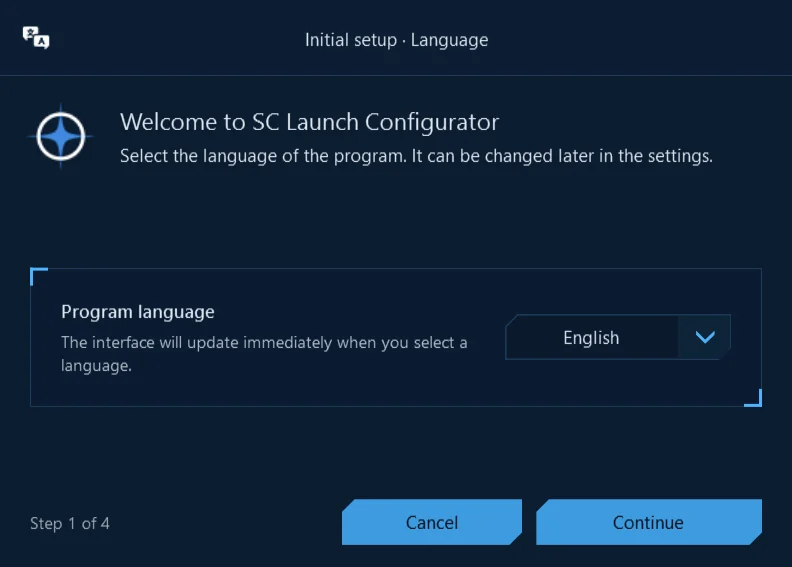
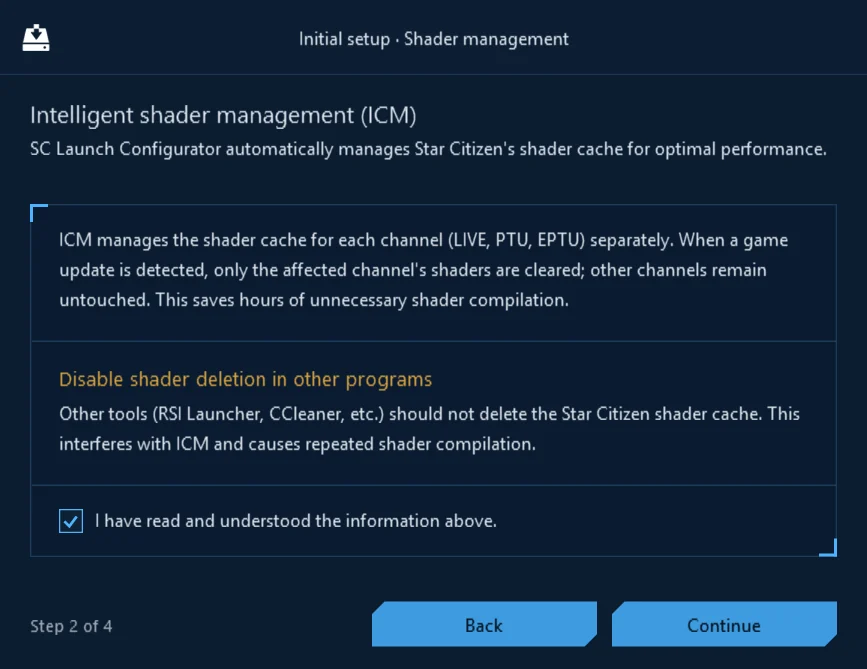
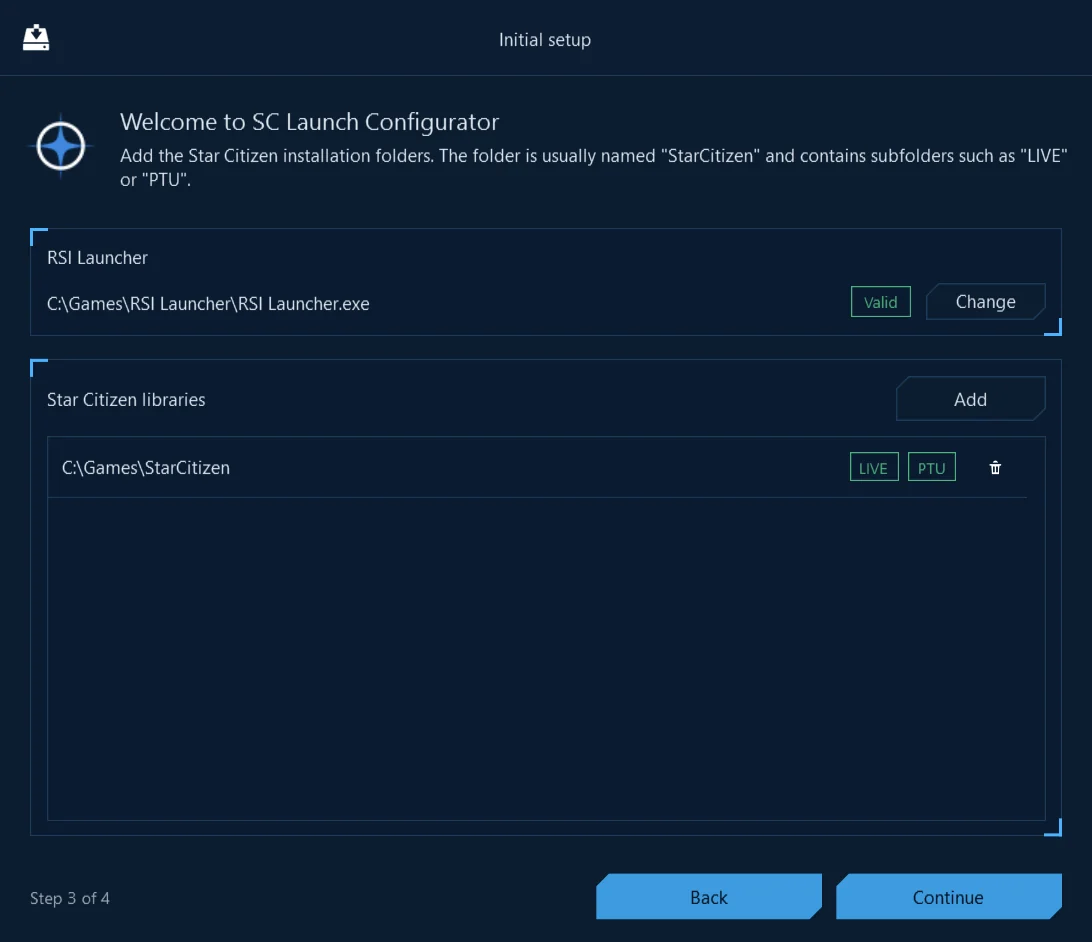
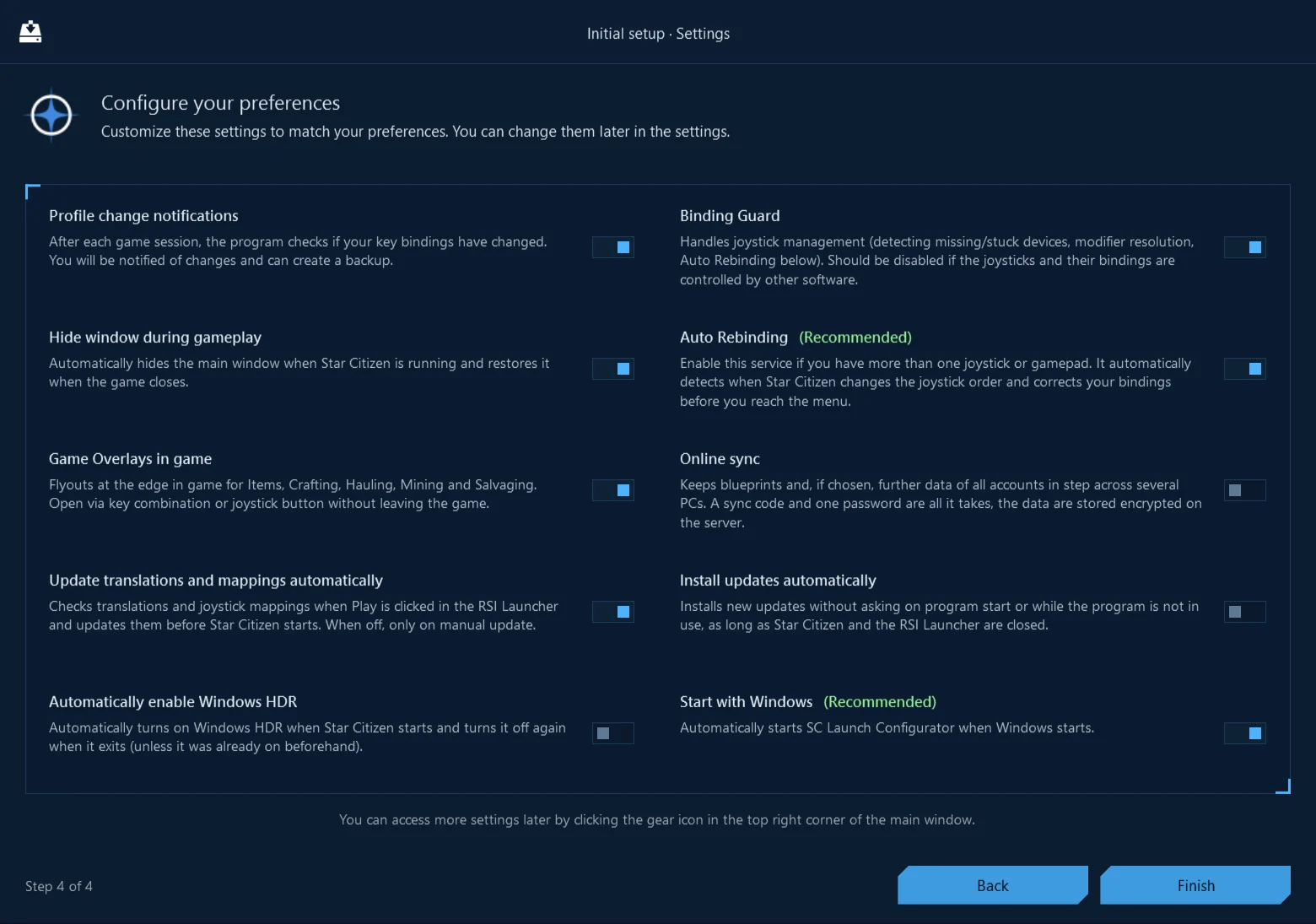
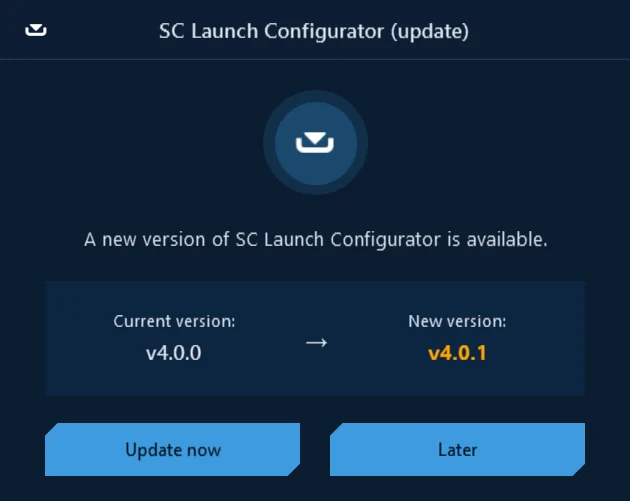
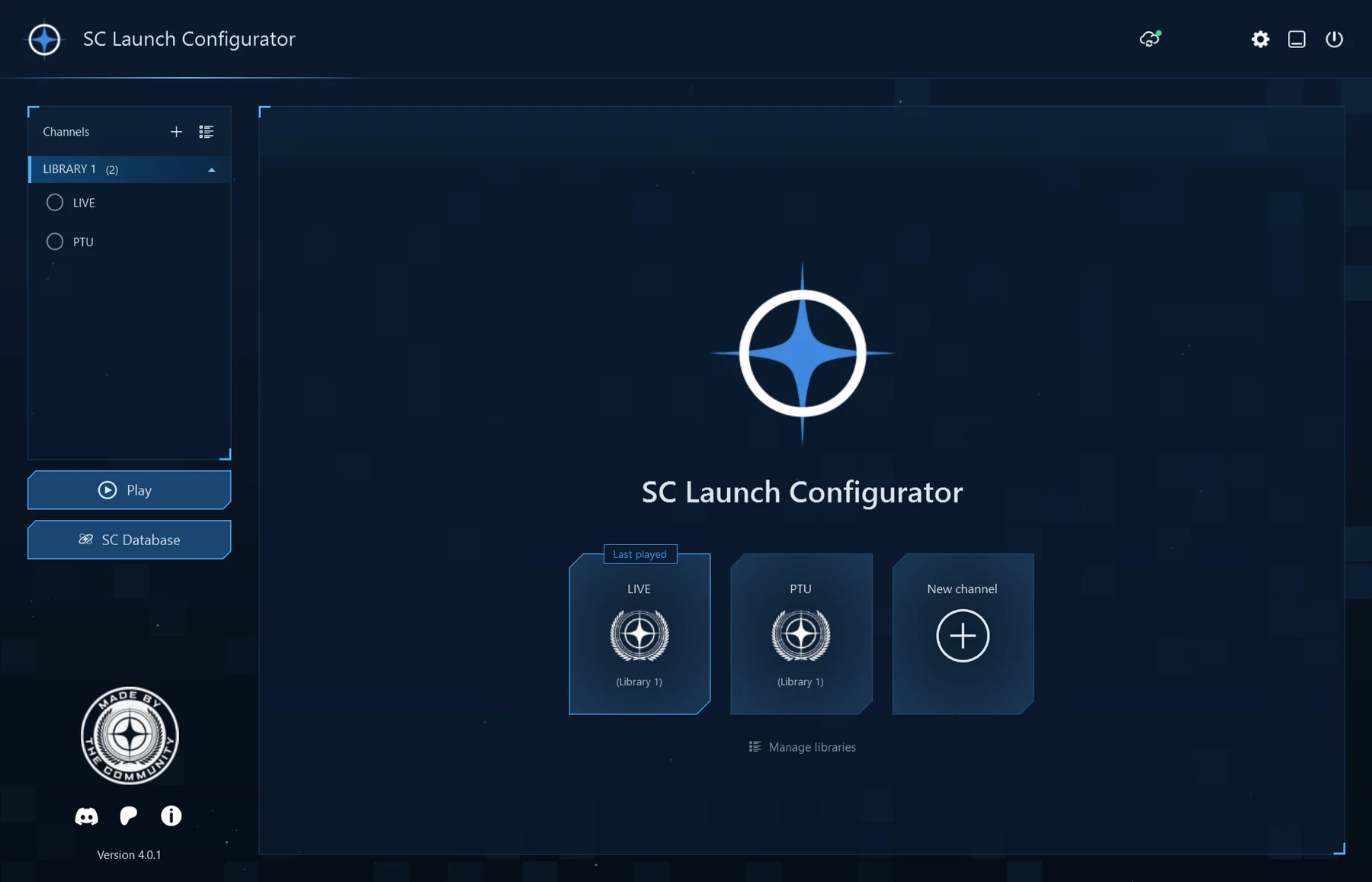
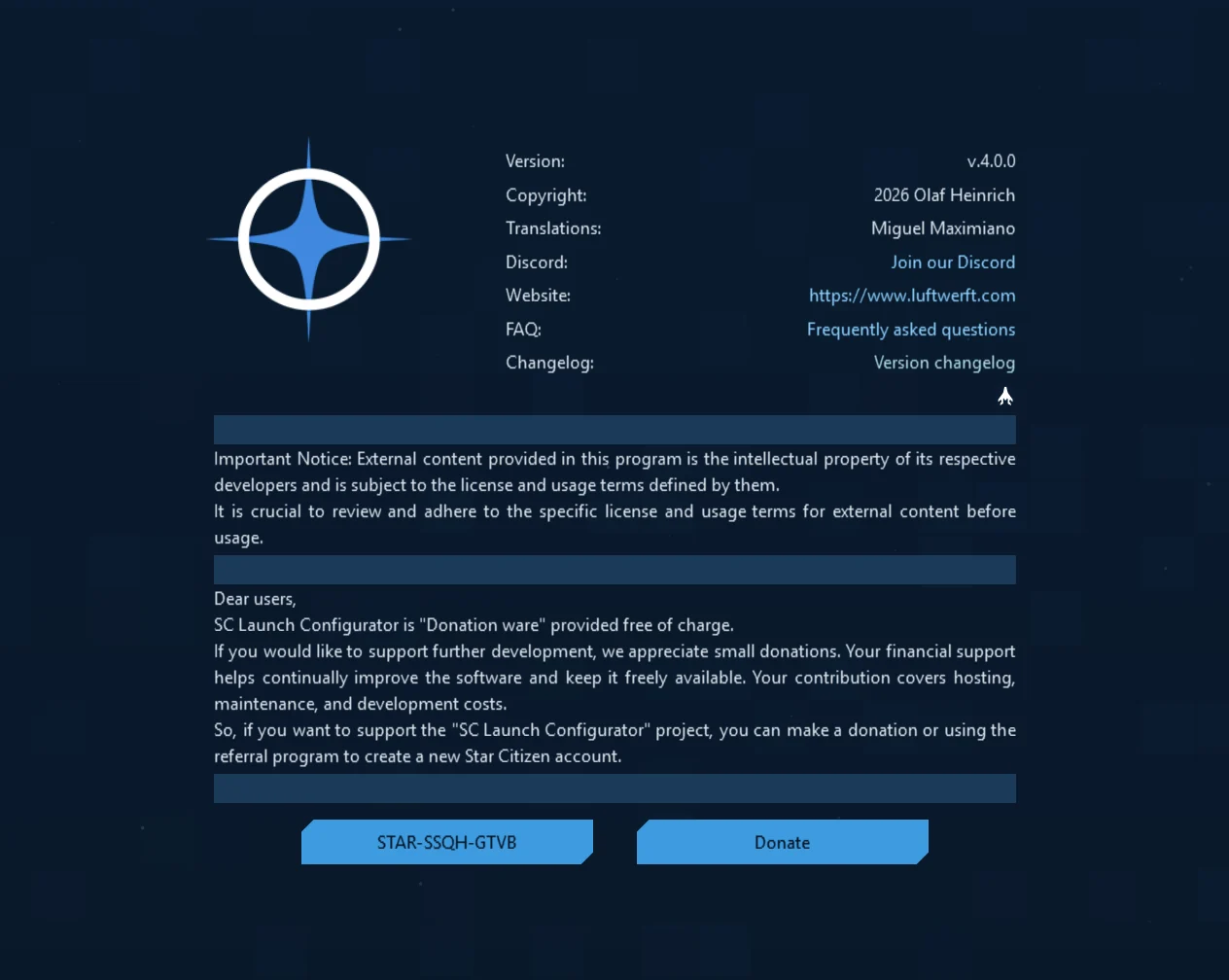
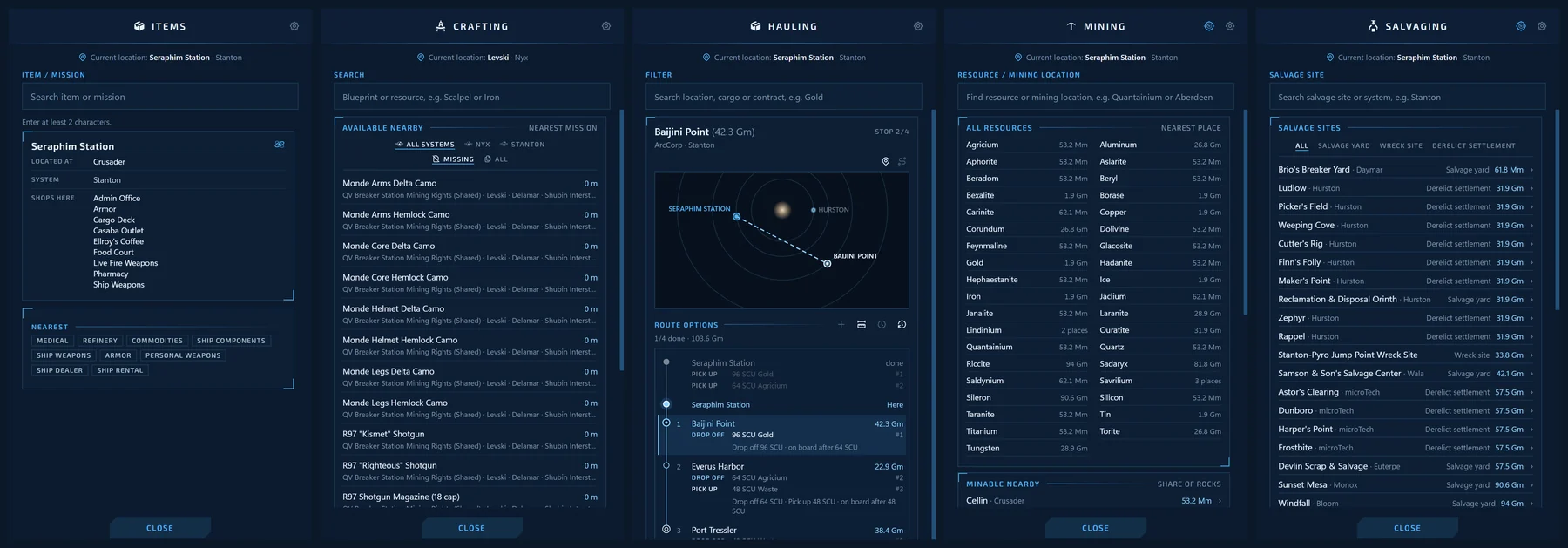

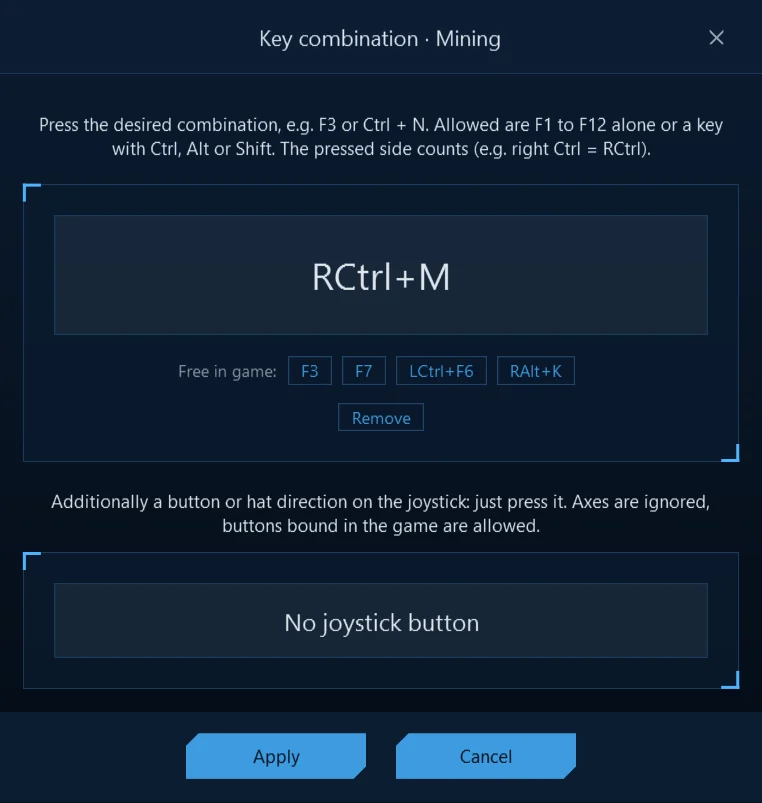
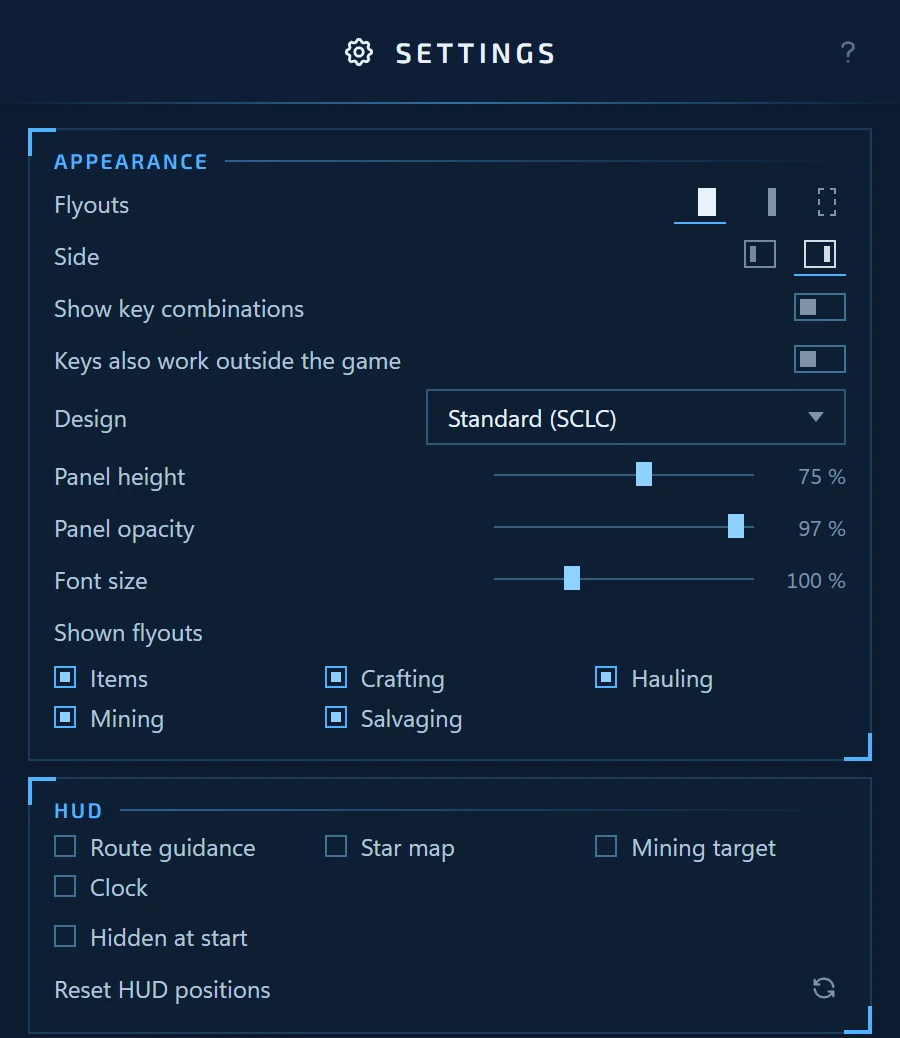
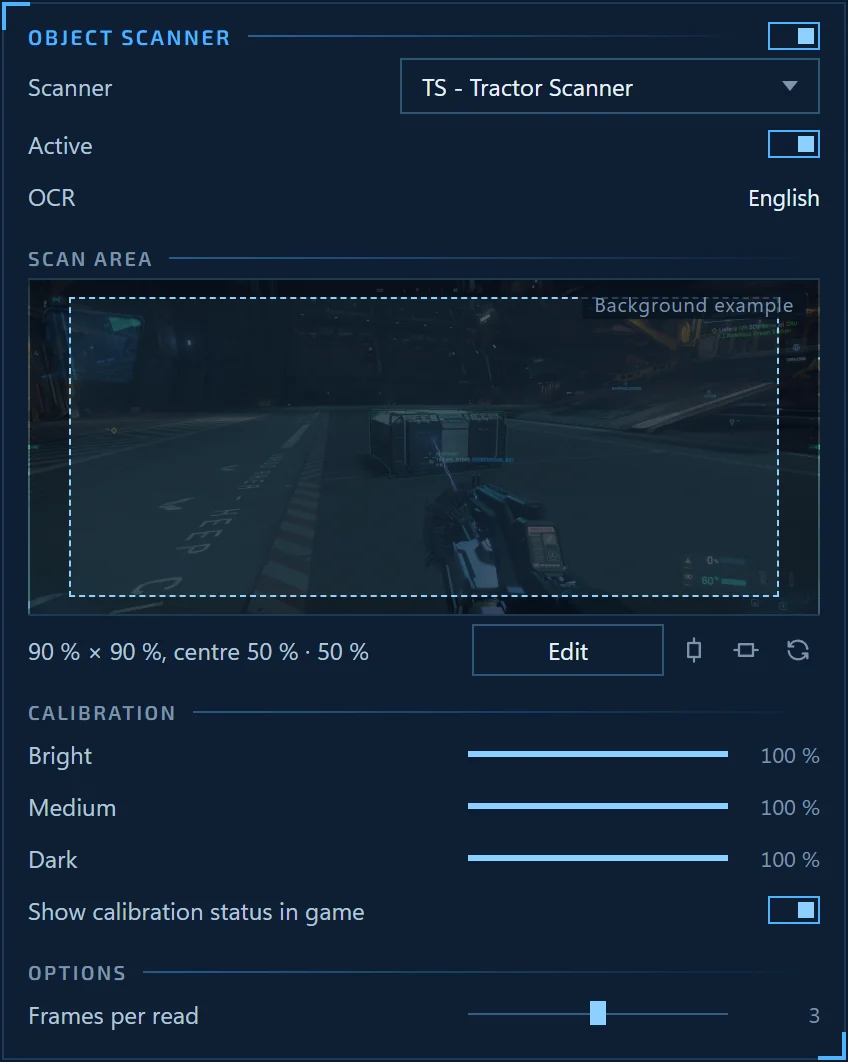
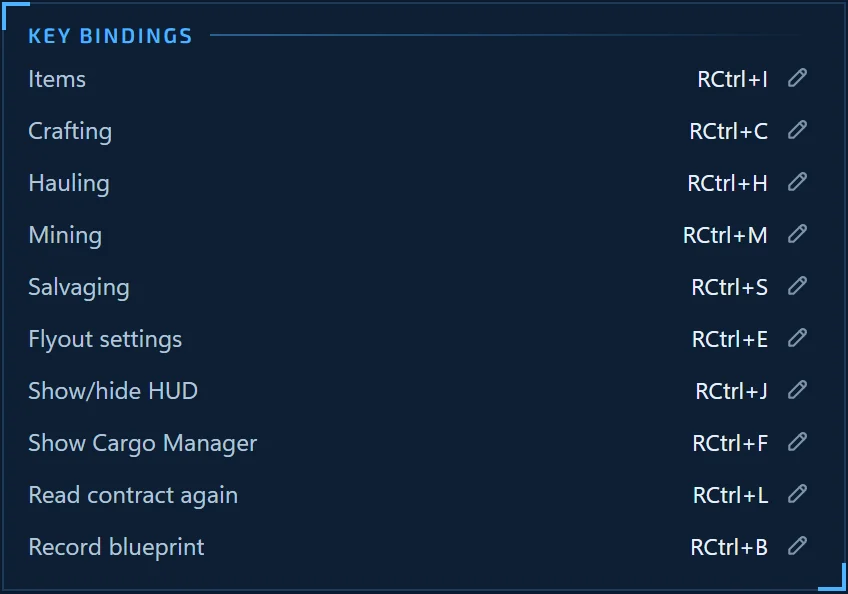
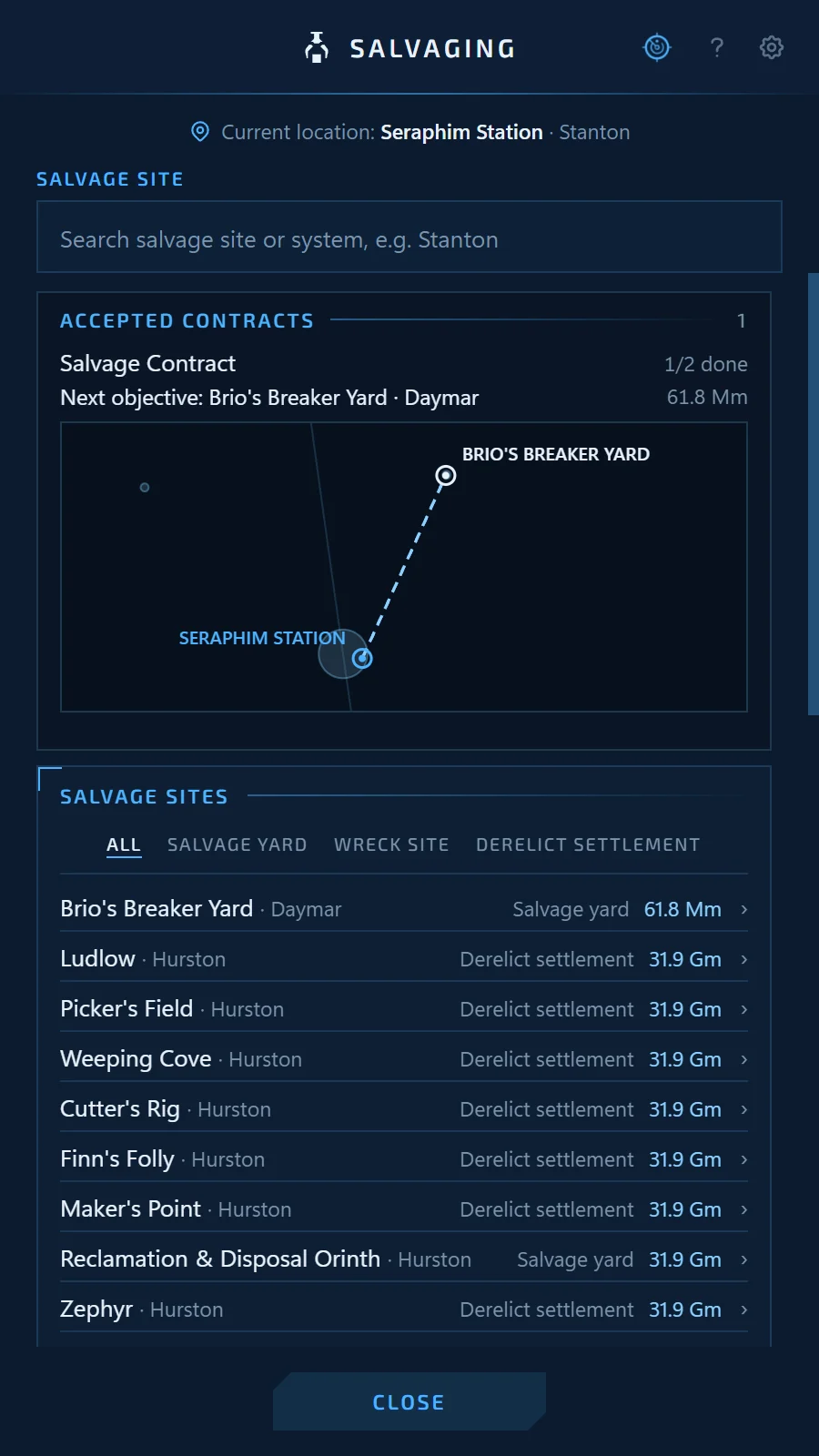
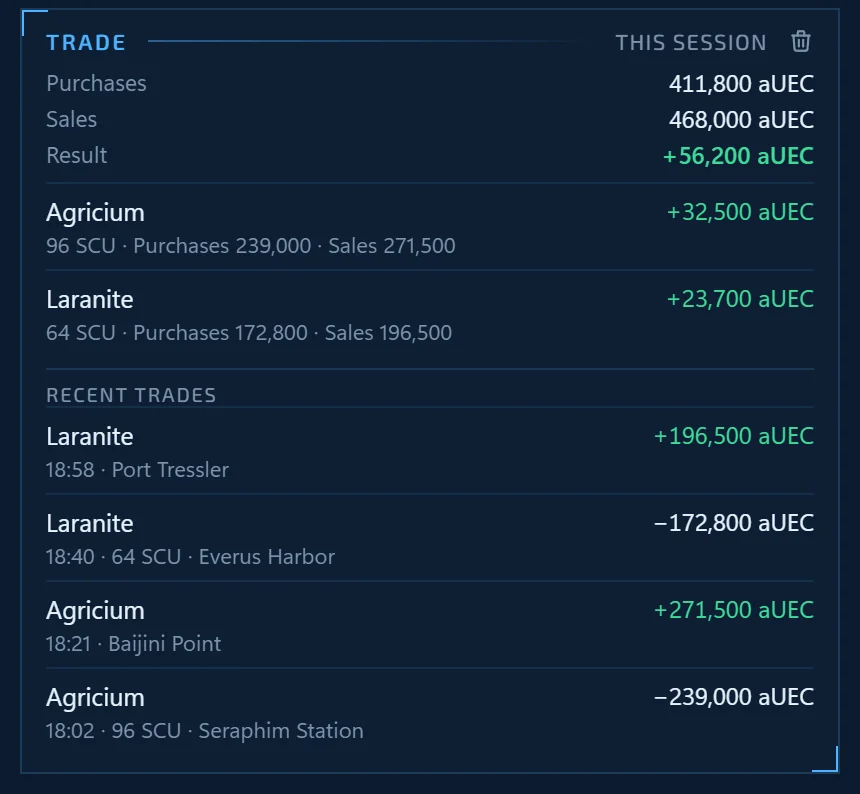
 asks "Delete all trades?". After "Yes" the card is empty for this account in all three flyouts.
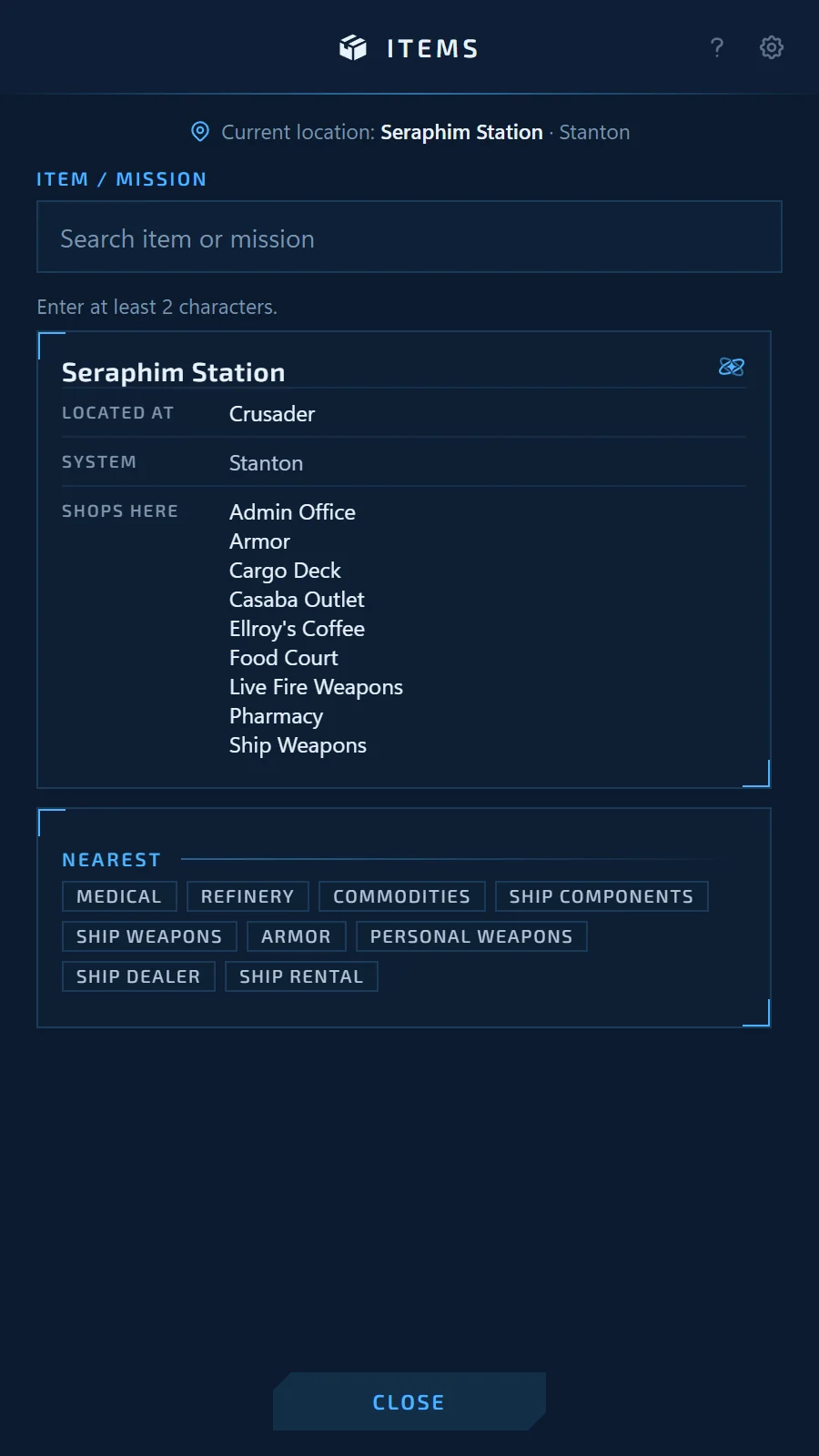
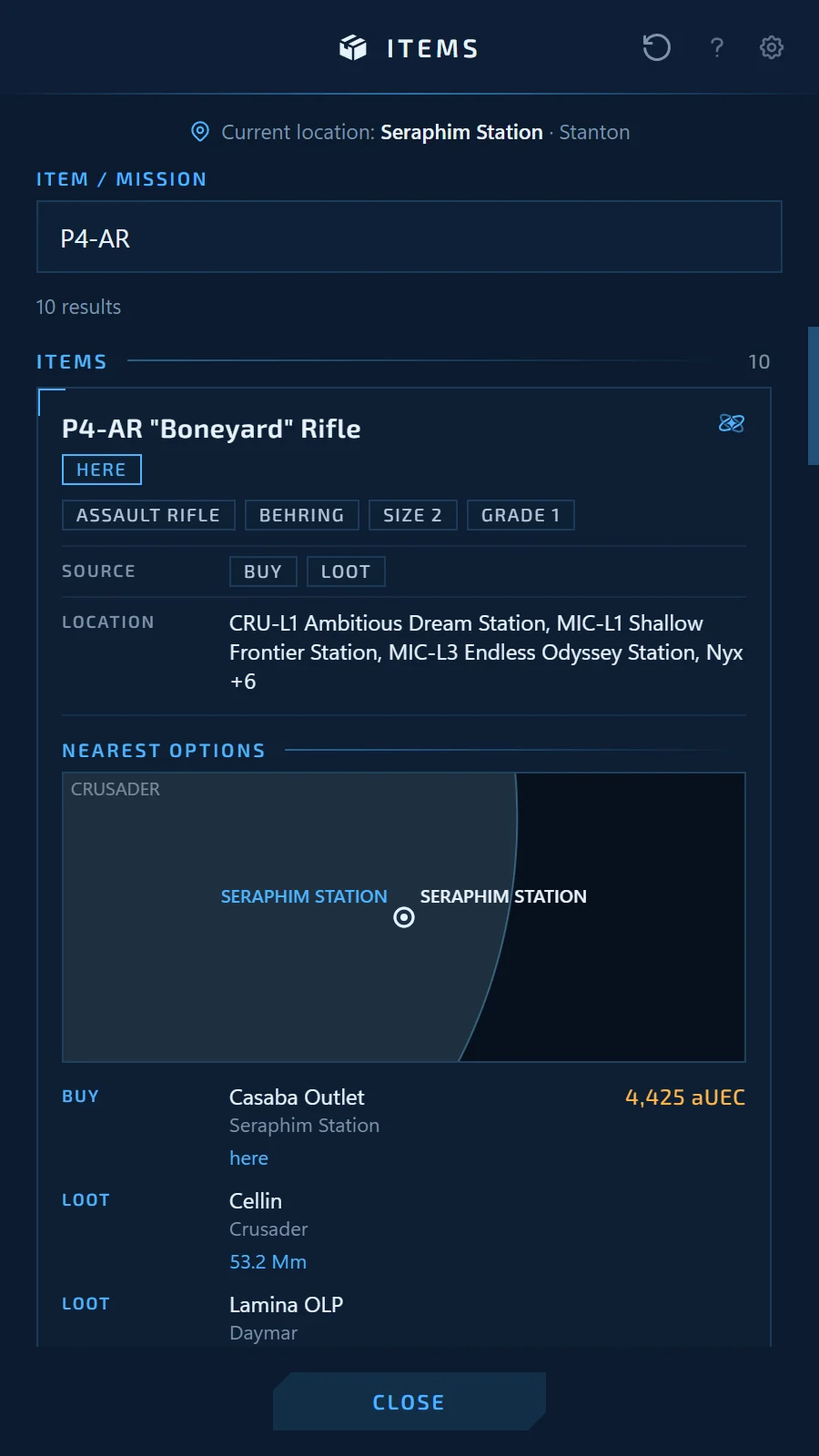
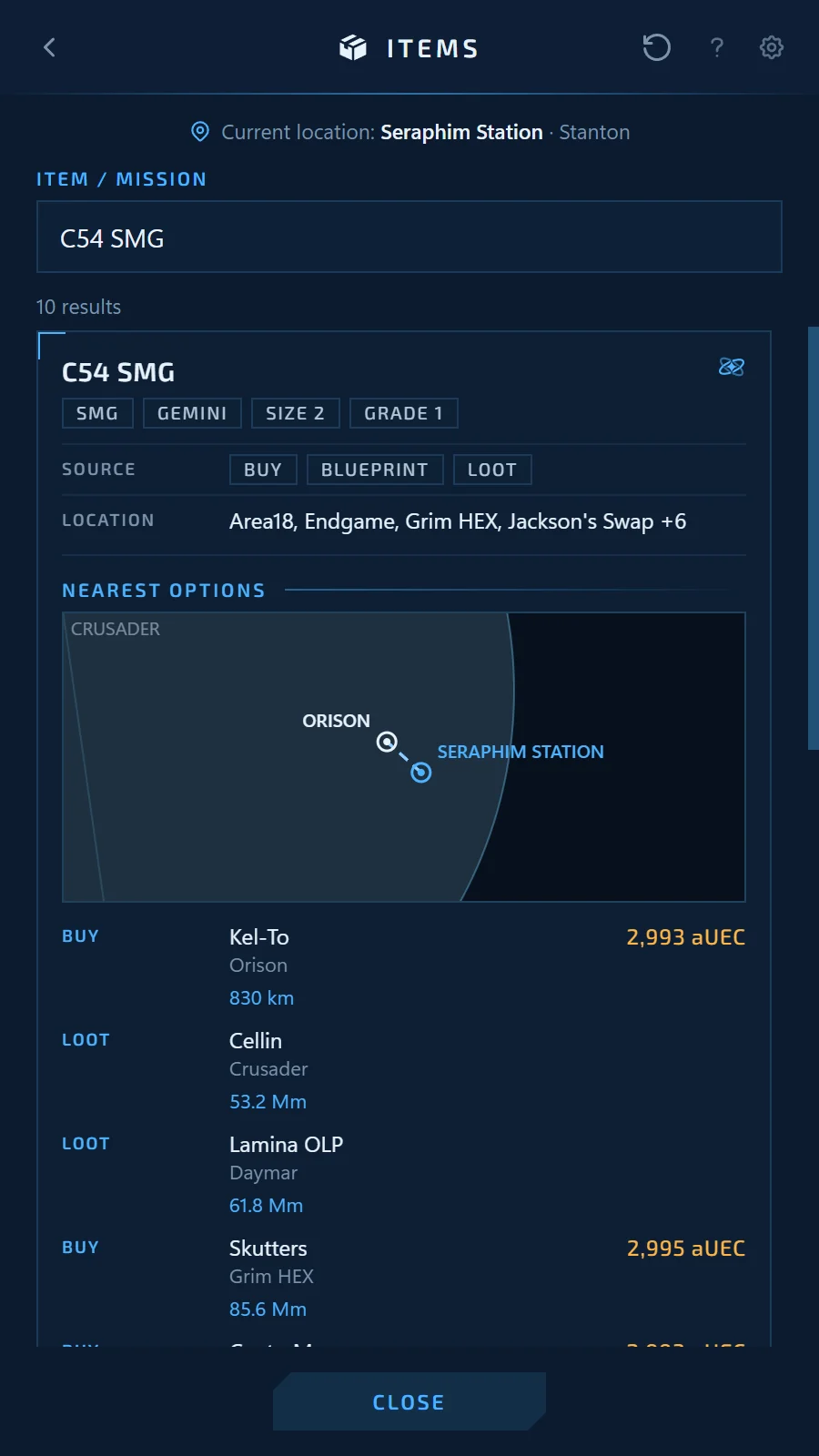
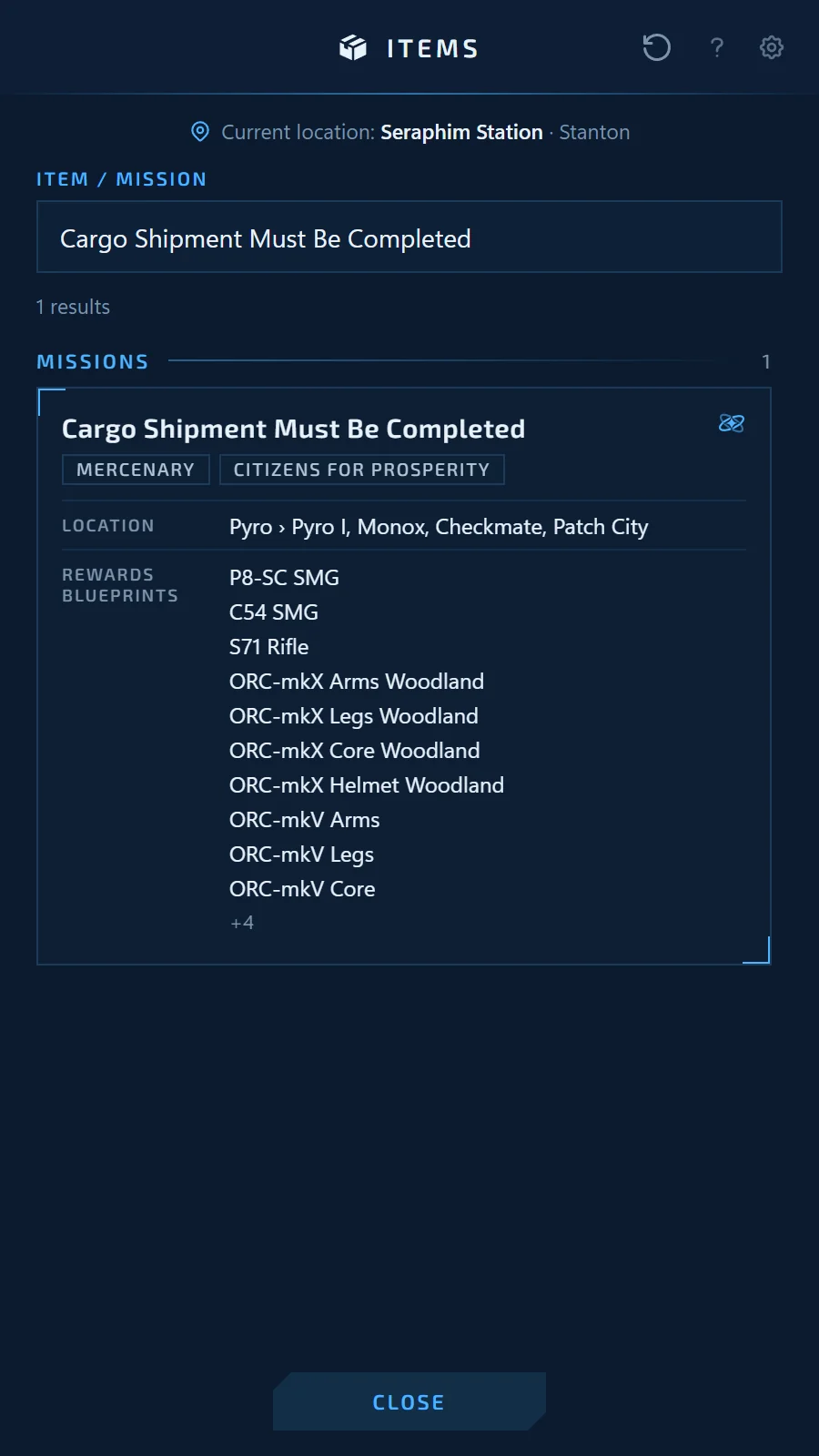
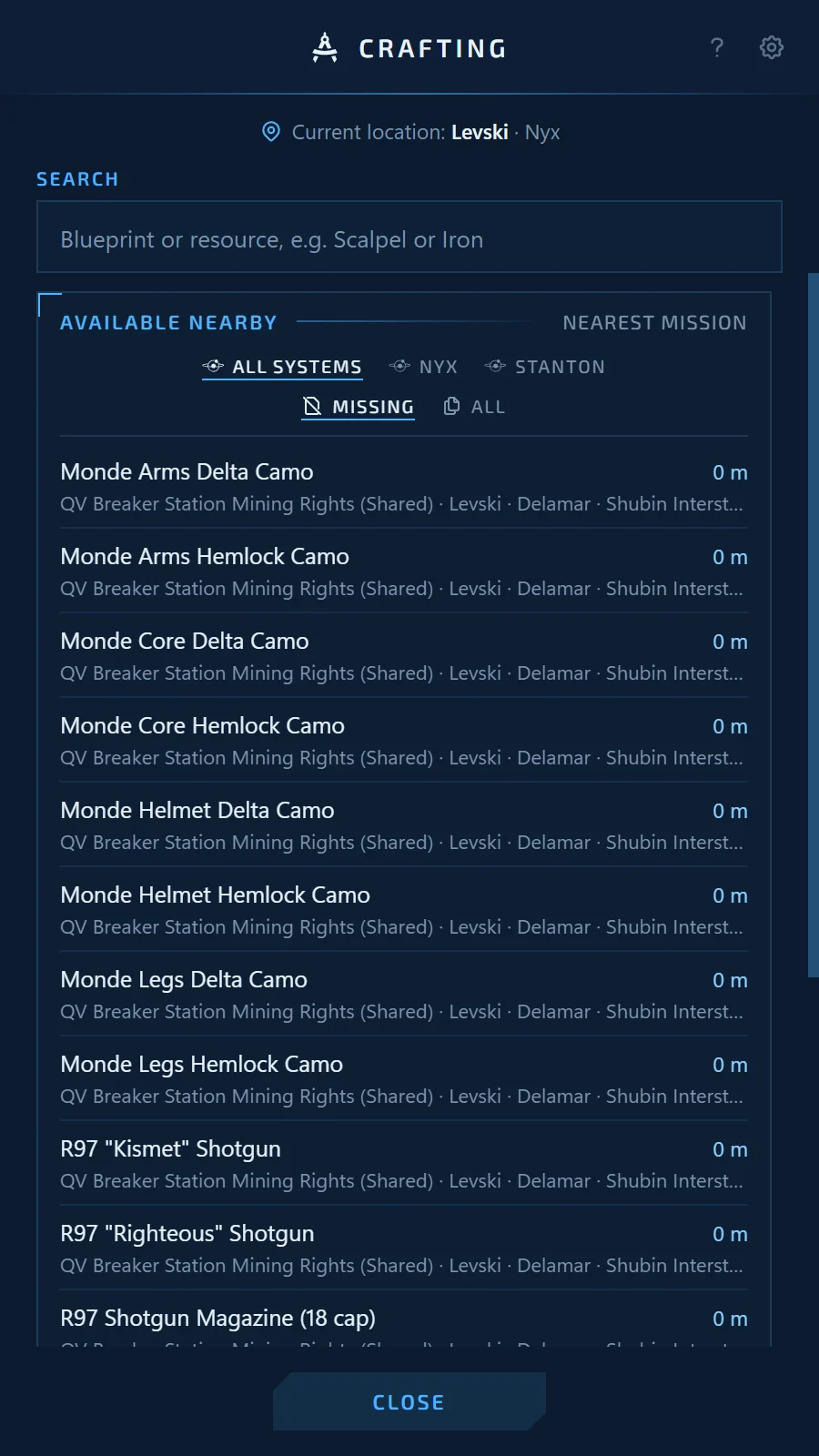
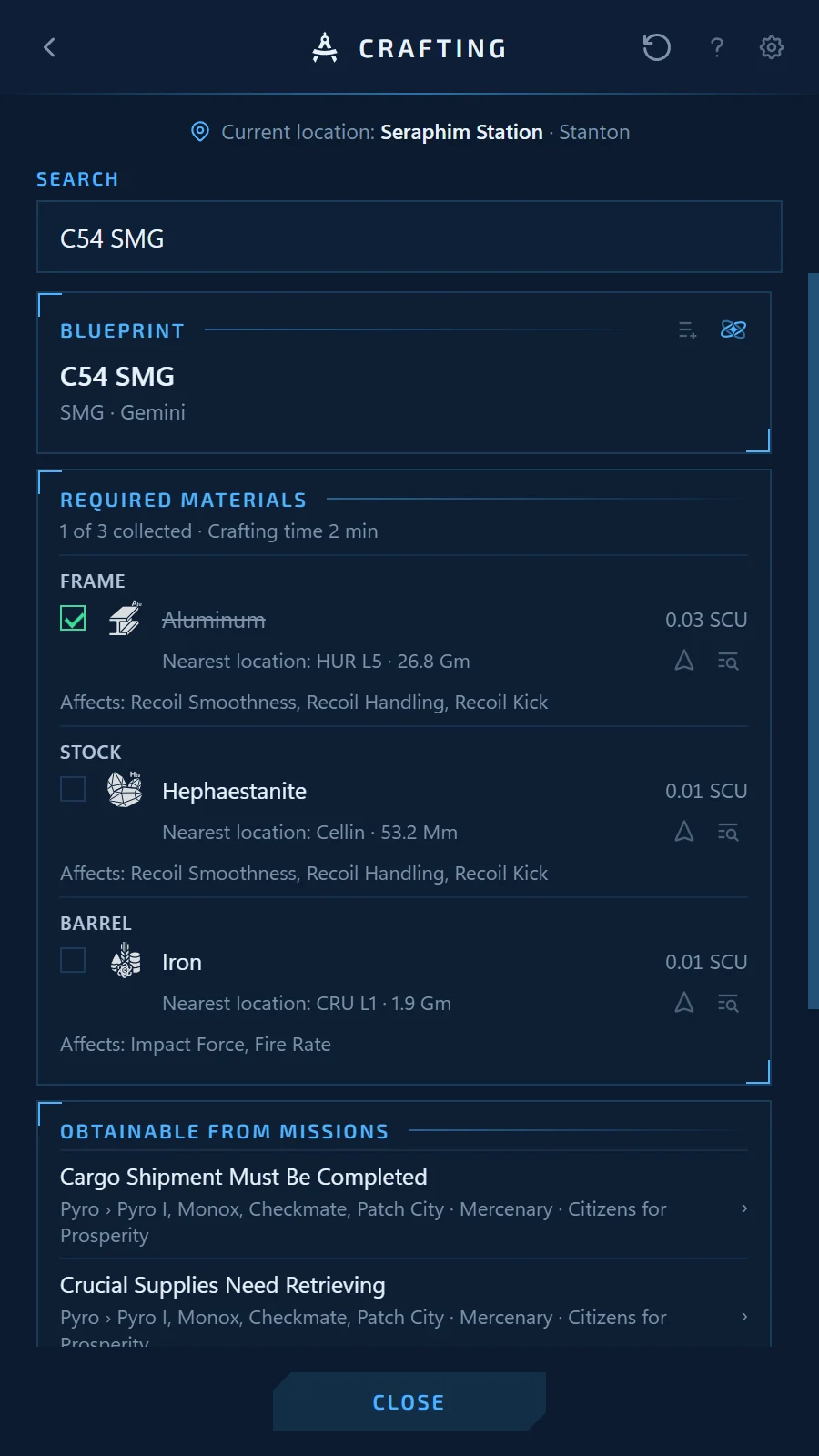
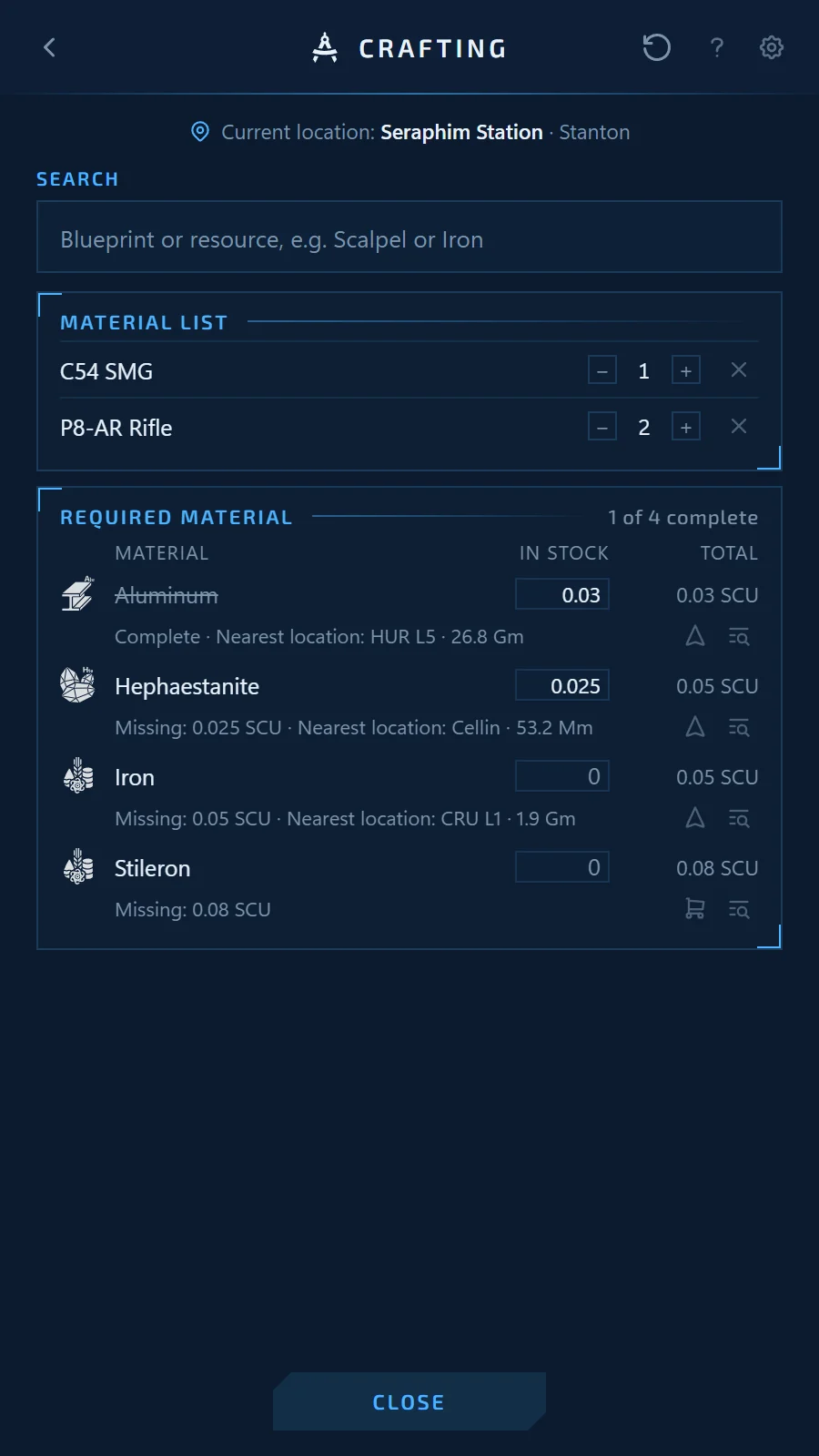
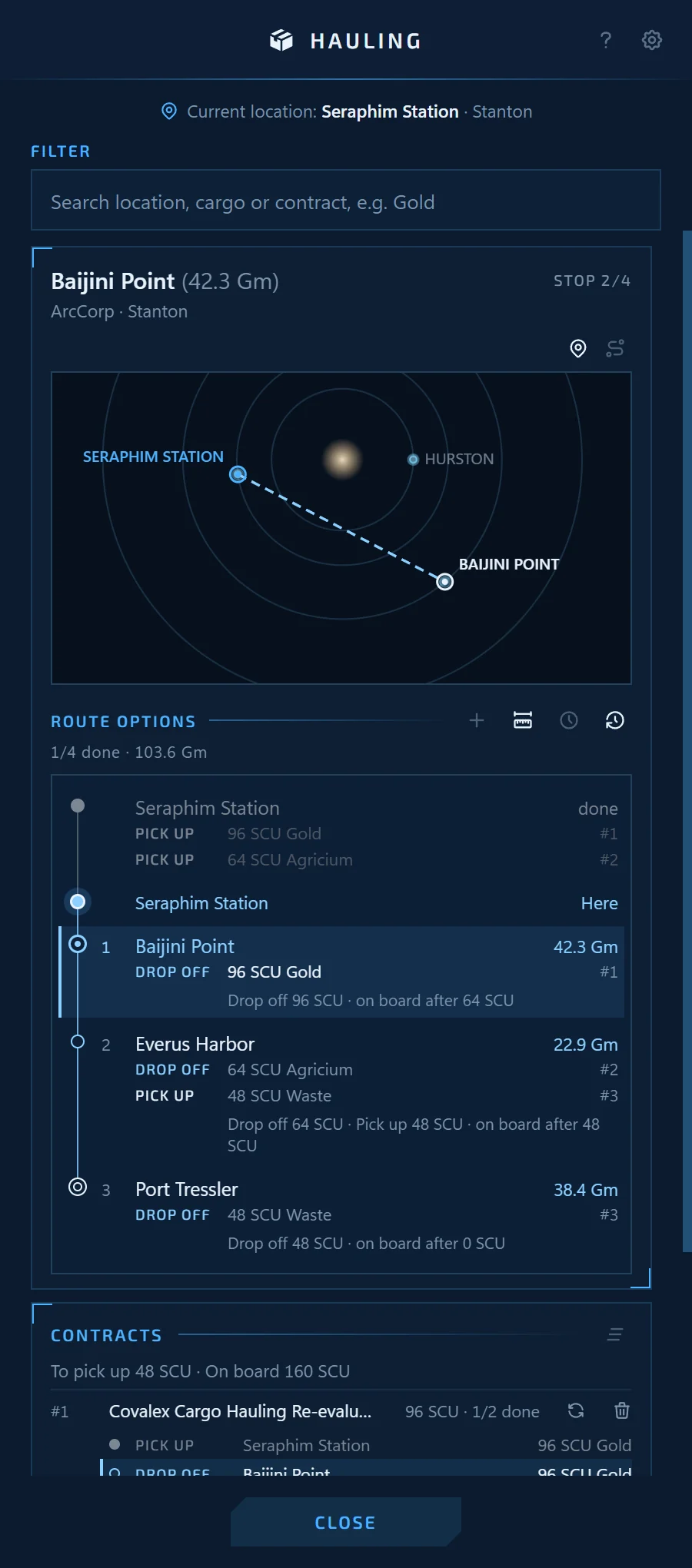
 "Next" and
 "Full route". A click on an open stop in the list makes it the displayed target, the order stays the same.
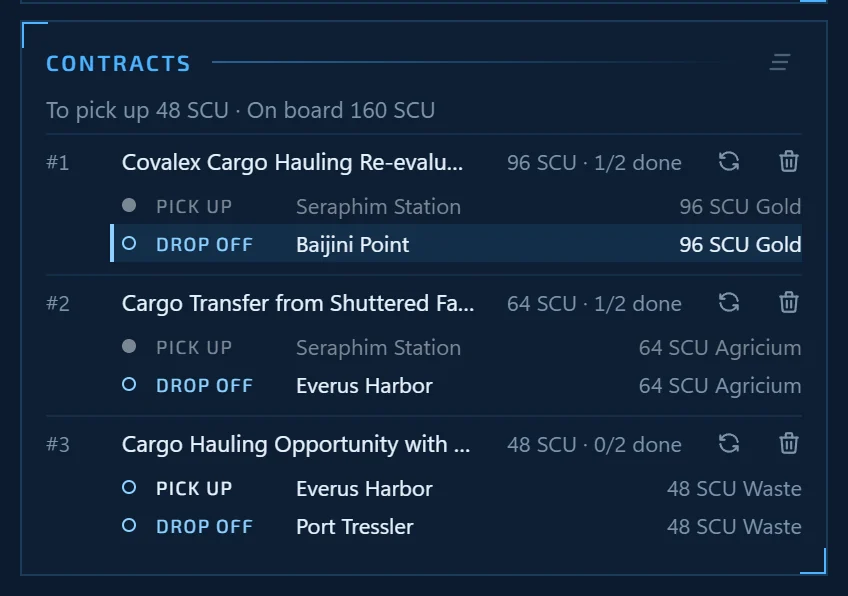
 Read contract again
 Shortest distance
 Fastest route
 Show completed stops
 Remove completed contracts automatically
 "Add stopover" in the route options searches a location, for example for shopping, and places it where the detour is smallest. "Visit one stop earlier", "Visit one stop later" and "Remove stopover" change it. It checks itself off on arrival and disappears as soon as the route is empty.
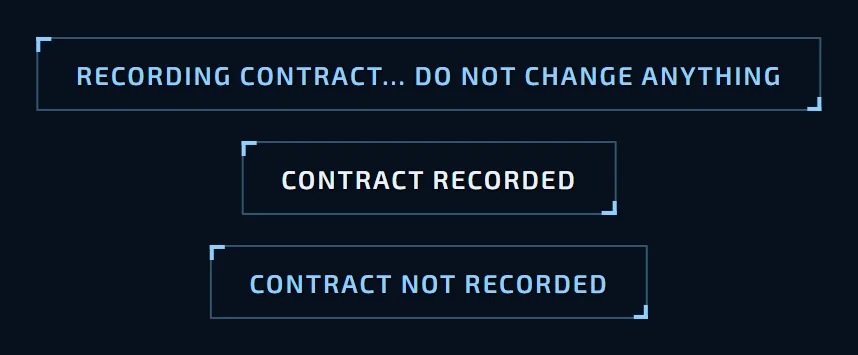
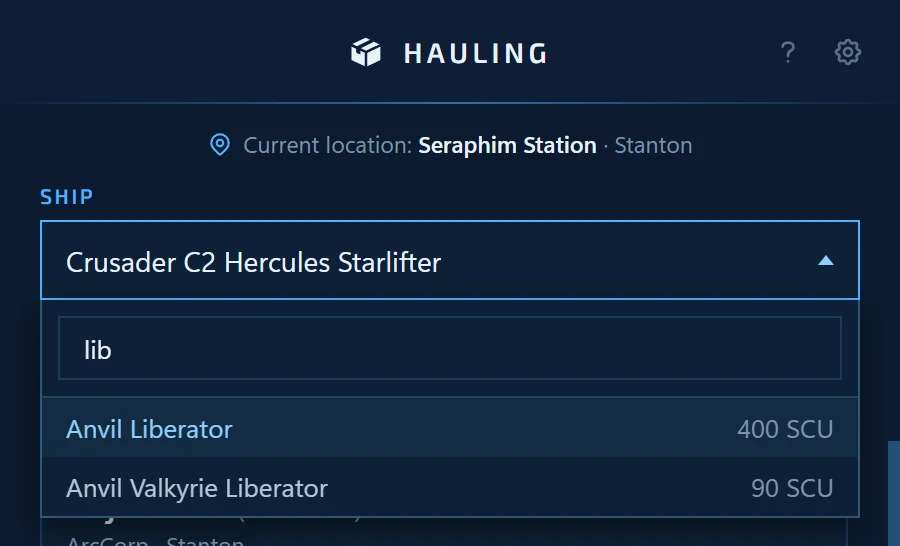
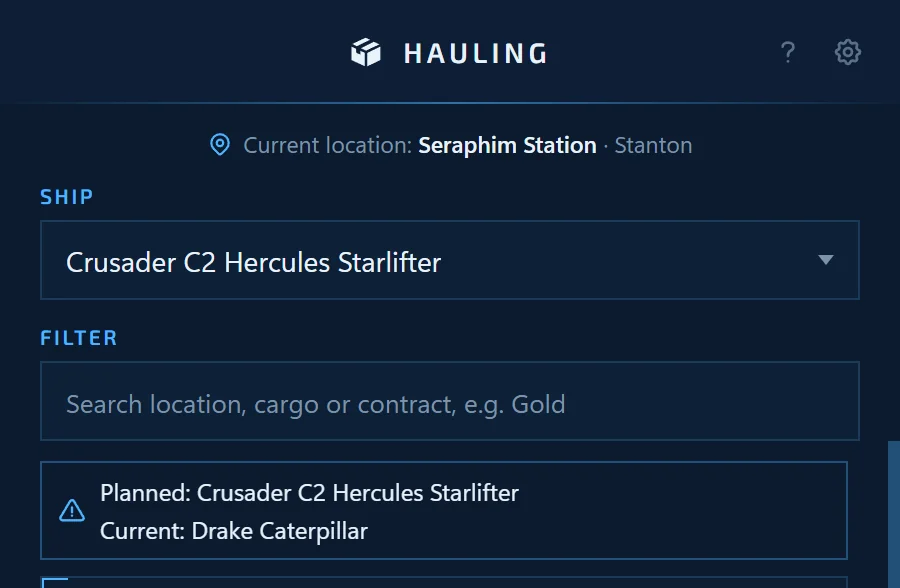
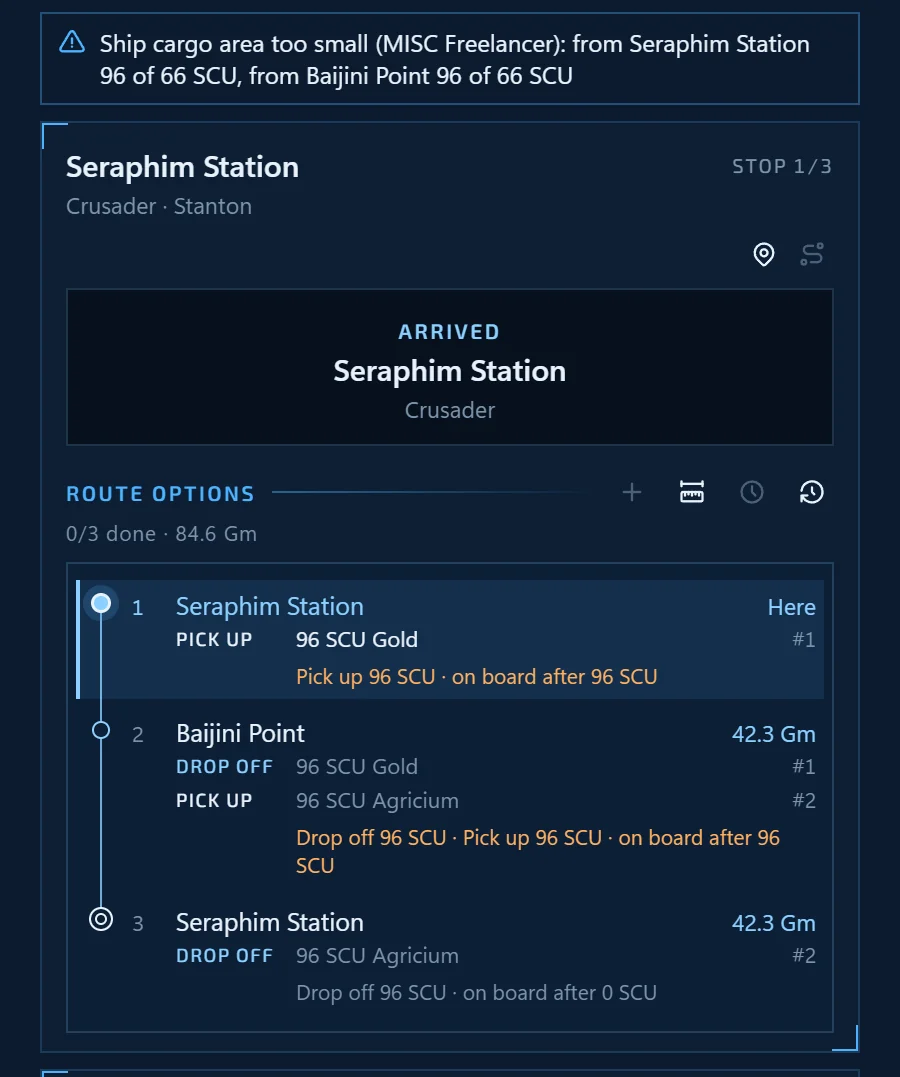
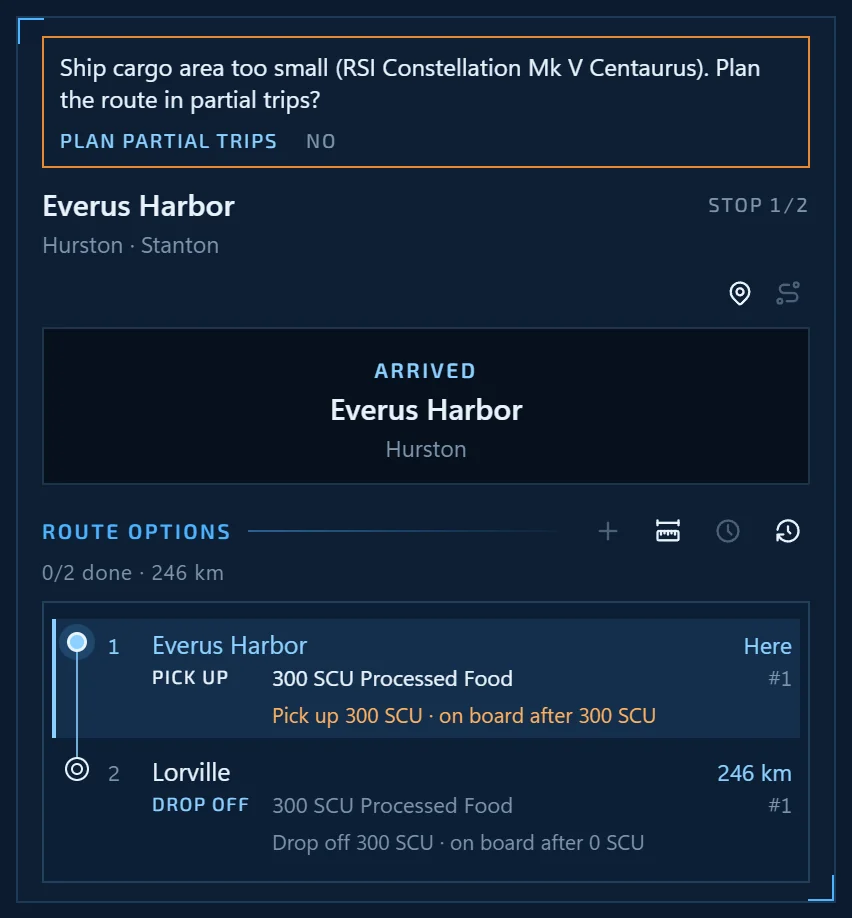
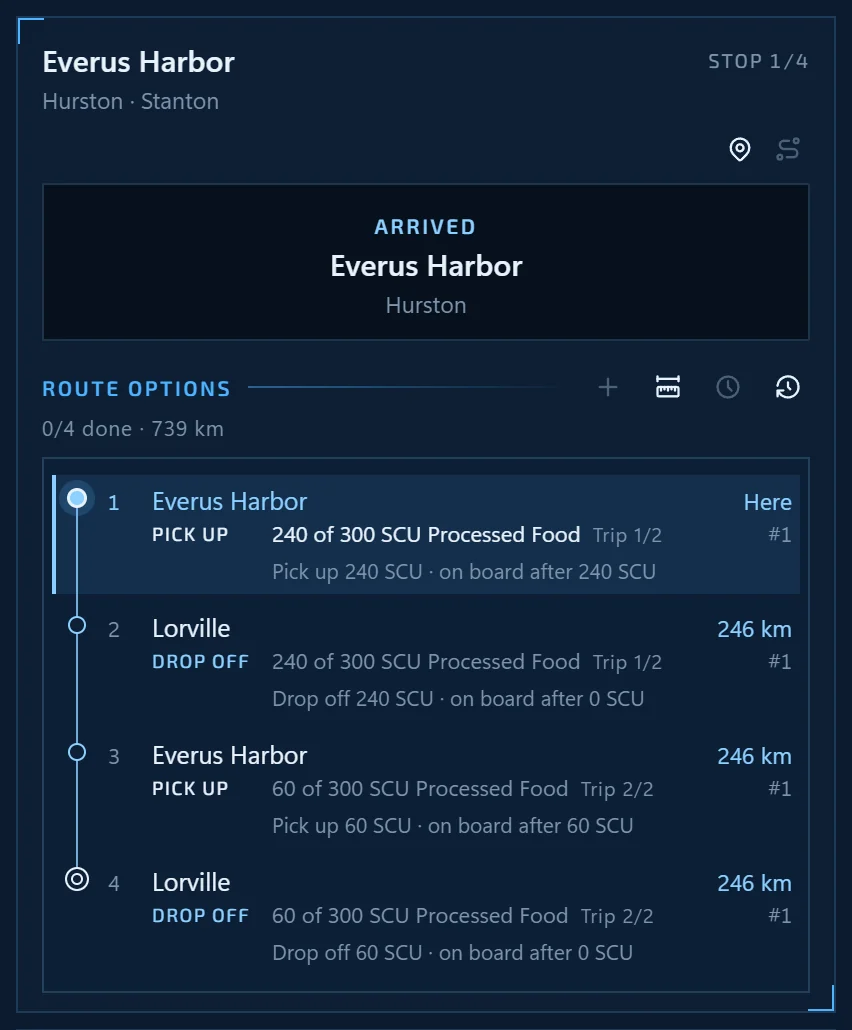
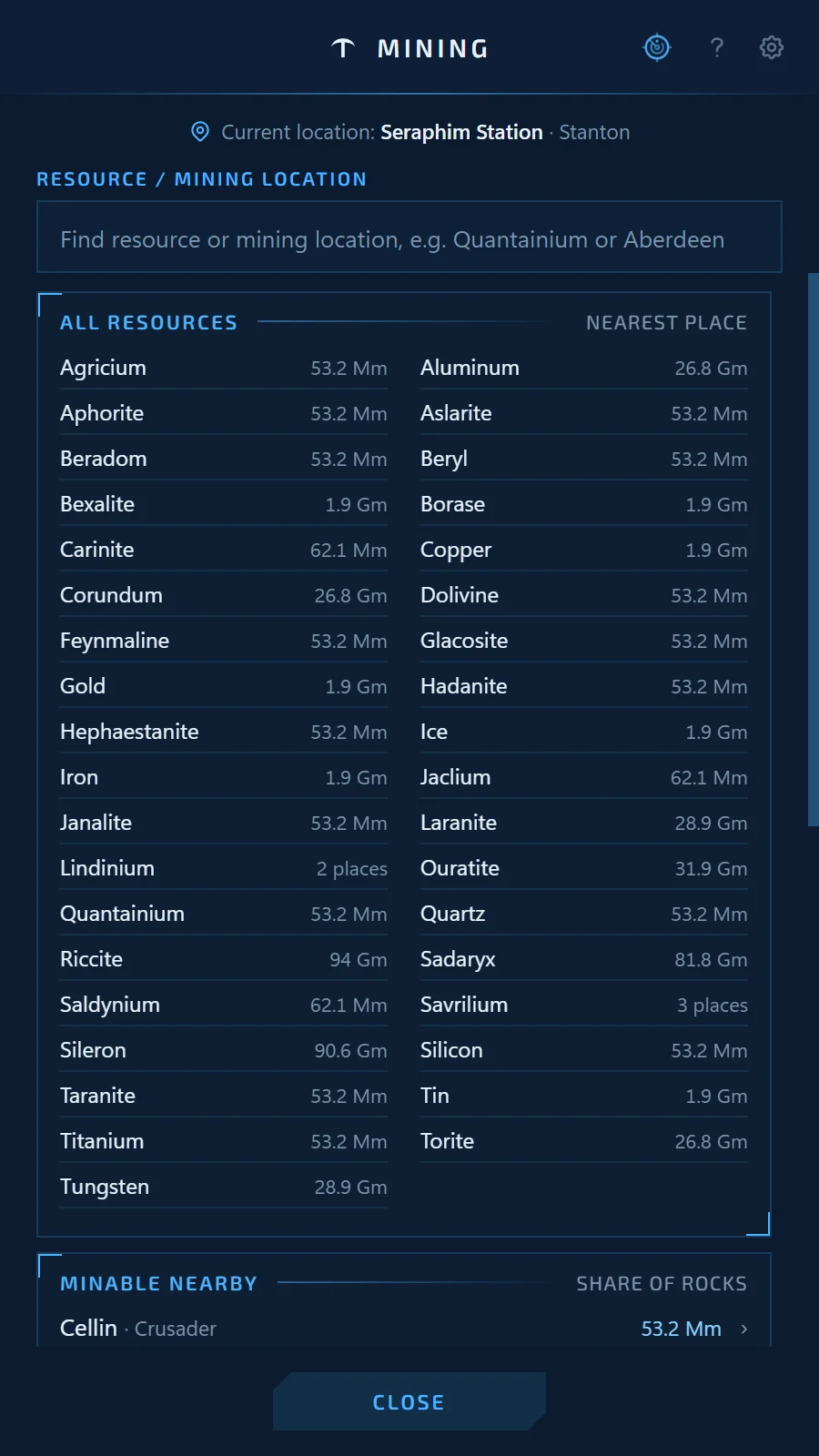
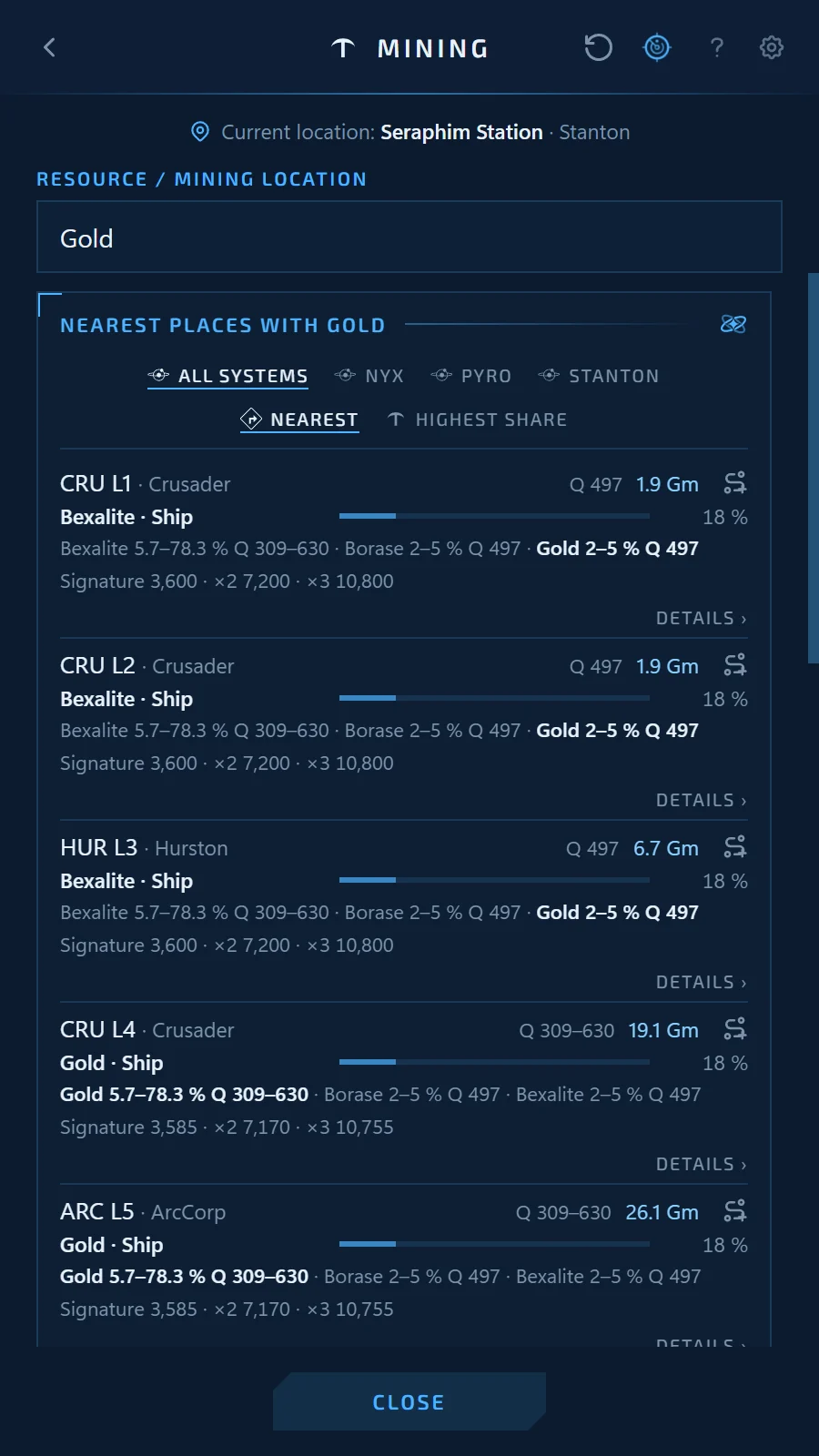
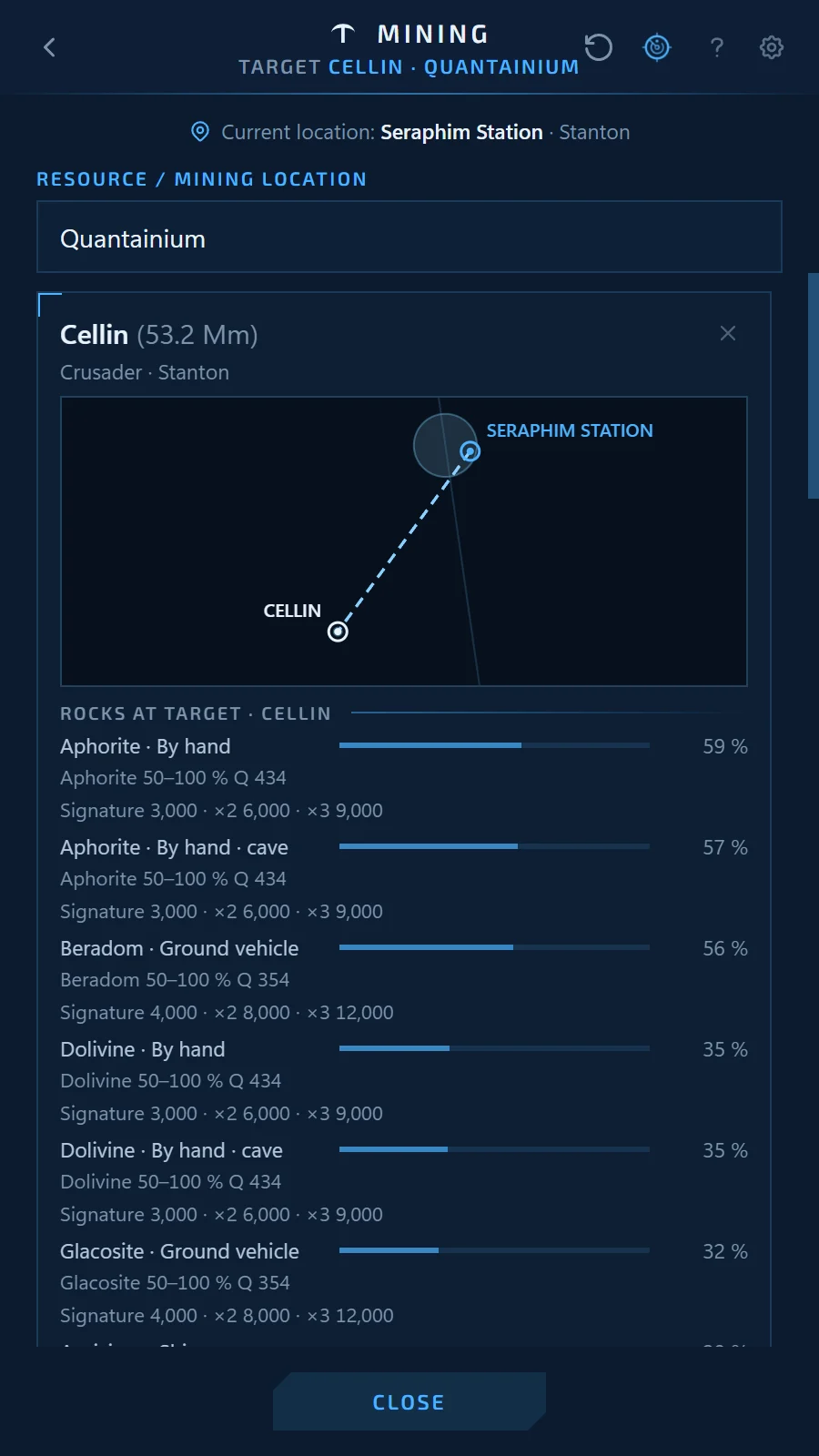
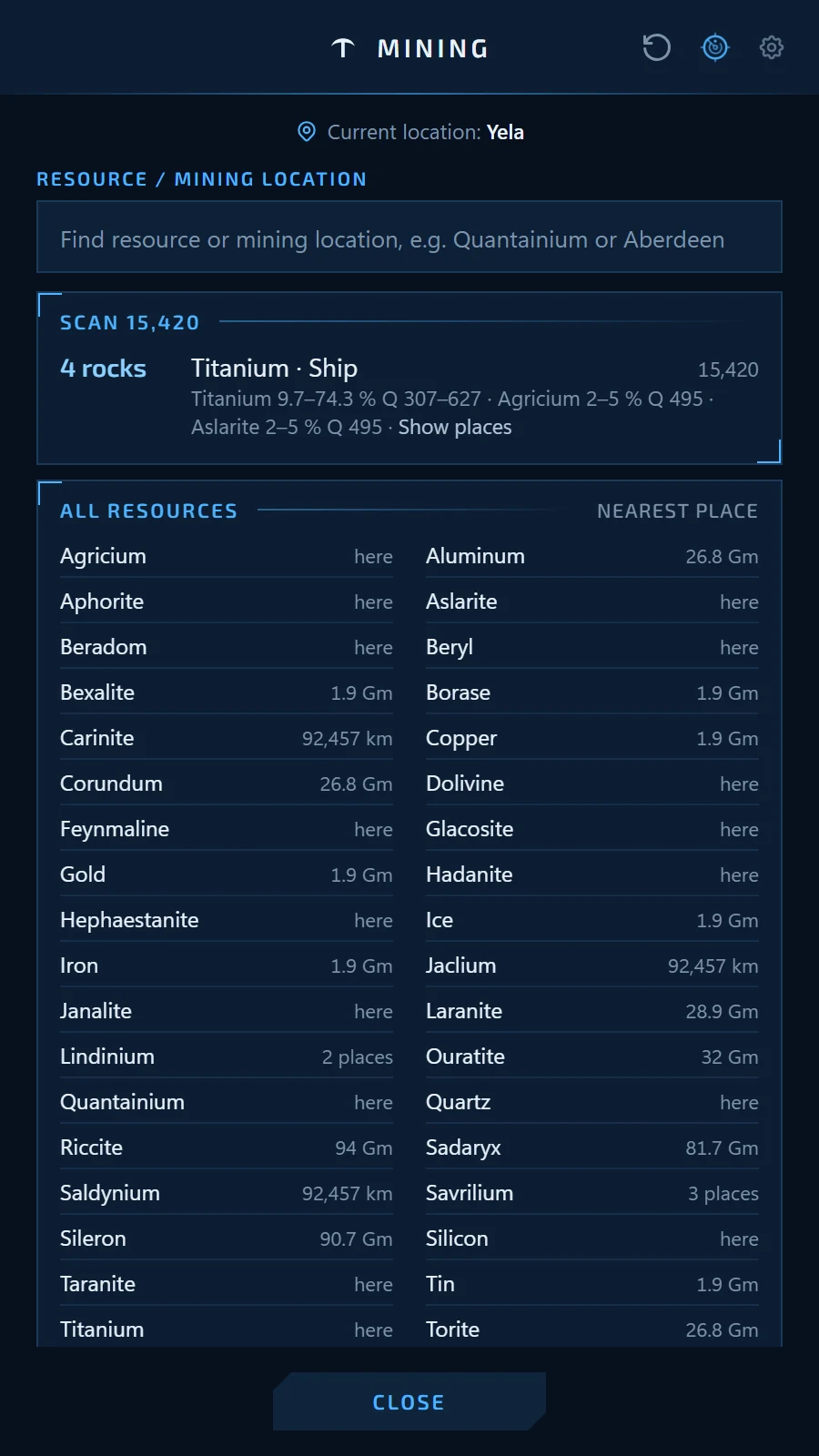
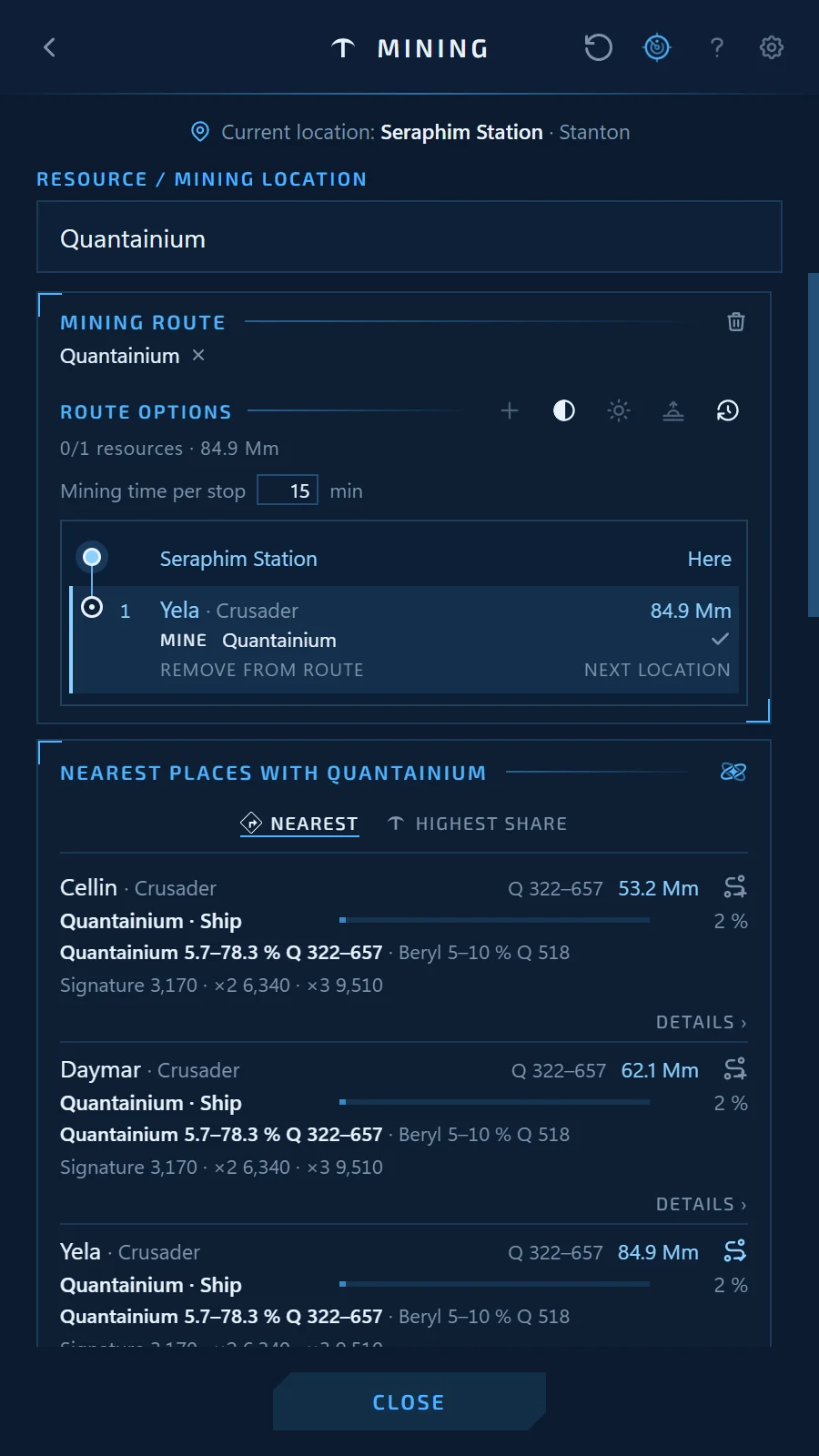
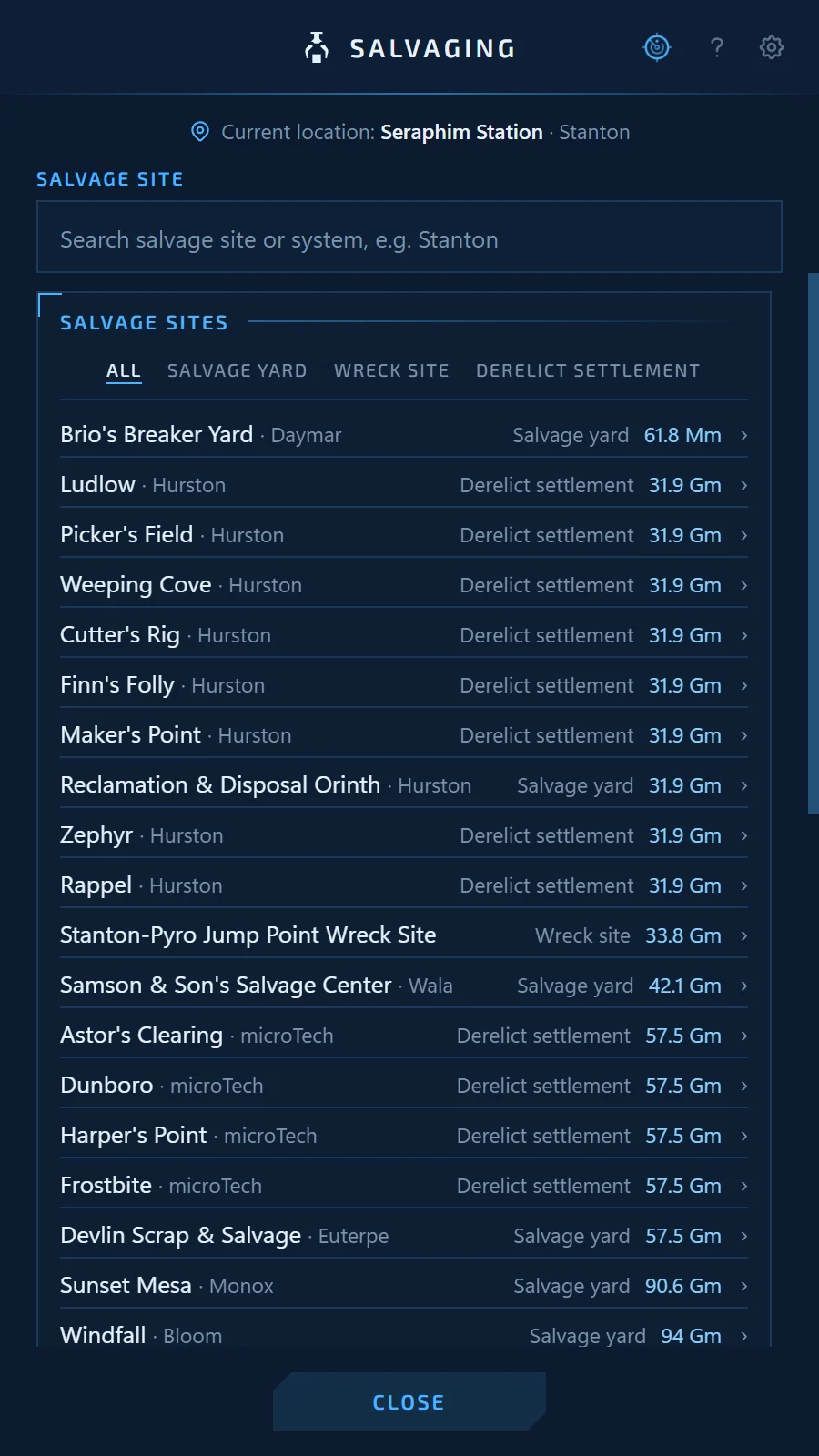
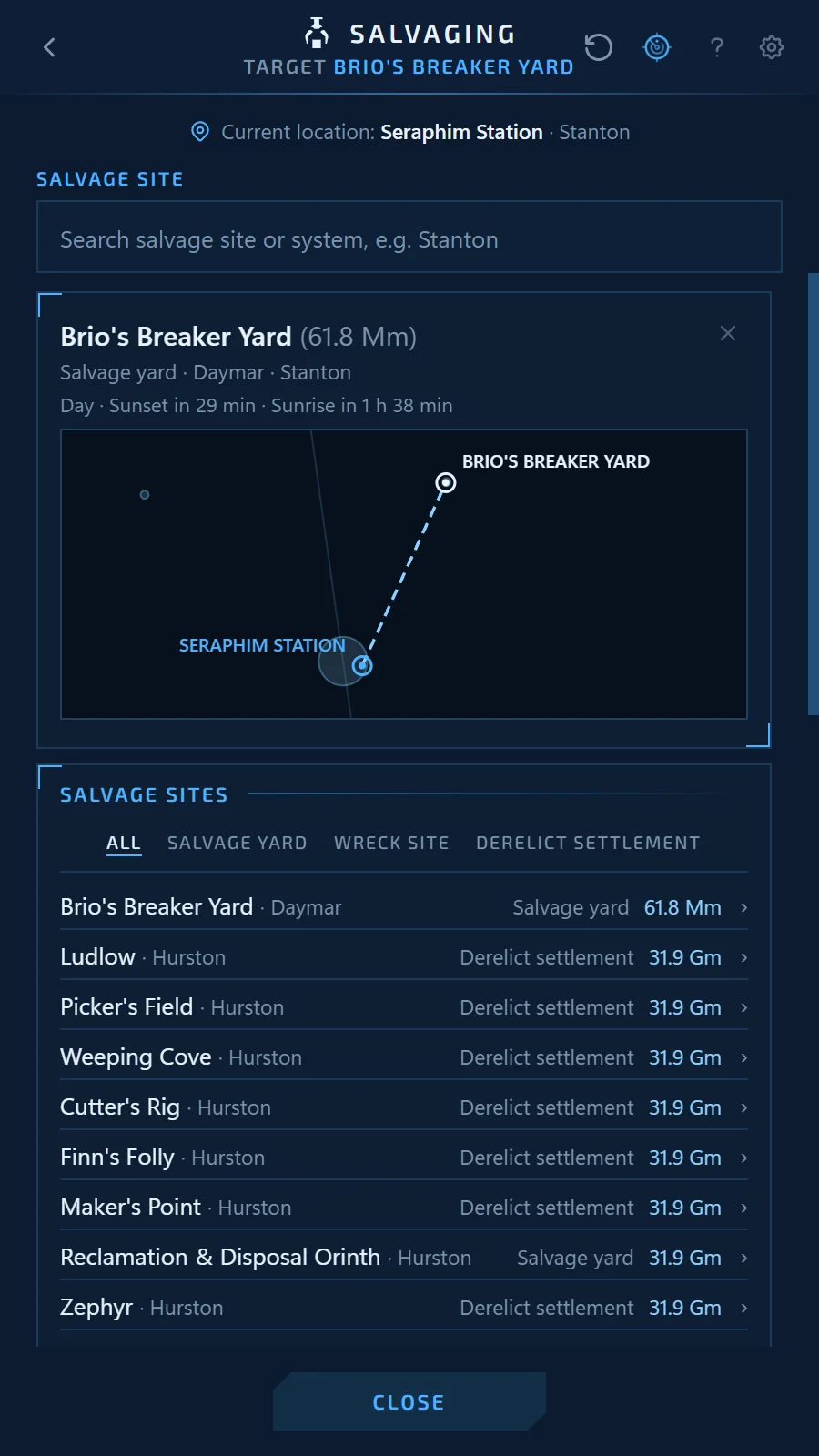
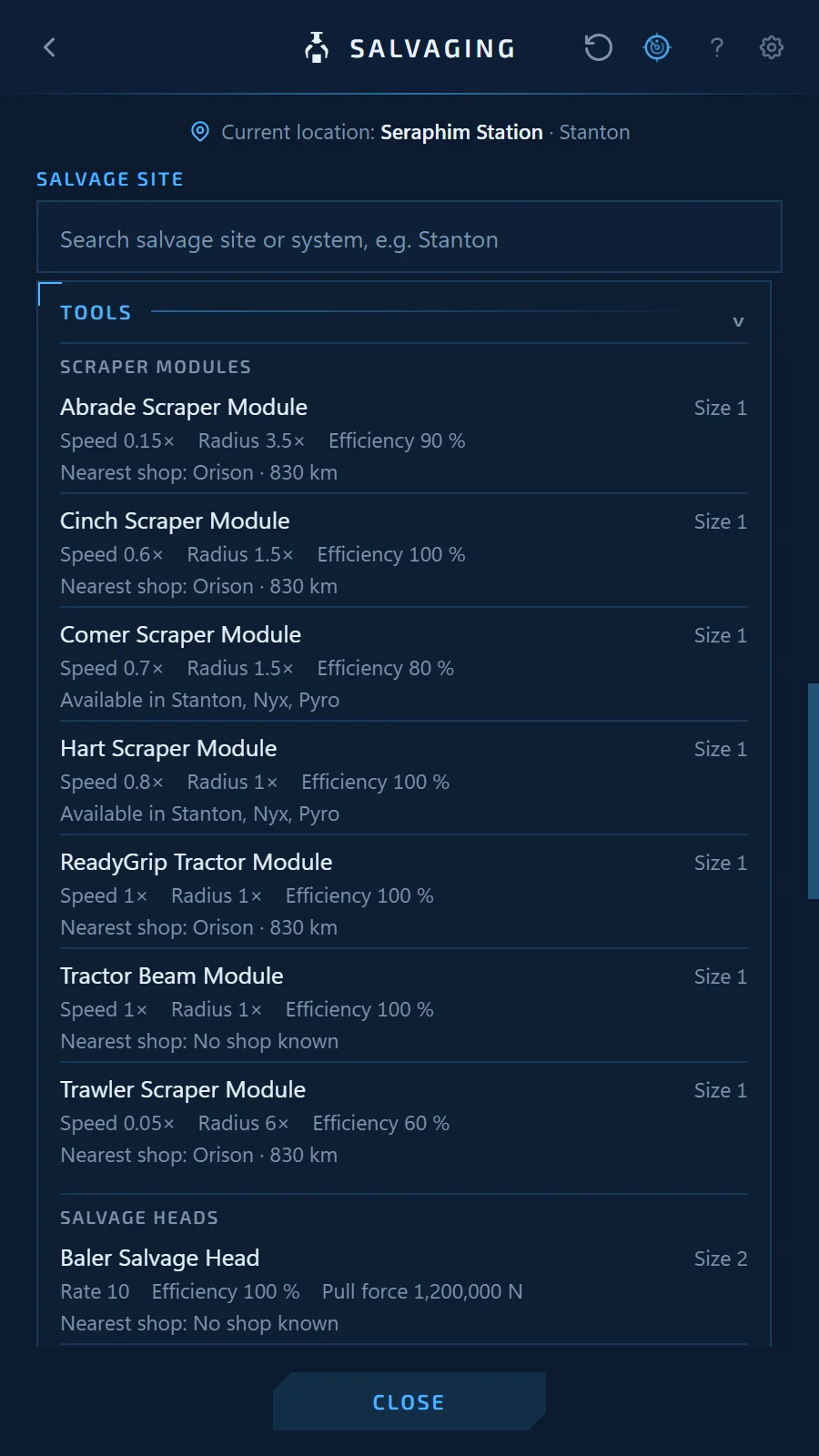
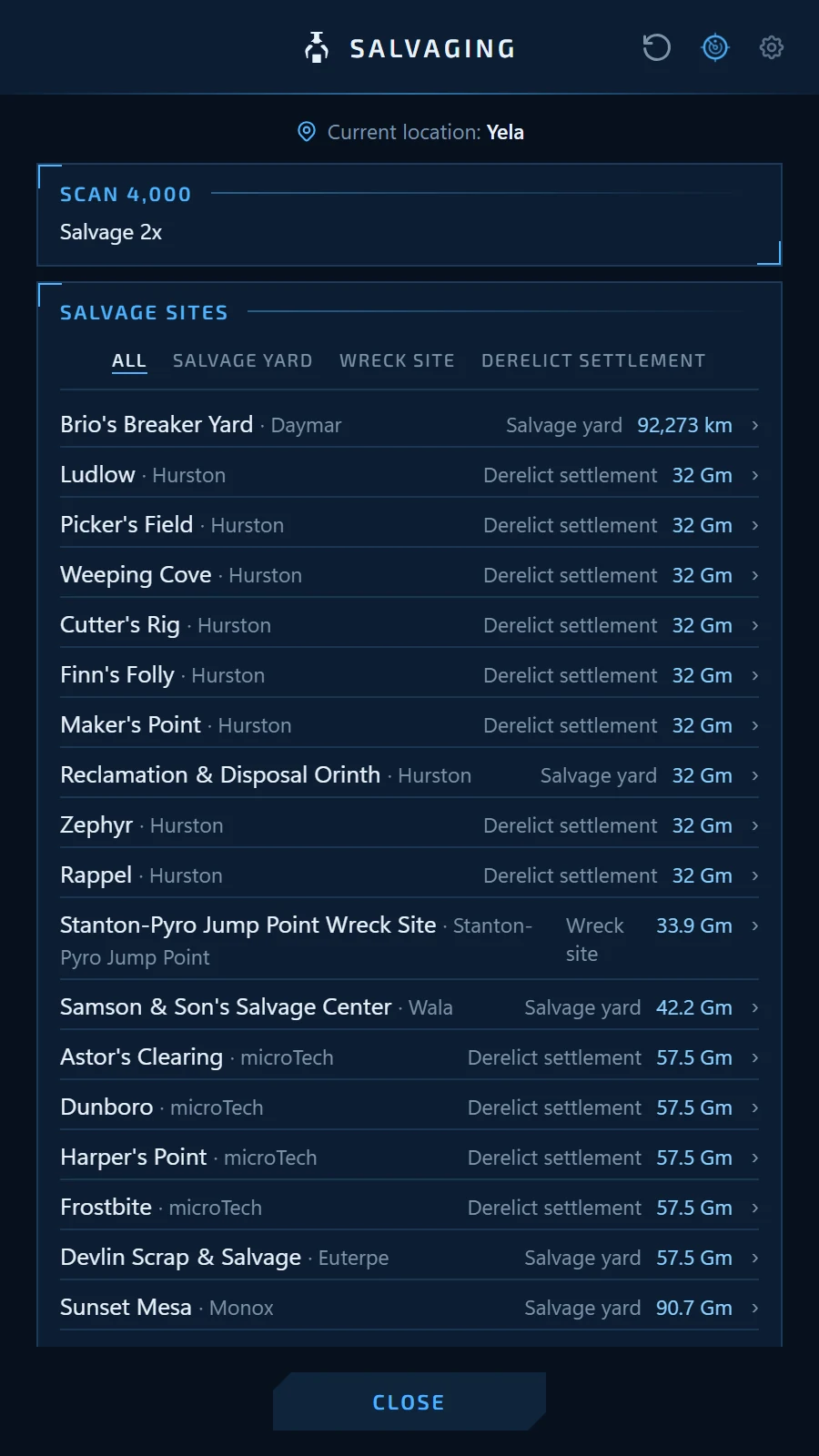
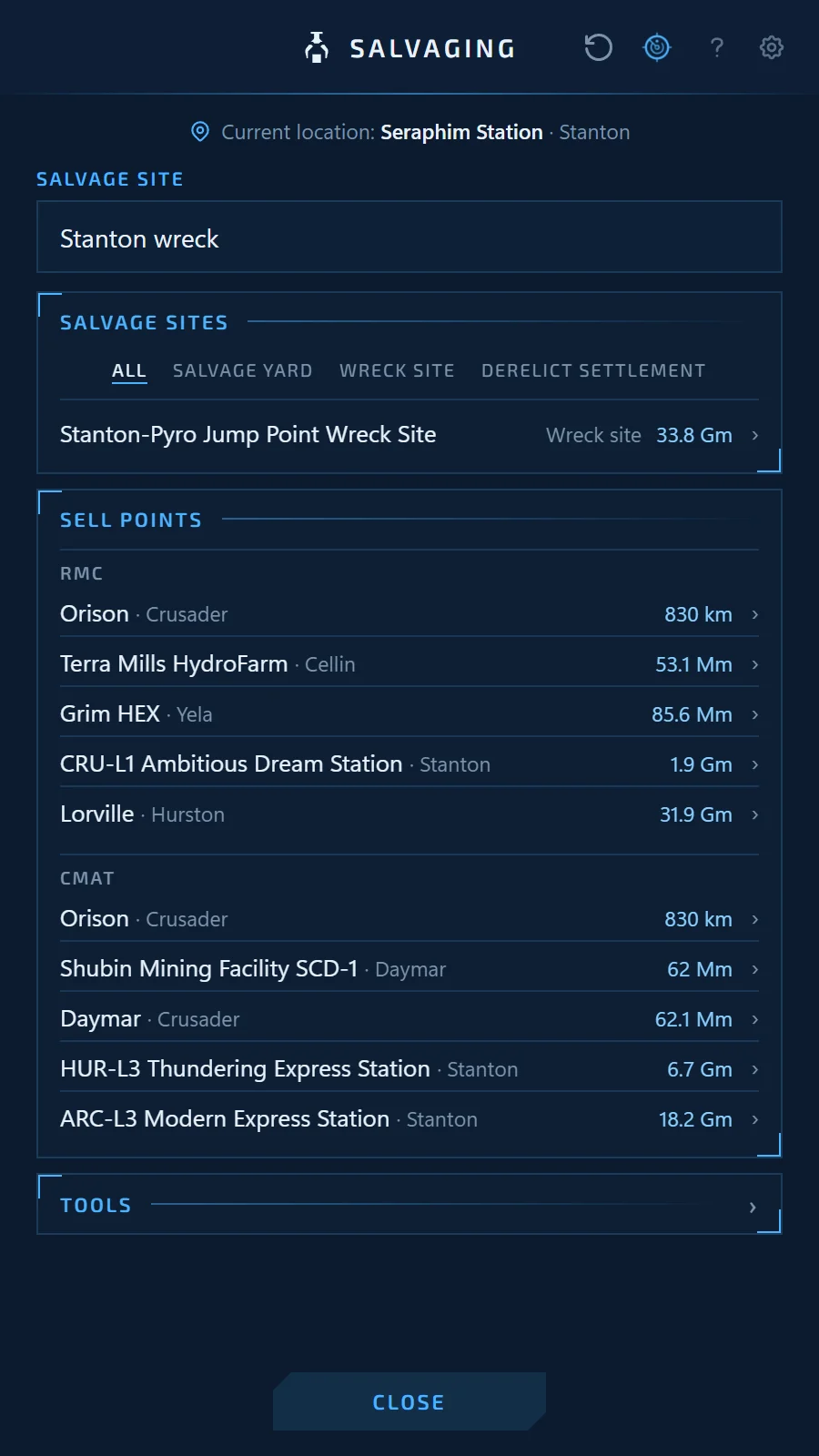
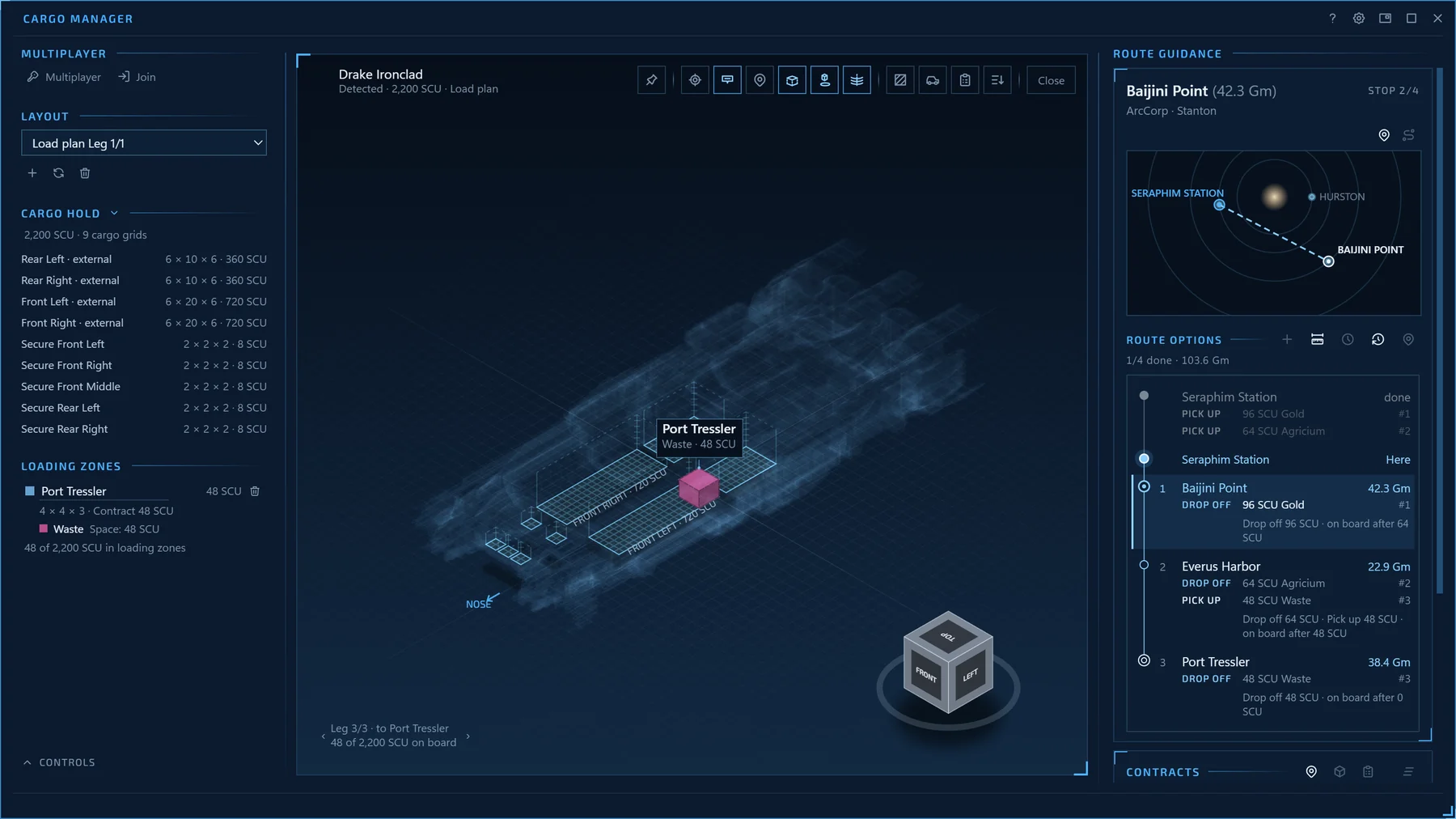
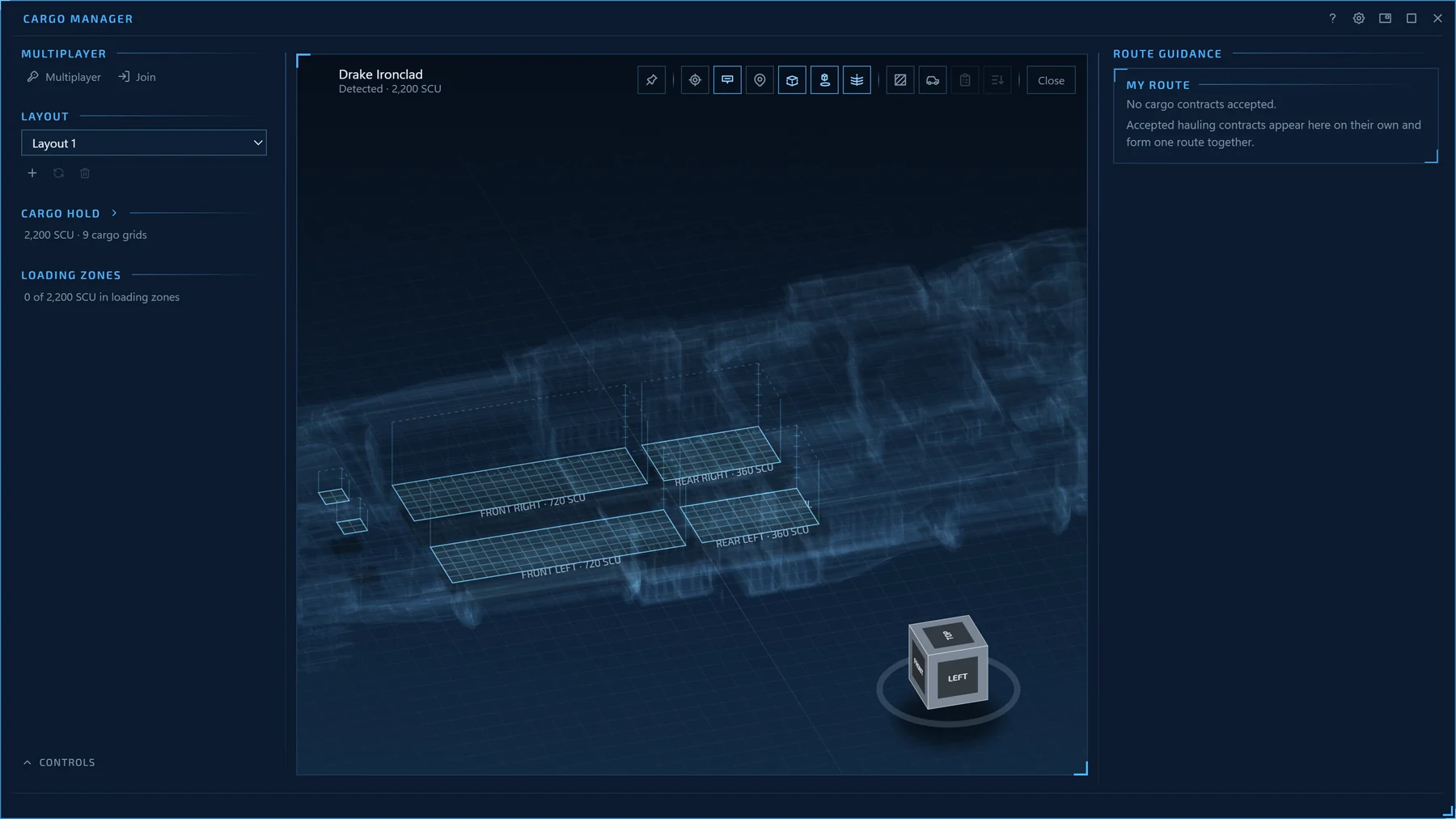
 in the toolbar switches it on and off, the choice is remembered.
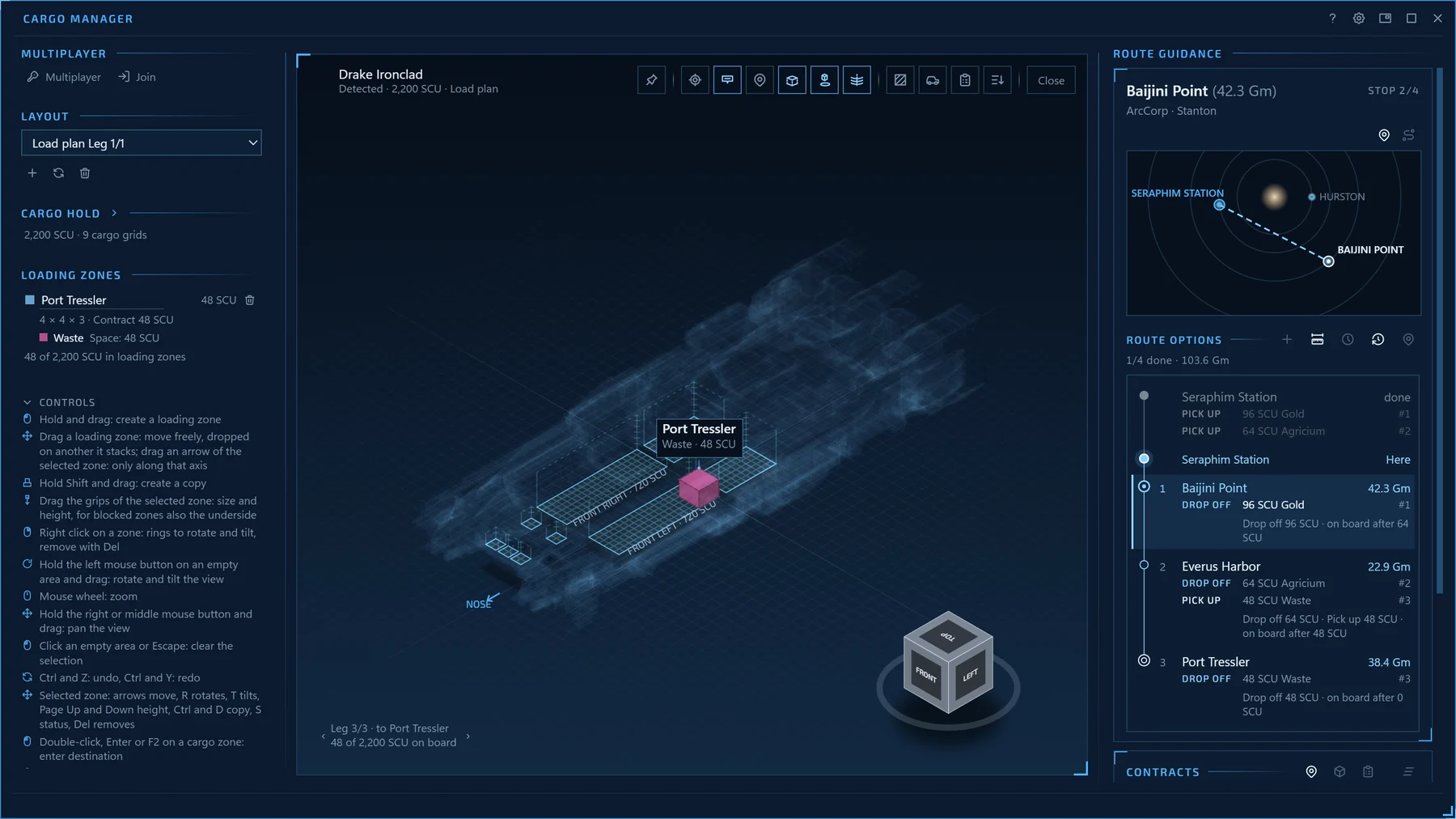
 Keep as main ship
 Reset view
 Name plates
 Current stop
 Volume lines
 Shadows
 Draw blocked zones
 Vehicles and ships
 Reload zones
 Sort
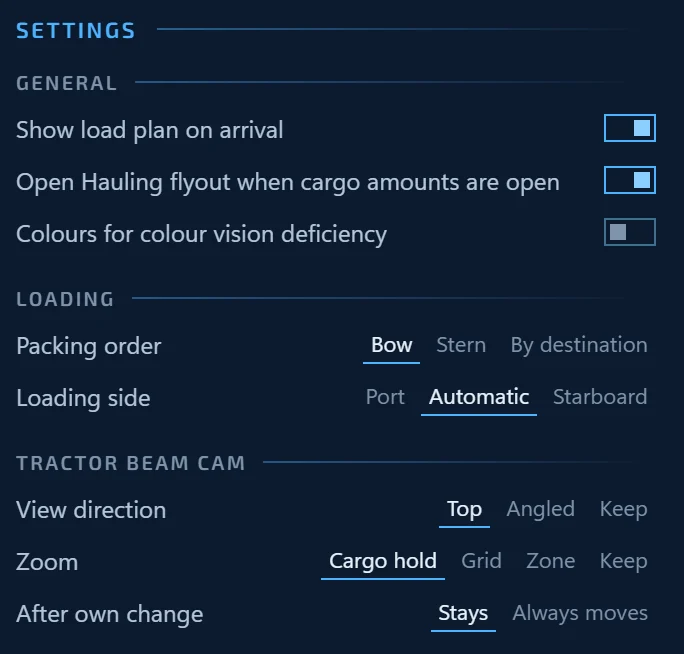
 Rotate
 Tilt


 Stack or Flat


 Tick off crates
 Highlight for everyone
 Remove
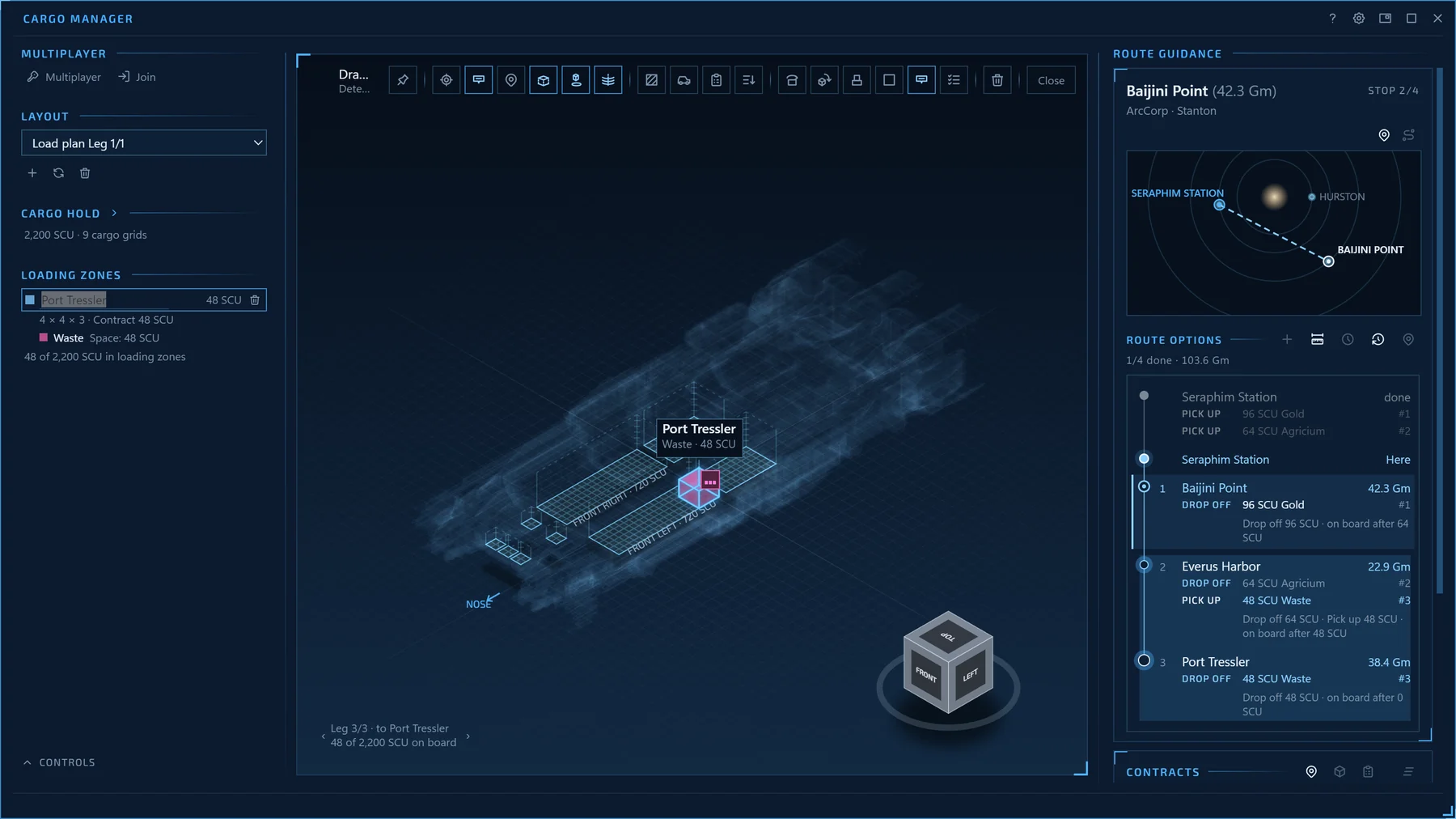
 Cargo zones by destination
 Cargo zones by material
 Cargo zones by contract
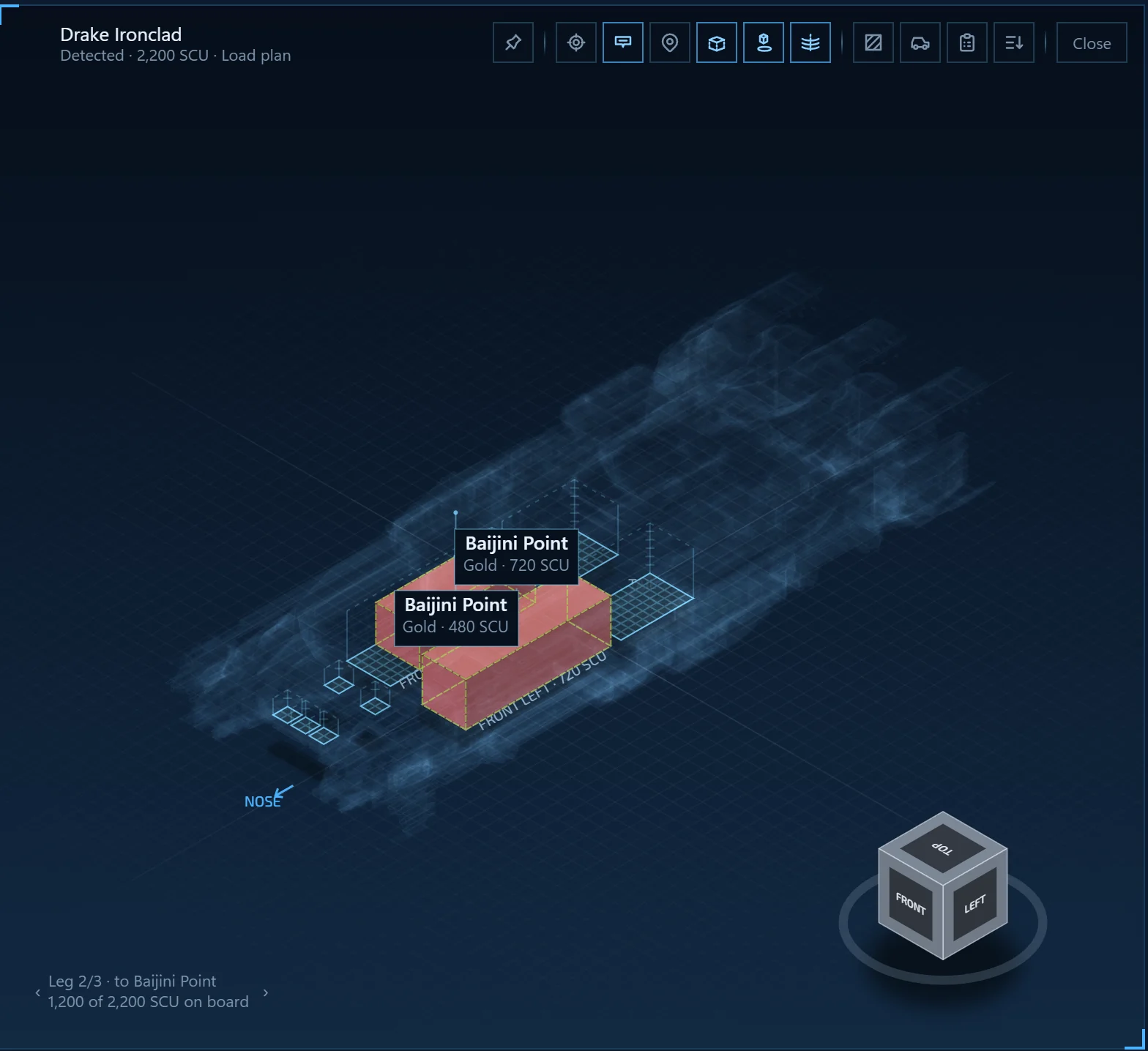
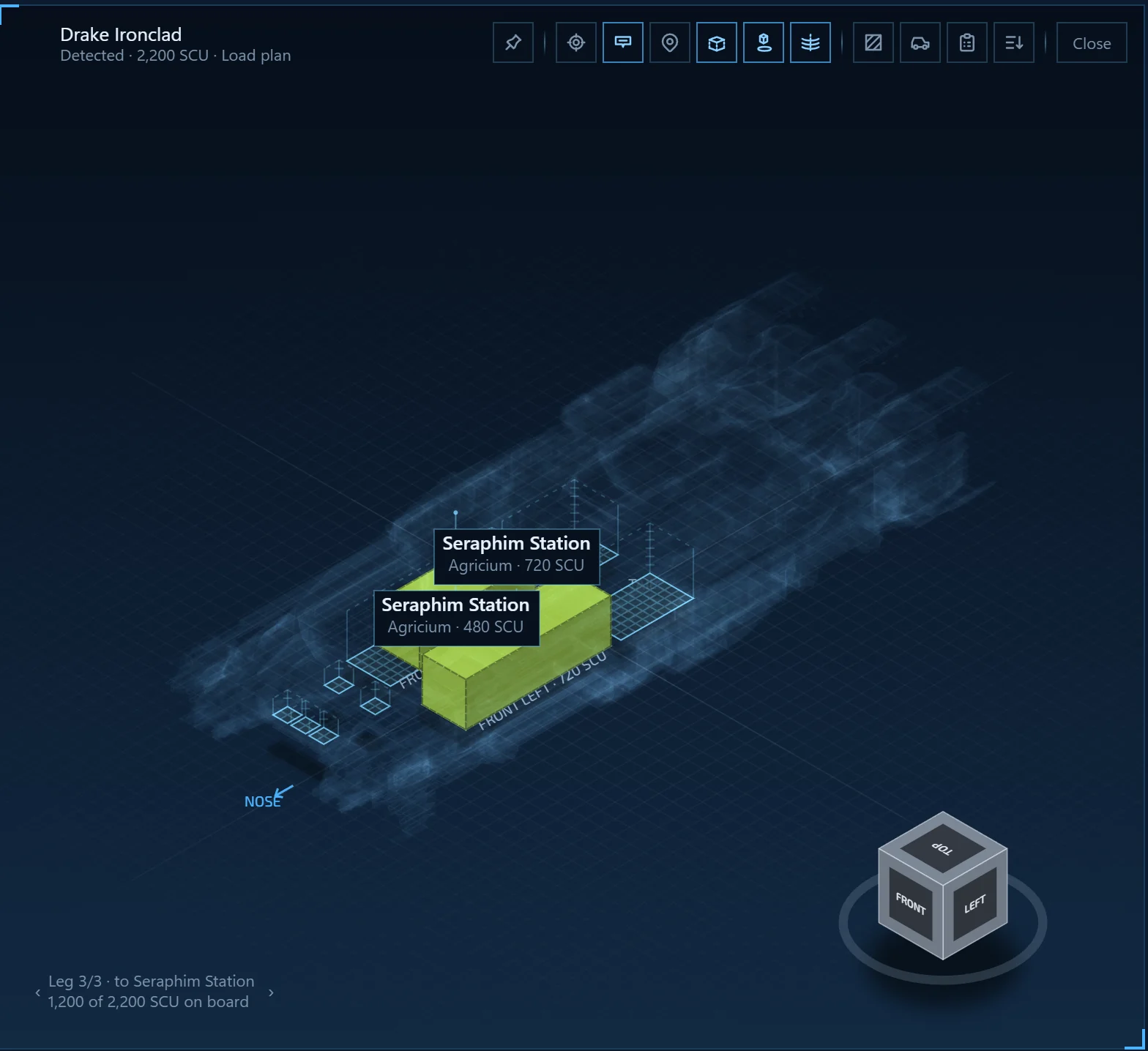
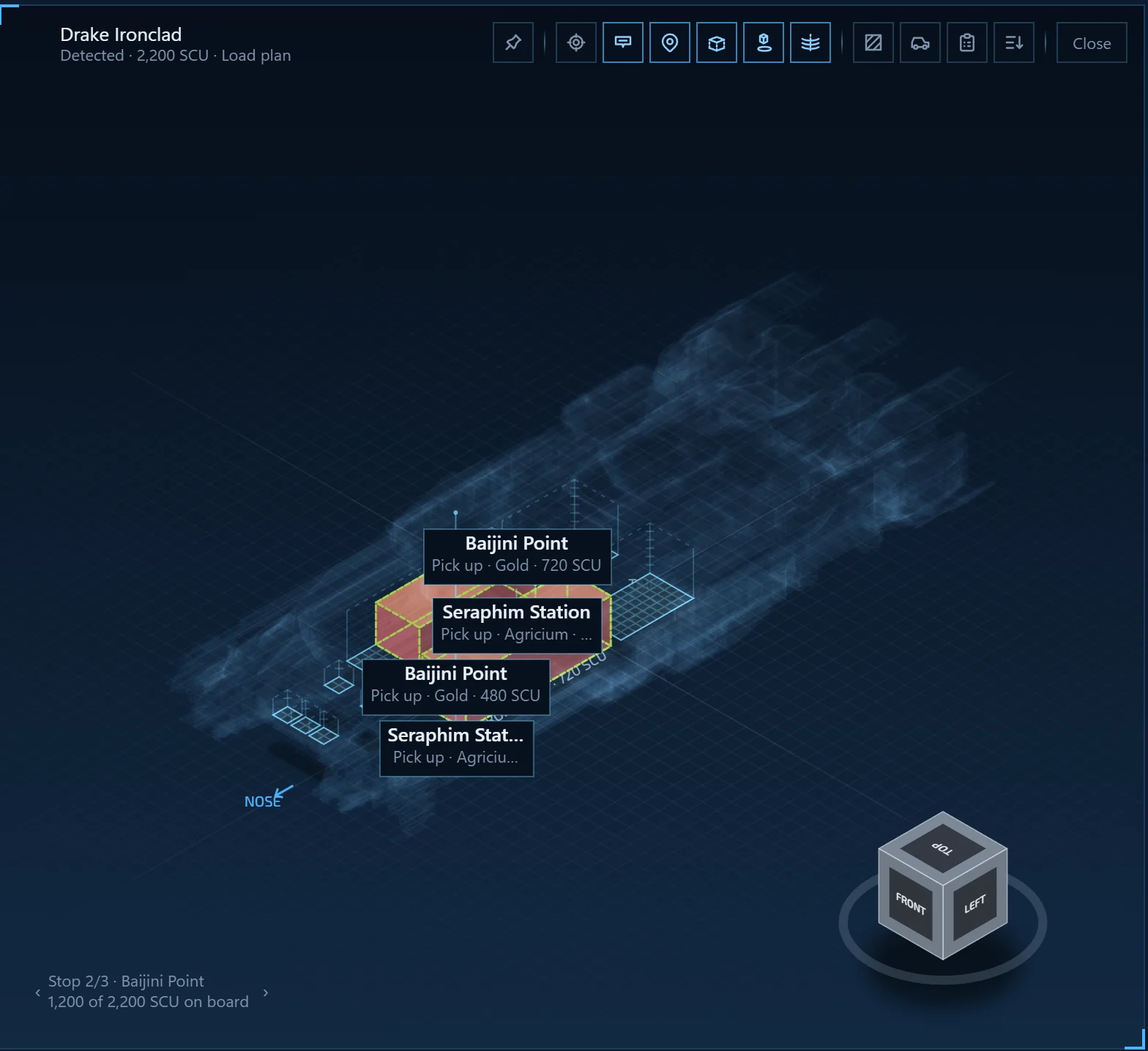
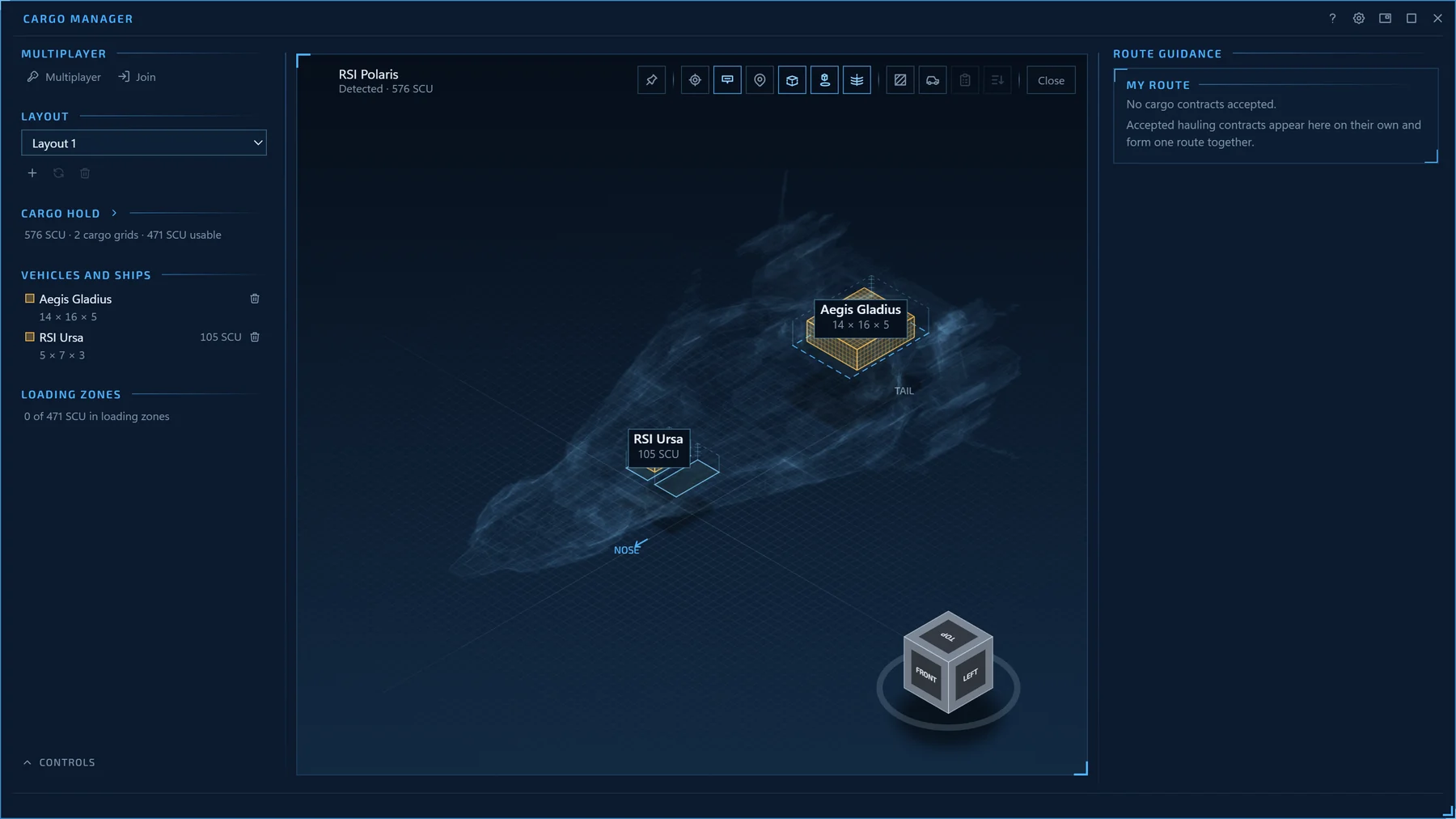
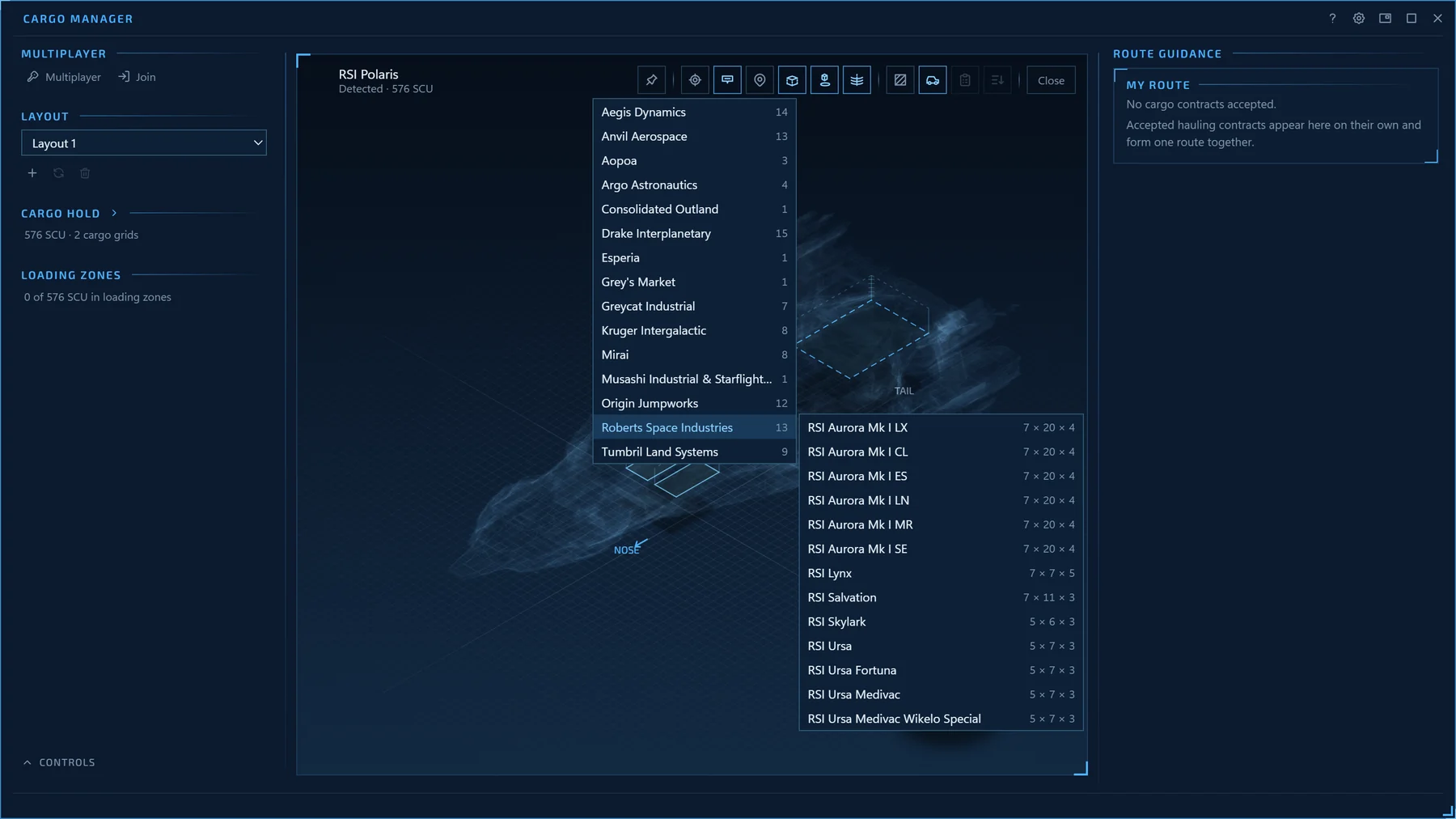
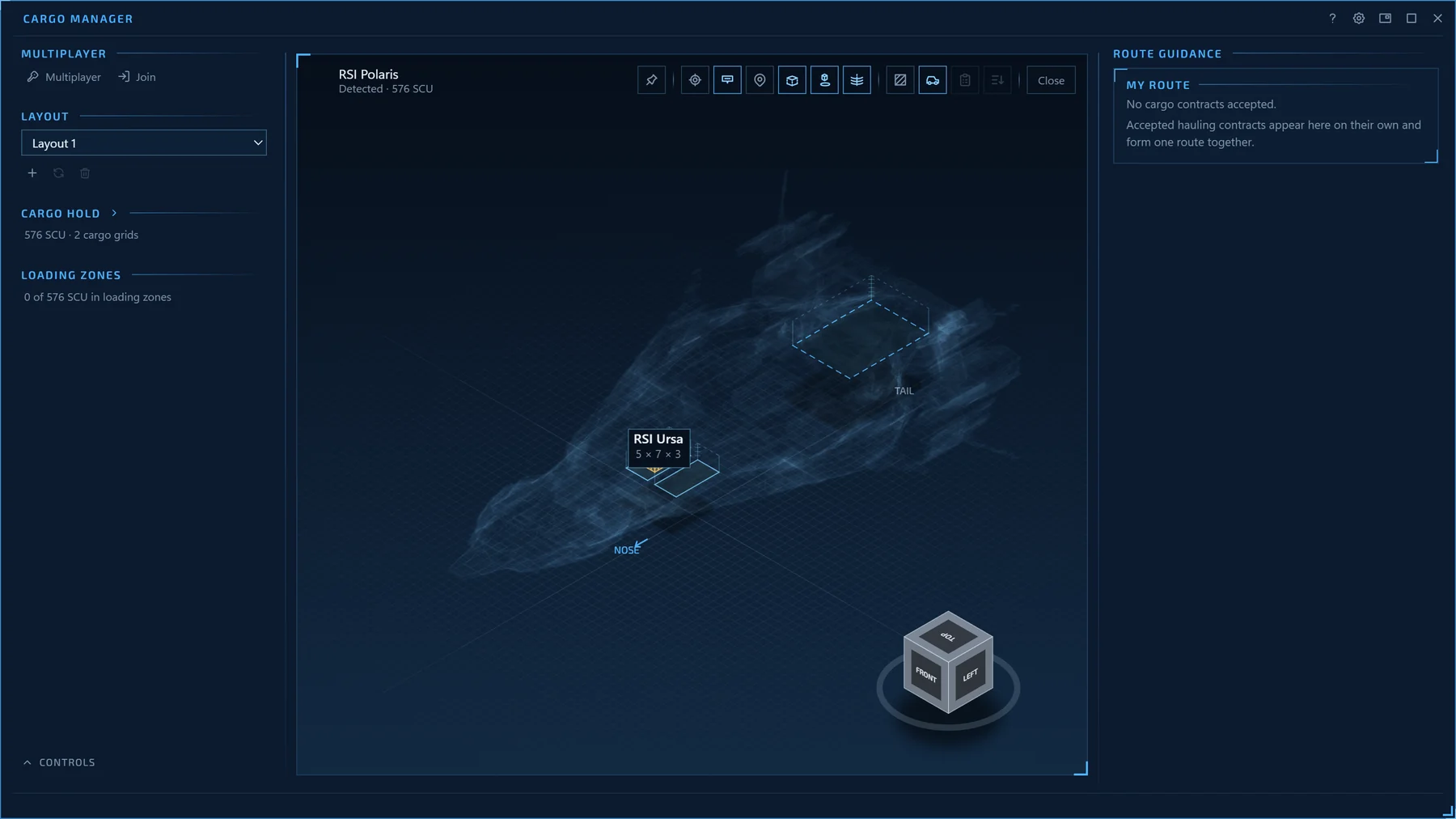
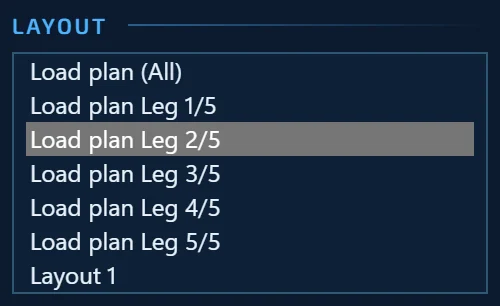
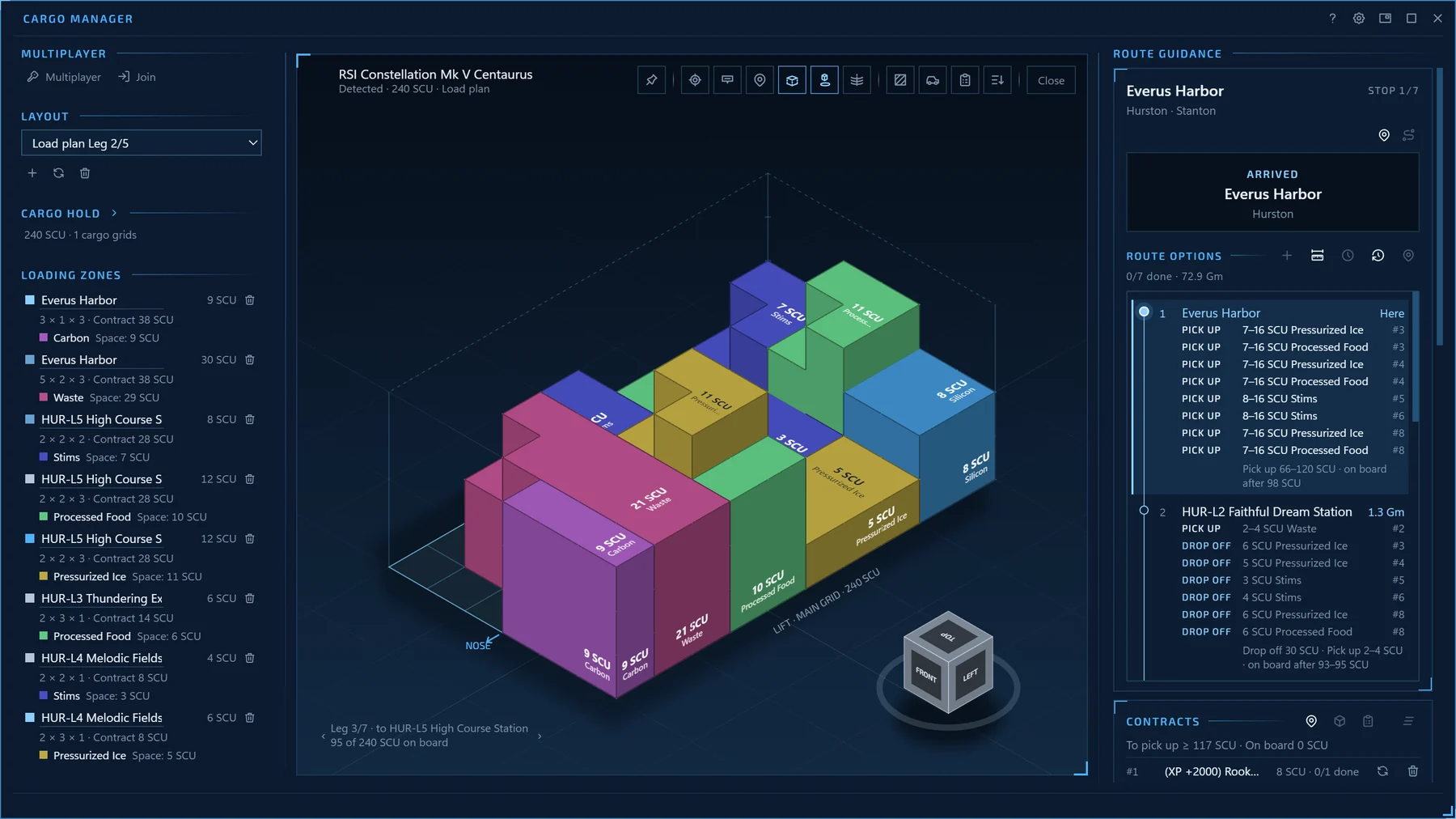
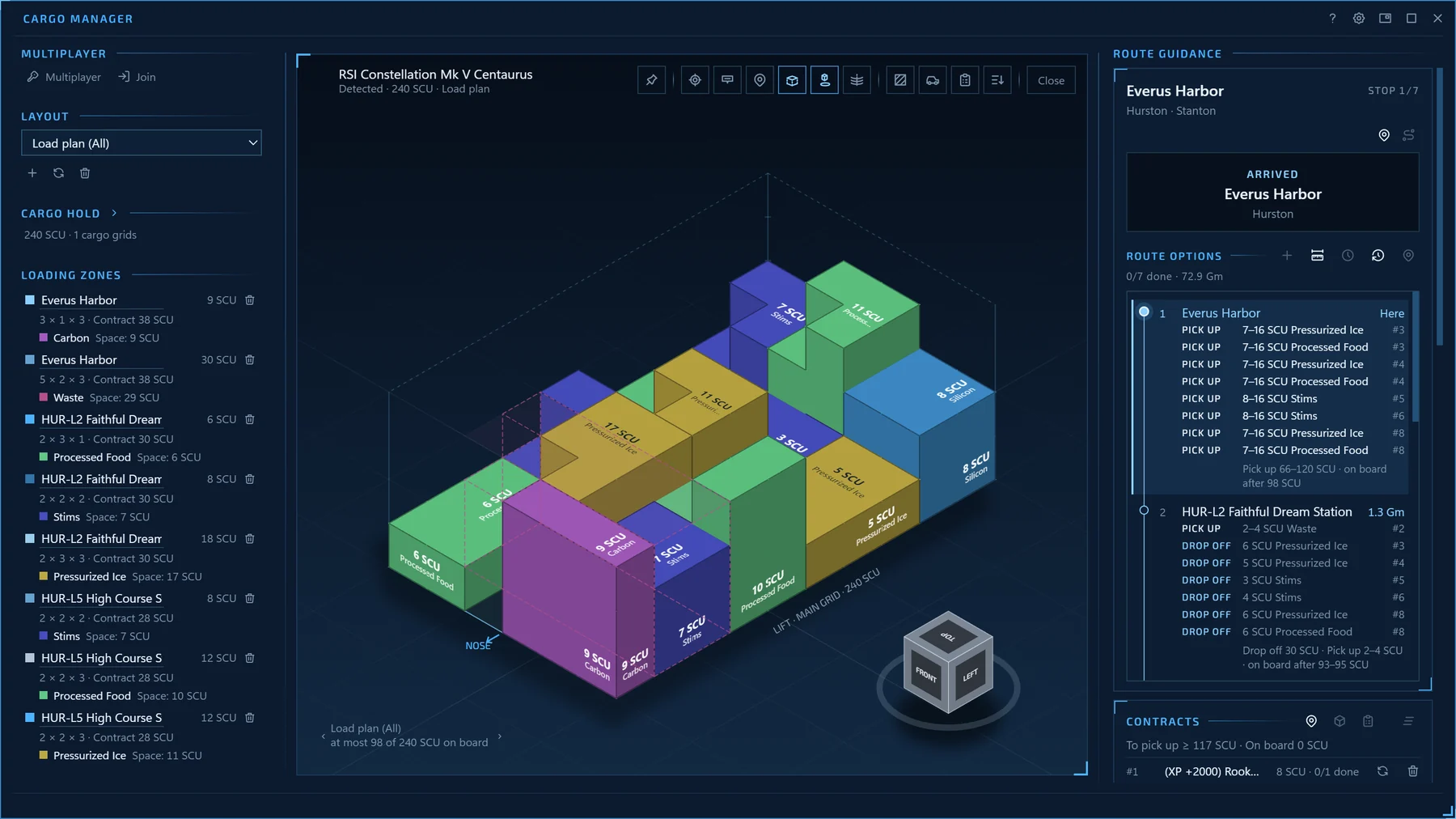
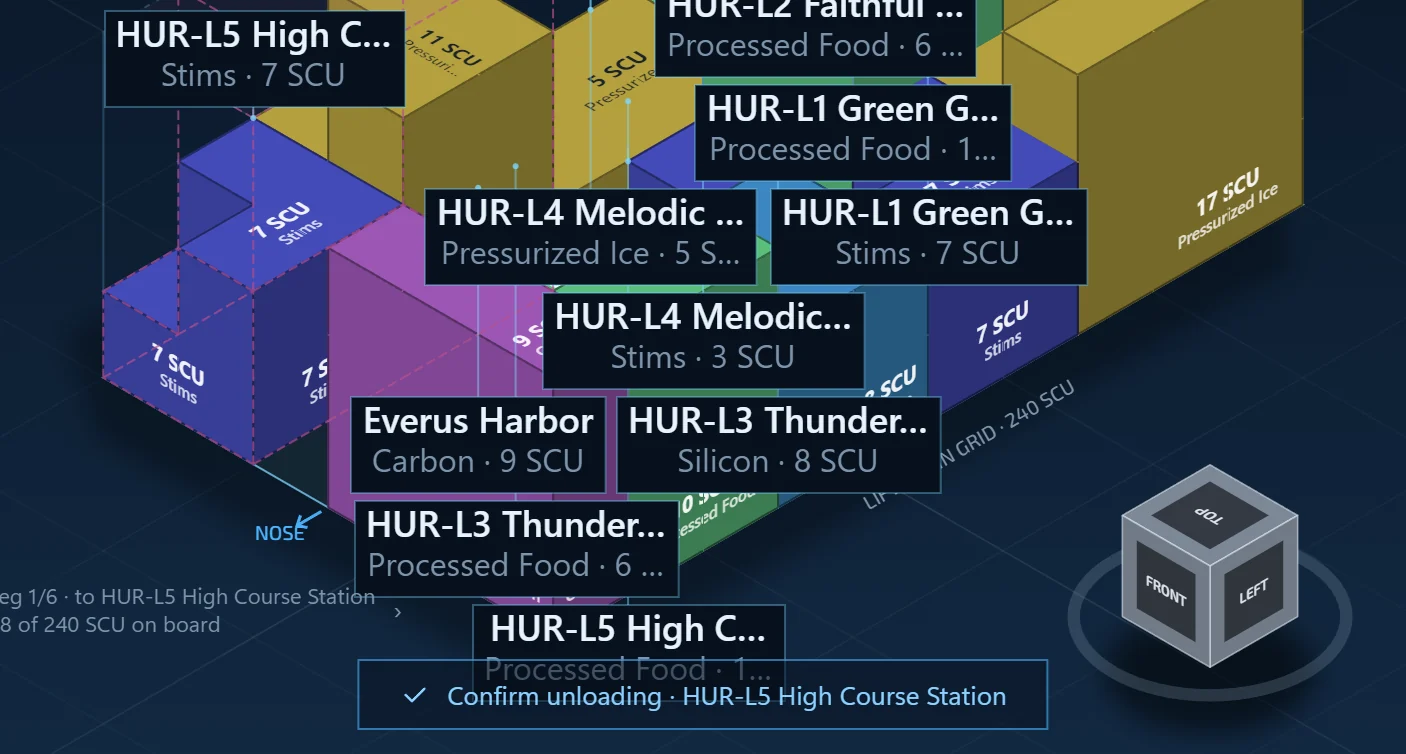
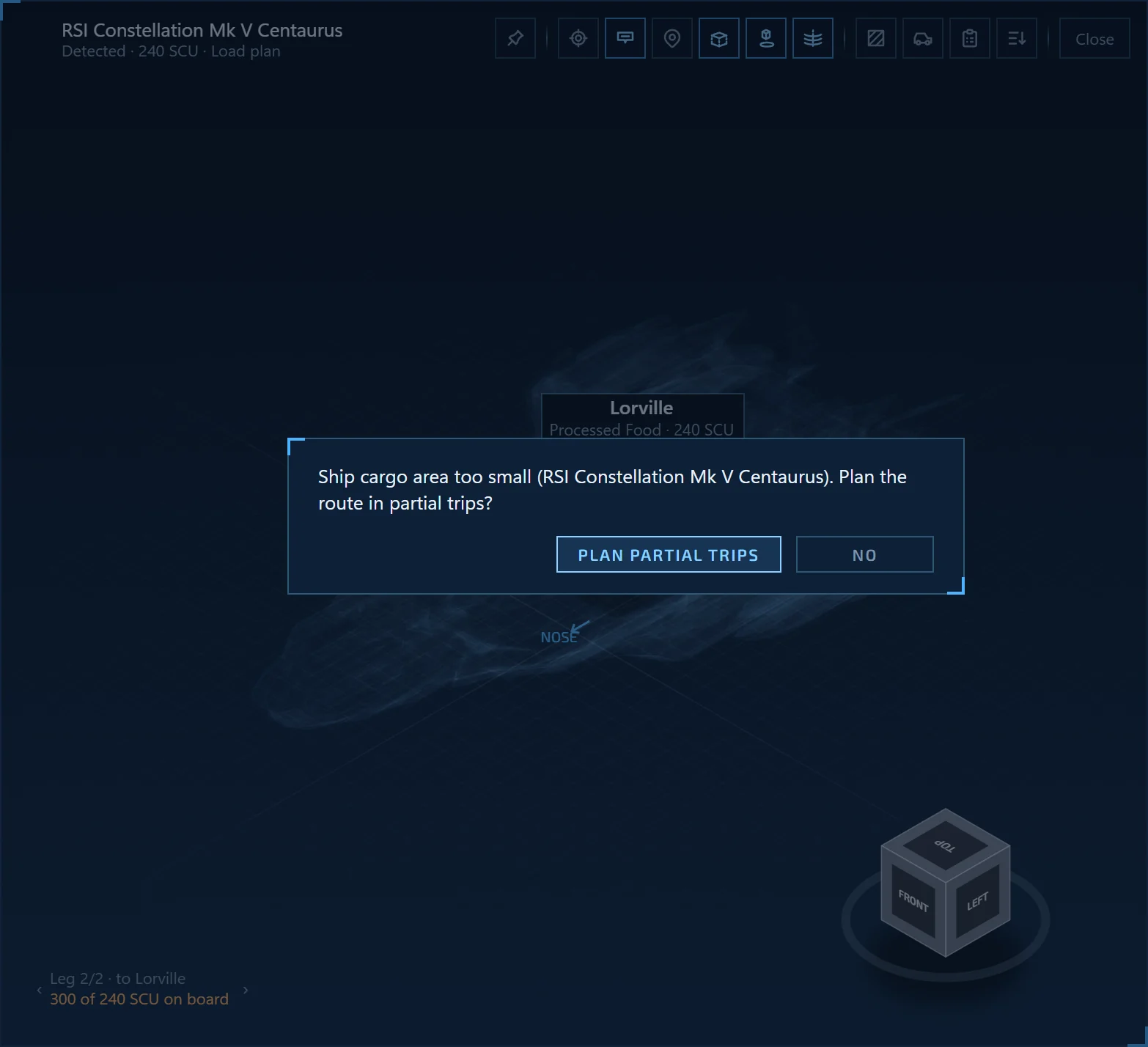
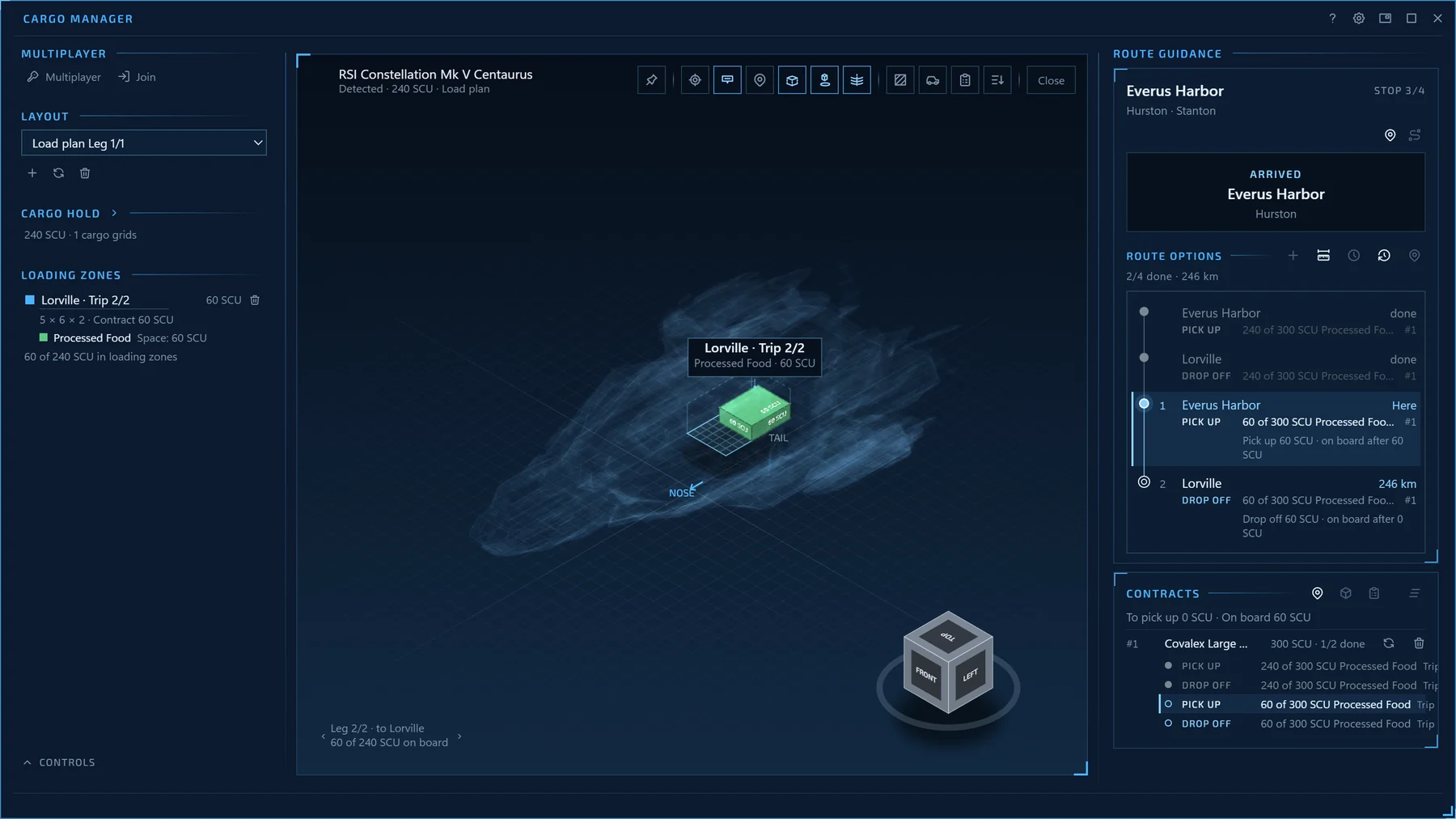
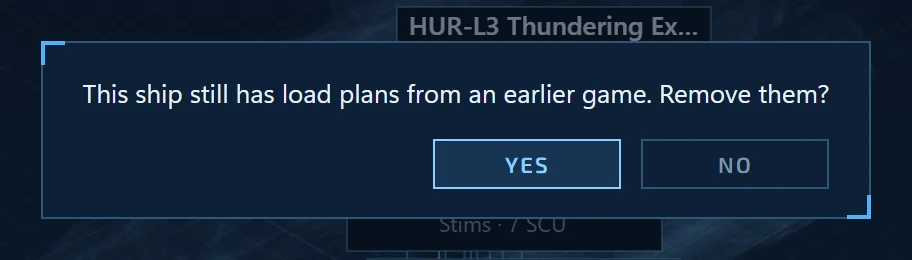
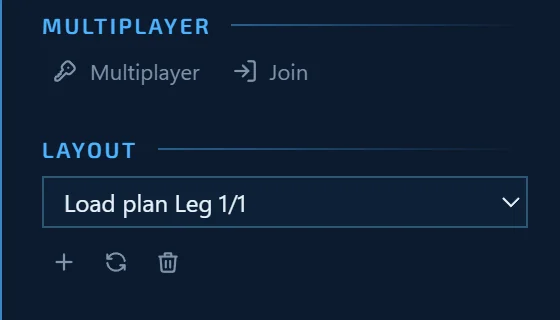
 New layout
 Reset
 Delete

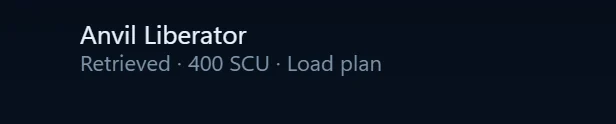
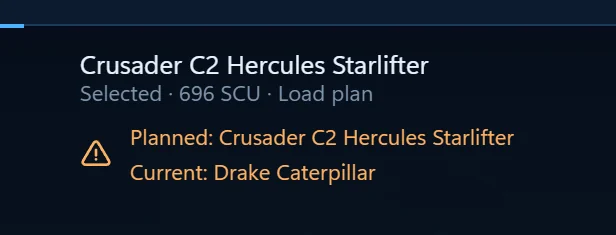
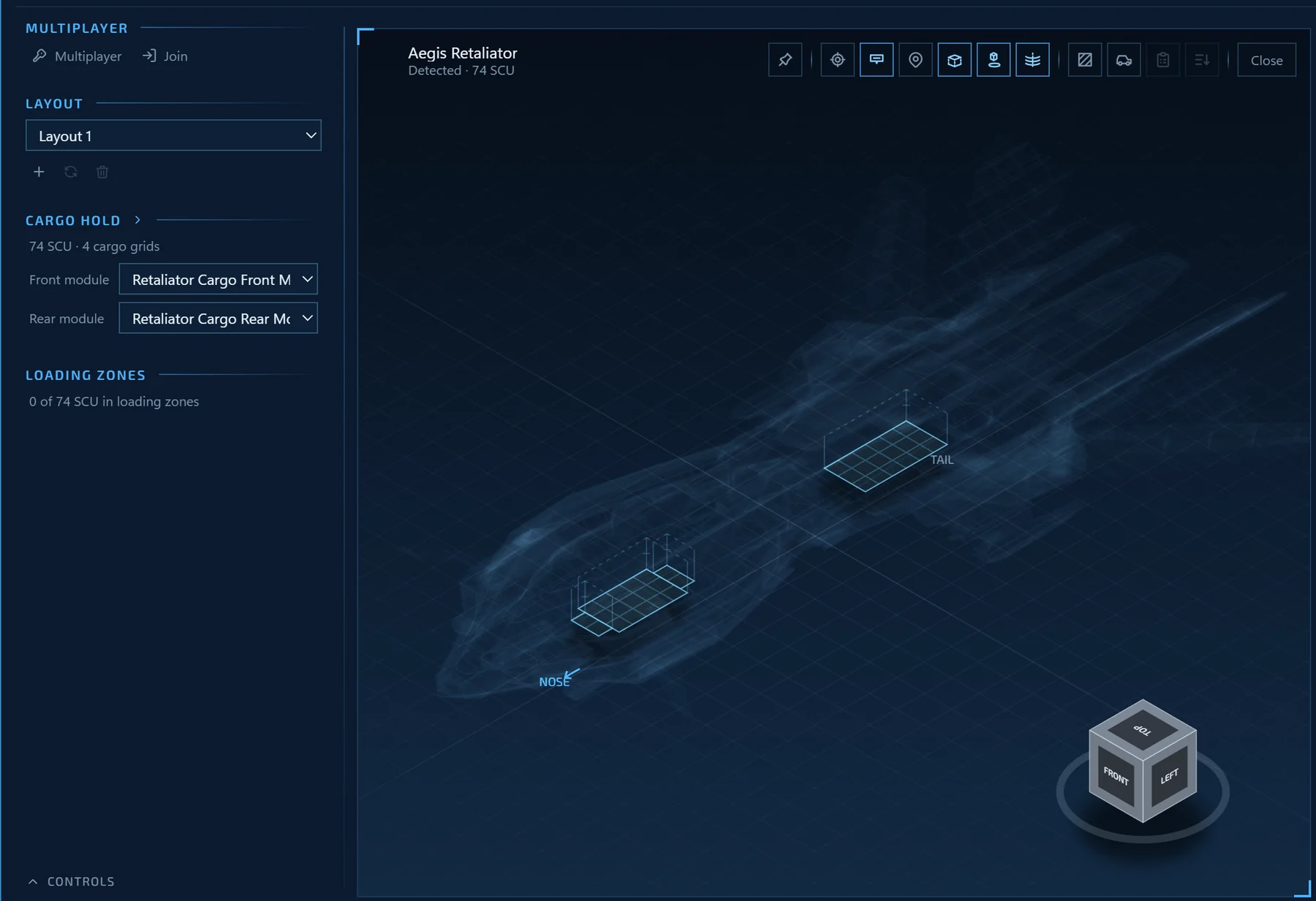
 Open guide
 Settings
 Minimise to minimap
 Maximise
 Restore
 Close Cargo Manager
 at the top left. The window shows the session code with
 and the participants.
 , enter the code and confirm with
 , also without a ship of their own. Hyphens and lower case do not matter.
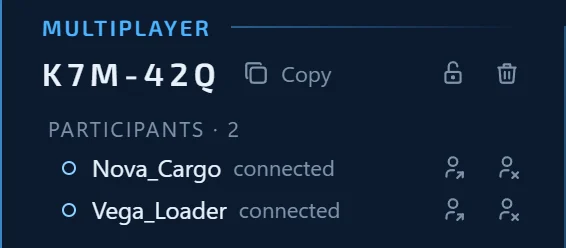
 means the code accepts new joins. A click switches to
 : the code is blocked for further joins, those already in stay.
 in the row of a participant takes that player out after a confirmation. Joining again with the code stays possible while the session is open.
 in the row of a participant makes this loader the cargo coordinator after a confirmation, the previous coordinator becomes a loader.
 Delete session
 Leave